from www.amazon.com/devicesupport.
Taking notes on your Kindle
In most books, personal documents, and notebooks (see next sections) the Pen can be used to draw and write
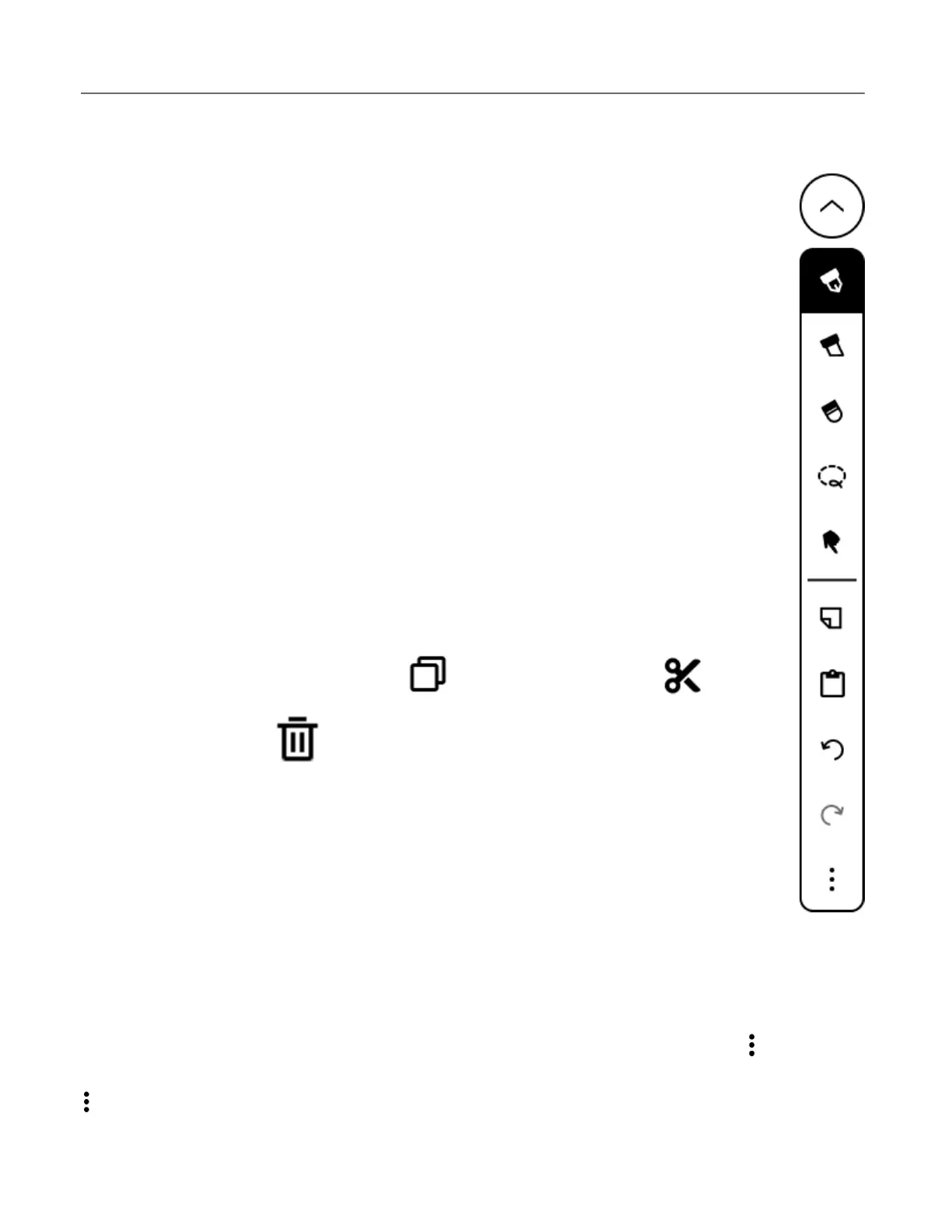
notes. Different tools will be available depending on the book, document, or notebook. The toolbar contains
the tools available in that content type.!
Minimize: Tap the arrow to collapse the toolbar. Tap it again to expand the toolbar. While the
toolbar is collapsed, it will display the active writing tool.
Pen: Tap once to select, tap again to open the submenu to choose a type of pen and stroke thickness.
Highlighter: Tap once to select, tap again to open the submenu to choose highlighter stroke
Eraser: Tap once to select, tap again to open a submenu to choose eraser width, and additional erase
Erase selection: Draw around handwritten marks on the page to erase them.
Erase page: Erase all handwritten marks on the page.
Lasso: Tap once to select, then draw around any handwritten marks on the page you’d like to edit.
Once strokes are selected, you can edit in five ways: 1) tap and hold on the selection, then drag to
move the strokes around on the page, 2) tap and hold on one of the corner handles, then drag to
resize the strokes on the page, 3) tap on!
to copy the strokes, 4) tap on!
to delete the strokes. If you copy or cut your strokes, they will be saved
Pointer: Use the pointer tool to swipe or tap like a finger to turn pages, open the mail toolbar, change
Sticky note: Tap anywhere on the page to create a blank note at that location.
Clipboard: When enabled and selected, tap anywhere on the page to paste copied or cut items. Tap
on the Clipboard twice to clear it. To paste items in another notebook or book, select any other tool,
exit the current notebook or book, then navigate to your destination file and select the Clipboard to paste.
Undo and Redo: Tap to undo strokes. If you undo too far, redo will add the last undone stroke.
Toolbar options: Place the toolbar on the left or right side of the screen.
To hide the writing toolbar, tap on the top of the screen to display the top navigation bar, tap on the!
“Hide Toolbar”. This will hide the toolbar across all books and documents. To show the toolbar again, go to the same!
!menu and select “Show Toolbar”.!!
Your Kindle S c r i b e a l l o w s y o u t o create notebooks for you to jot down your thoughts, t a k e n o t e s , o r c reate to-do lists.!
https://d1ergij2b6wmg5.cloudfront.net/kug/kindle_scribe/v1/en-US/htm...














 To Next Page