If you are still having difficulties, please contact your Network Administrator, the individual responsible for
maintaining the network you are trying to access, or your Internet Service Provider (ISP).
If the problem persists, please check if your router and device have Software (Firmware) updates available.
Latest software versions may fix known issues related to network connections.
Managing your saved Wi-Fi passwords
When connecting to a Wi-Fi network, you can choose to save your Wi-Fi password to Amazon. Once saved, we can
configure your compatible devices so that you will not need to re-enter your Wi-Fi passwords for each device. Your
Wi-Fi passwords are sent over a secured connection and are stored in an encrypted file on an Amazon server. Amazon
may use your Wi-Fi passwords to connect your compatible devices but will not share them with any third party
without your permission. Amazon handles any information it receives, including your Wi-Fi passwords, in accordance
with the Amazon.com Privacy Notice.
To opt out of this feature, verify that the Save password to Amazon option is not selected when you enter your network
To change your Wi-Fi password in the future, perform the Wi-Fi setup process again from your Kindle. Once
reconnected to your Wi-Fi network, your updated Wi-Fi password will be automatically saved to Amazon (if you have
not opted out of this feature).
To delete any Wi-Fi passwords that you have saved from this device:
Open the Quick Actions menu, then tap All Settings!
On the Settings page, tap Wi-Fi & Bluetooth, then Delete Wi-Fi Passwords.
Outside of notebooks, you can use the Pen to swipe or tap like a finger to turn pages or navigate on screen. The nib
may become worn over time, and will need to be replaced.
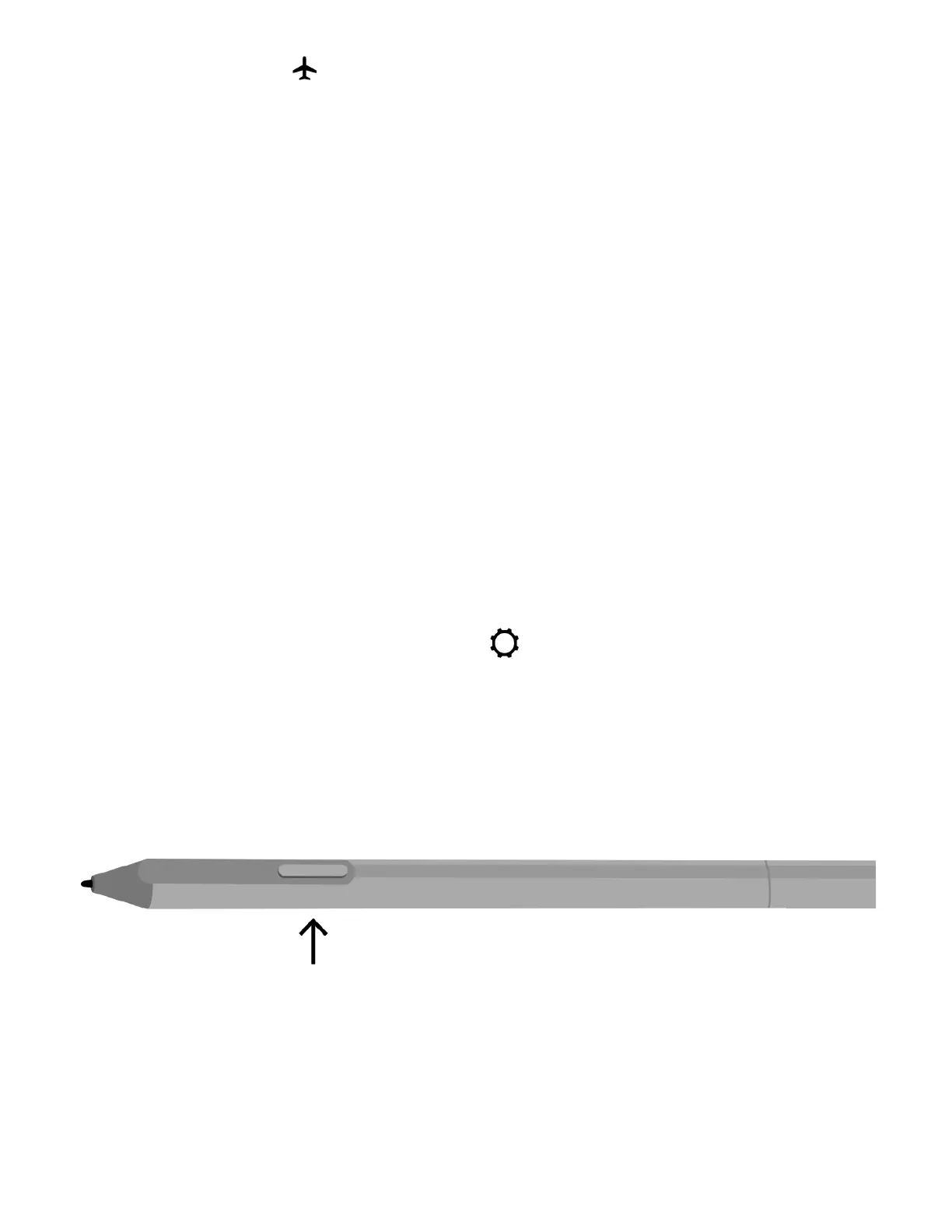
The Premium Pen has a side button, and an eraser. The eraser can be used to erase marks without needing to select the
eraser tool in the writing toolbar.
The side button is a “shortcut button” that allows you to temporarily switch to another writing tool while holding the
button. To configure the shortcut button, go to More > Settings > Pen Settings > Shortcut Button and choose a shortcut
tool. While taking notes, press and hold the button, then put your Pen nib on the screen to use the selected shortcut
tool. Note: If the shortcut tool you’ve configured does not appear in the writing toolbar for the current content type,
https://d1ergij2b6wmg5.cloudfront.net/kug/kindle_scribe/v1/en-US/htm...














 To Next Page