Version 2.1 ©Copyright 2018, Ambient LLC. All Rights Reserved. Page 1
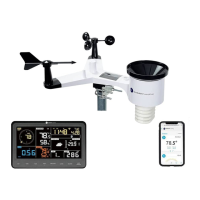
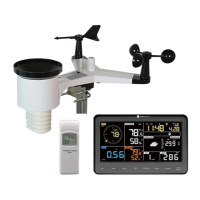
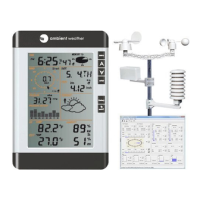
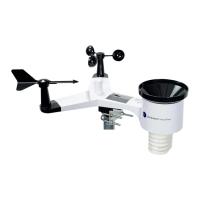
Ambient Weather WS-2902 WiFi OSPREY Solar Powered
Wireless Weather Station User Manual
Table of Contents
1. Introduction ..................................................................................................................................... 2
2. Warnings and Cautions ................................................................................................................... 2
3. Quick Start Guide ............................................................................................................................ 3
4. Pre-Installation Checkout and Site Survey...................................................................................... 3
4.1 Pre Installation Checkout ....................................................................................................... 3
4.2 Site Survey ............................................................................................................................. 3
5. Getting Started ................................................................................................................................ 4
5.1 Parts List ................................................................................................................................. 4
5.2 Recommend Tools .................................................................................................................. 4
5.3 Sensor Array Set Up ............................................................................................................... 5
5.3.1 Install Wind Vane ............................................................................................................... 5
5.3.2 Install Wind Cups ............................................................................................................... 6
5.3.3 Install U-Bolts .................................................................................................................... 6
5.3.4 Install the Rain Gauge Funnel ............................................................................................ 7
5.3.5 Install Batteries................................................................................................................... 8
5.3.6 Install Mounting Pole ......................................................................................................... 9
5.5 Best Practices for Wireless Communication ................................................................................. 9
5.6 Display Console ................................................................................................................... 10
5.6.1 Vertical Desk Stand .......................................................................................................... 12
6. Display Console Operation ........................................................................................................... 13
6.1 Screen Display ...................................................................................................................... 13
6.2 Console Initialization ........................................................................................................... 14
6.2.1 Button Operation .............................................................................................................. 15
6.3 Set Mode .............................................................................................................................. 16
6.3.1 Time Zones ....................................................................................................................... 18
6.4 Barometric Pressure Display ................................................................................................ 19
6.4.1 Viewing Absolute vs. Relative Pressure ........................................................................... 19
6.4.2 Rate of Change of Pressure Graph ................................................................................... 19
6.4.3 Viewing Pressure History ................................................................................................. 20
6.4.4 Relative Pressure Calibration Discussion......................................................................... 20
6.5 Rain Display ......................................................................................................................... 20
6.5.1 Rain Increments of Measure ............................................................................................ 20
6.5.2 Resetting Rain .................................................................................................................. 20
6.5.3 Increments of Rain Definitions ........................................................................................ 21
6.6 Wind Display ........................................................................................................................ 21
6.7 Temperature Display ............................................................................................................ 21
6.7.1 Wind Chill, Dew Point and Heat Index Display .............................................................. 21
6.8 Alarms .................................................................................................................................. 21
6.8.1 Viewing High and Low Alarms ........................................................................................ 21
6.8.2 Setting High and Low Alarms .......................................................................................... 22
6.9 Max/Min Mode .................................................................................................................... 25
6.9.1 Viewing Max/Min Values ................................................................................................. 25
6.10 Calibration ............................................................................................................................ 26


 To Next Page
 General