EasyManua.ls Logo

Ambient Weather WS-2000 - User Manual

Ambient Weather WS-2000
67 pages
Print Icon
To Next Page IconTo Next Page
Loading...
Version 2.12 ©Copyright 2020, Ambient LLC. All Rights Reserved. Page 1
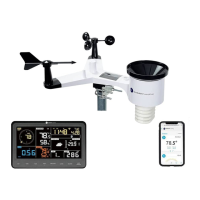
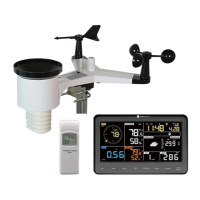
Ambient Weather WS-2000 Wi-Fi OSPREY Solar Powered
Wireless Weather Station User Manual
Table of Contents
1. Introduction ..................................................................................................................................... 2
2. Warnings and Cautions ................................................................................................................... 2
3. Quick Start Guide............................................................................................................................ 3
4. Pre-Installation Checkout and Site Survey...................................................................................... 3
4.1 Pre Installation Checkout ........................................................................................................ 3
4.2 Site Survey .............................................................................................................................. 3
5. Getting Started ................................................................................................................................ 4
5.1 Parts List ................................................................................................................................. 4
5.2 Recommend Tools ................................................................................................................... 4
5.3 Sensor Array Set Up ................................................................................................................ 5
5.3.1 Install Wind Vane ............................................................................................................... 5
5.3.2 Install Wind Cups ............................................................................................................... 6
5.3.3 Install U-Bolts .................................................................................................................... 6
5.3.4 Install the Rain Gauge Funnel ............................................................................................ 7
5.3.5 Install Batteries................................................................................................................... 8
5.3.6 Install Mounting Pole ......................................................................................................... 9
5.5 Best Practices for Wireless Communication ................................................................................. 9
5.6 Indoor-Outdoor Thermo-Hygrometer-Barometer Transmitter .............................................. 10
5.7 Indoor/Outdoor Thermo-Hygrometer, 8 Channel (optional) ................................................. 11
5.8 PM2.5 Air Quality Sensor ..................................................................................................... 13
5.9 Sensor Placement .................................................................................................................. 14
5.10 Best Practices for Wireless Communication ......................................................................... 14
5.11 Display Tablet ....................................................................................................................... 15
6. Display Tablet Operation .............................................................................................................. 16
6.1 Initial Display Tablet Operation ............................................................................................ 16
6.2 Home Screen Display ............................................................................................................ 17
6.3 Display Buttons ..................................................................................................................... 18
6.4 Multi-Chanel and Scroll Mode for Optional Sensors ............................................................ 19
6.5 Other Console Features ......................................................................................................... 19
6.5.1 Weather Forecasting ......................................................................................................... 19
6.5.2 Wireless Signal Quality Icon ............................................................................................ 20
6.5.3 Weather Forecasting Description and Limitations ........................................................... 20
6.5.4 Lightning Icon .................................................................................................................. 21
6.5.5 PM2.5 Sensor (optional) .................................................................................................. 21
6.6 History Mode ........................................................................................................................ 21
6.6.1 Min/Max ........................................................................................................................... 21
6.6.2 Archive Memory Mode .................................................................................................... 22
6.6.3 Graph ................................................................................................................................ 25
6.7 Set Mode ............................................................................................................................... 26
6.7.1 Set Date and Time ............................................................................................................ 27
6.7.2 Set Time Format ............................................................................................................... 29
6.7.3 Set Date Format................................................................................................................ 29
6.7.4 Temperature Units of Measure ......................................................................................... 29

Table of Contents

Questions and Answers

  • K
    Kathryn MossAug 15, 2025
    Why Ambient Weather Station data not reporting to Wunderground.com?
    • J
      Joshua WareAug 15, 2025
      There might be several reasons why your Ambient Weather Station isn't reporting data to Wunderground.com: * First, ensure your station ID and station key are entered correctly. * Second, verify that the date and time are accurate on the tablet. Incorrect time settings can cause the station to report old data instead of real-time information. * Third, confirm that your time zone is set correctly. * Finally, check your router's firewall settings, as the tablet transmits data via Port 80.
  • M
    Michaela FosterAug 18, 2025
    Why Ambient Weather Station time is off by increments of an hour, or date is off by one day?
    • K
      Kristen ZhangAug 18, 2025
      The time on your Ambient Weather Station might be off by an hour, or the date might be off by one day, because the time zone is entered incorrectly.
  • S
    spencergarciaAug 21, 2025
    What to do if Ambient Weather Station has no Wi-Fi connection?
    • U
      unguyenAug 21, 2025
      If your Ambient Weather Station has no Wi-Fi connection, consider the following: 1. Check for the Wi-Fi symbol on the display. Successful wireless connectivity is indicated by the Wi-Fi icon in the time field. 2. Verify that your modem's Wi-Fi settings, including the network name and password, are correct. 3. Ensure the tablet is plugged into AC power, as it will not connect to Wi-Fi when running on batteries alone. 4. Note that the tablet exclusively supports and connects to 2.4 GHz routers. If you have a dual-band router with a 5 GHz band, you may need to disable the 5 GHz band and enable the 2.4 GHz band. 5. The tablet does not support guest networks.
  • J
    John RogersAug 25, 2025
    How to fix Ambient Weather Station when outdoor sensor array does not communicate to the display tablet?
    • H
      halljasonAug 25, 2025
      To solve communication issues between the outdoor sensor array and the display tablet of your Ambient Weather Station, reset the sensor array by pressing the reset button (Figure 1, #10) with an open-ended paperclip for 3 seconds. Remove the batteries and wait one minute, covering the solar panel to drain the voltage. Reinsert the batteries and resync the tablet with the sensor array about 10 feet away. The LED next to the battery compartment should flash every 16 seconds. If it doesn't, replace the batteries in the outside sensor array.
  • G
    gharrellAug 27, 2025
    What does exclamation point next to the Wi-Fi icon mean on Ambient Weather Station?
    • T
      Tricia CardenasAug 27, 2025
      If you see an exclamation point next to the Wi-Fi icon on your Ambient Weather Station WS-2000 display, it indicates that the display is connected to Wi-Fi but the Wi-Fi is not connected to the Internet. Ensure that the 2.4 GHz band on your router is connected to the Internet. If the problem continues, try restarting your router.
  • Y
    yjohnsonAug 30, 2025
    Why Ambient Weather Station relative pressure does not agree with official reporting station?
    • S
      Stephanie ReyesAug 30, 2025
      The relative pressure on your Ambient Weather Station might not match the official reporting station because you may be viewing the absolute pressure instead of the relative pressure. Select the relative pressure option. Also, ensure you properly calibrate the sensor to an official local weather station.
  • C
    campbellrobertSep 2, 2025
    Why does Ambient Weather Station temperature sensor reads too high in the daytime?
    • D
      Dawn WestSep 2, 2025
      If the temperature sensor on your Ambient Weather Station reads too high during the daytime, make sure the sensor array isn't near heat sources or structures like buildings, pavement, walls, or air conditioning units. You can also use the calibration feature to offset any radiant heat issues.
  • J
    Joan SmithSep 5, 2025
    What to do if Ambient Weather Station rain gauge reports rain when it is not raining?
    • J
      James WellsSep 5, 2025
      If your Ambient Weather Station's rain gauge is reporting rain when it's not actually raining, it might be due to an unstable mounting solution. Ensure you have a stable and level mounting setup.
  • D
    Dawn PalmerSep 8, 2025
    Why Ambient Weather Station wind vane does not spin as freely as the wind cups?
    • J
      Jasmine CombsSep 8, 2025
      The wind vane on your Ambient Weather Station is designed not to spin as freely as the wind cups. This dampening prevents the wind vane from spinning with the slightest breeze, which would cause variable wind readings. The added resistance ensures the wind vane changes direction with 2 – 3 mph winds, providing better wind direction tracking.
  • G
    Gary LynchSep 12, 2025
    What to do if batteries were recently replaced in Ambient Weather Station?
    • M
      Matthew HubbardSep 12, 2025
      After replacing the batteries in your Ambient Weather Station, and the sensor is flashing every 16 seconds, there may be a temporary loss of communication due to interference or other location factors. Try powering down and then up the tablet (remove AC power, wait 10 seconds, and reinsert AC power).

Summary

Warnings and Cautions

Quick Start Guide

Pre-Installation Checkout and Site Survey

Getting Started

Sensor Array Set Up

Instructions for assembling and setting up the outdoor sensor array components.

Best Practices for Wireless Communication

Indoor-Outdoor Thermo-Hygrometer-Barometer Transmitter

Sensor Placement

Display Tablet

Display Tablet Operation

Initial Display Tablet Operation

Steps for the first-time operation and connection of the display tablet.

Home Screen Display

Display Buttons

History Mode

Archive Memory Mode

Graph

Set Mode

Set Date and Time

Set Time Format

Set Date Format

Temperature Units of Measure

Barometer Units of Measure

Wind Speed Units of Measure

Rainfall Units of Measure

Solar Radiation Units of Measure

Backlight Display

Longitude and Latitude

Barometer Display

Archive Interval

Weather Server

Weather Server Configuration

Wi-Fi Scan

Hidden SSID

Soil Moisture Calibration

0% Soil Moisture Set Point

Procedure to set the 0% soil moisture calibration point.

Customize and Reset Soil Moisture Calibration

Multi-Channel Temperature and Humidity Calibration

PM2.5 Air Quality Sensor Calibration

Alarm Mode

Calibration Mode

Factory and Data Export

Factory Operations

Perform factory reset, re-register sensors, and clear data.

Exporting Channel 1-8 Data

Maintenance

Troubleshooting Guide

Warranty Information

Ambient Weather WS-2000 Specifications

General IconGeneral
Display TypeColor LCD
ConnectivityWi-Fi
Power Source (Console)AC Adapter
Transmission Frequency915 MHz
Data LoggingYes
Indoor Temperature Range32°F to 140°F (0°C to 60°C)
Indoor Humidity Range10% to 99%
Outdoor Humidity Range10% to 99%
Wind Direction0° to 360°
UV Index Range0 to 15
Console DisplayColor
Sensors IncludedTemperature, Humidity, Wind Speed, Wind Direction, Rainfall, UV, Solar Radiation
Power Source (Sensor Array)Solar Panel with Battery Backup
Outdoor Sensor RangeUp to 330 feet (100 meters)
Transmission RangeUp to 330 ft (100 m) line of sight
Update Rate16 seconds
Data Update Interval16 seconds
Outdoor Temperature Range-40°F to 140°F (-40°C to 60°C)
Rainfall Accuracy+/- 5%
Rainfall Range0 to 393.7 inches (0 to 9999 mm)
Wind Speed Range0 to 100 mph (0 to 160 km/h)
Solar Radiation Range0 to 1800 W/m²

Related product manuals