en
8.4. Printing images via external medical printer
Before you print images via a medical printer, ensure that USB connection has been enabled
for printing and a medical printer has been connected via USB (see section 4.3.).
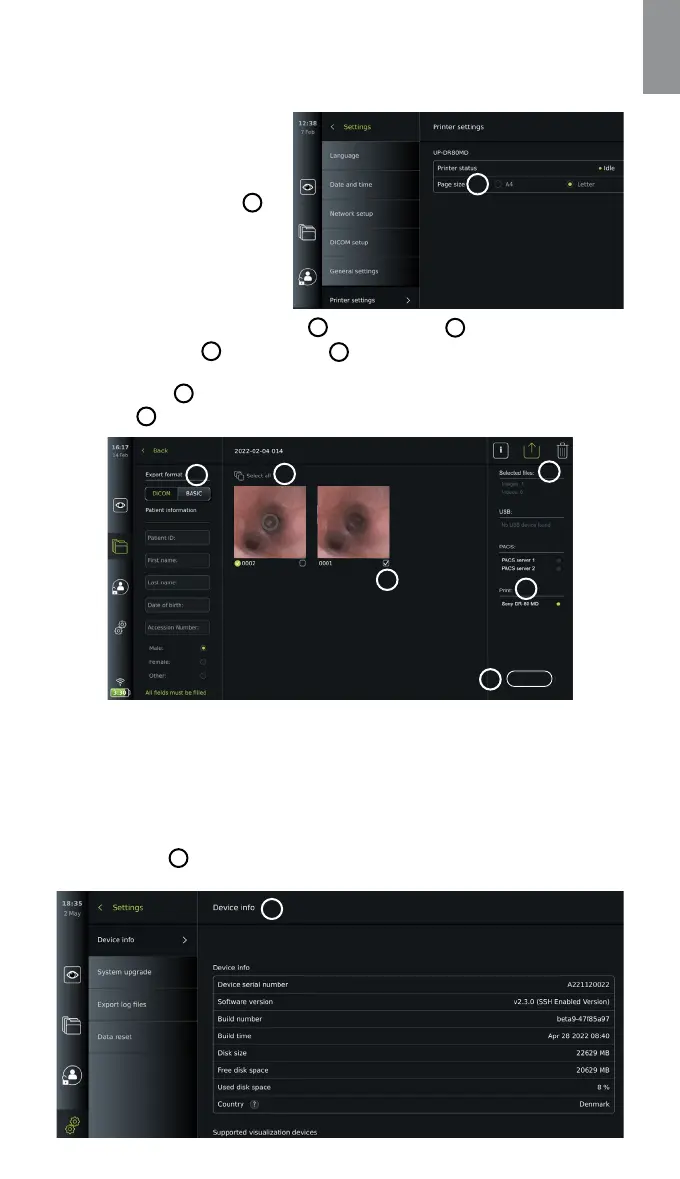
Select settings for printing:
• Press the Settings tab,
then press Setup.
• Press Printer settings.
• Press the required page size
1
.
Print images via medical printer:
• Press the Archive tab,
then press Procedures.
• Press the required procedure folder.
• Select the required images by
ticking the boxes below the thumbnails
2
, or press Select all
3
.
• Press the export icon
4
, then press Basic
5
.
• Ensure that the printer name is shown below the export icon to verify that connection has
been established
6
.
• Press Print
7
.
5
2
3
17
7
0:00:07
Print
4
6
Note: Patient data is not included on the printed image.
Note: Verified compatibility with Sony UP-DR80MD digital colour printer for medical applications.
9. System information and software updates/upgrades
9.1. Device information page
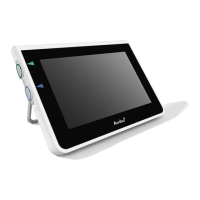
You can view information about the displaying unit, e.g. software version, free disk space, etc.
• Press the Settings tab, then press About.
• The Device info
1
page is shown on the screen.
Scroll down to see all the information.
1
1
31



 To Next Page