13
4.3.2. Amcrest View Pro Setup
• Make sure your camera is plugged into a power source and your Ethernet cable is connected from the camera to your
router.
• Make sure your camera and mobile device are on the same network during setup.
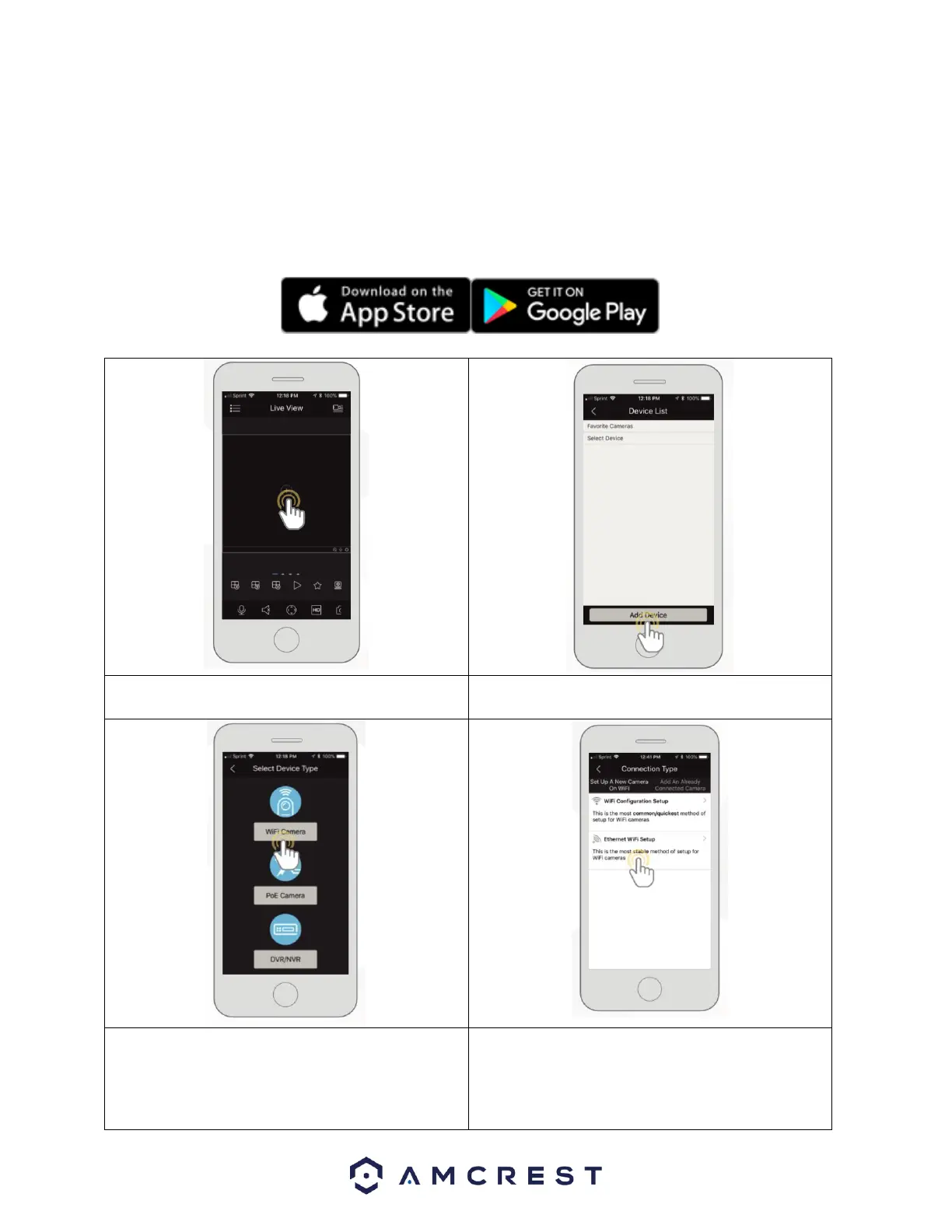
1. Download and open the Amcrest View Pro app from the App Store or Play Store.
2. Open the app and tap on the + symbol in the middle
of the screen to begin adding your WiFi device.
2. 3. Tap on Add Device to add a new device to your app.
3. 5. Select your connection type, in this case, select the left
tab Set Up A New Camera On WiFi or Connect New Device
(on Android) to begin adding the device to the app. Tap
Ethernet WiFi Setup to continue.
4.









 To Next Page