14
WiFi Configuration Setup: Used as a secondary option for establishing a WiFi connection to a WiFi camera. For more information
on this setup method visit, amcrest.com/wificonfig
P2P Setup: Used for setting up already connected devices to the Amcrest View Pro app. For more information on this setup
method visit, amcrest.com/p2psetup
4.4 Desktop Access Setup
Access your camera and all its features and settings on your local network using Internet Explorer,
Firefox, or Safari on Windows or Mac.
This method of accessing the camera’s interface is necessary to setup remote access. Ensure that the
following items are completed:
Note: Make sure the camera and the PC are on the same network before proceeding.
• Use one of the following web browsers: Safari, Internet Explorer, or Mozilla Firefox (Google Chrome
support in Development).
To easily connect to the camera’s interface, install and run the Amcrest IP Config tool. You can download
the IP Config software from www.amcrest.com under the “Support” tab, Apps & Software. The IP Config
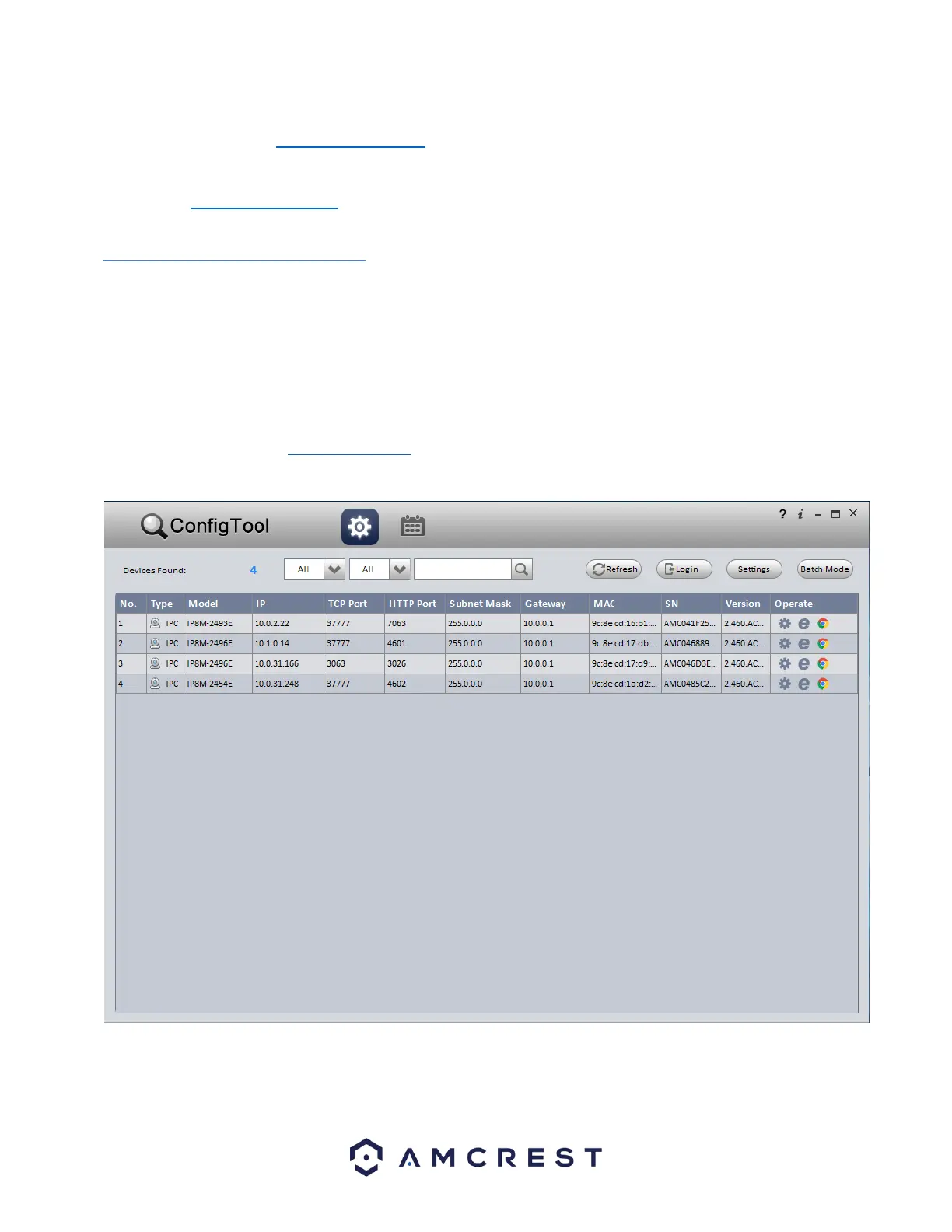
tool’s interface looks like the below image:
After launching the IP Config tool, click the Refresh button to bring up the cameras on the network.










 To Next Page