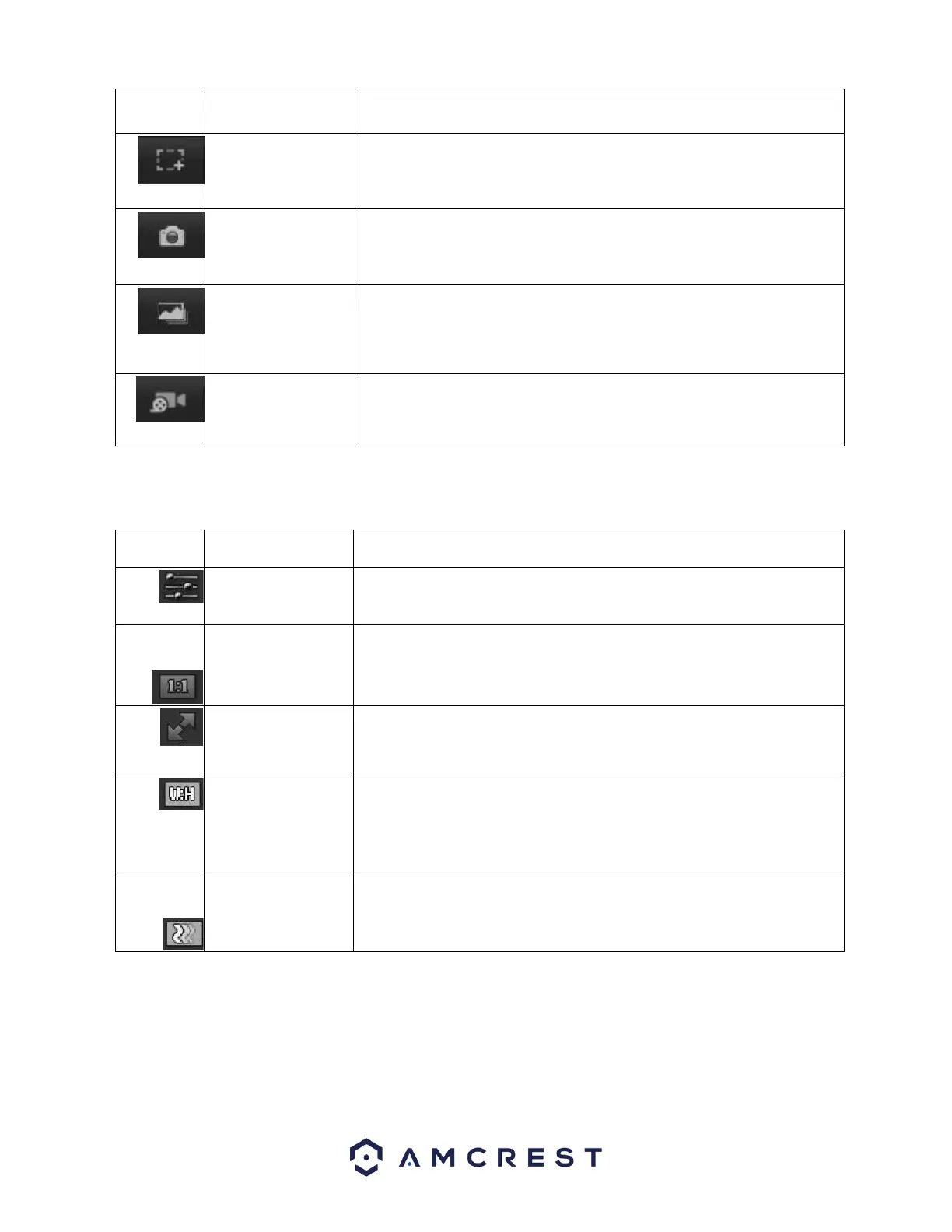
Click this button to activate the zone selection function. This allows the user
to use the mouse to select a zone to zoom in on.
Click this button to take a screenshot of the live feed. The picture is saved
at the path specified in Setup -> Camera -> Video -> Path.
Click this button to take 1 screenshot per second for 3 seconds. The
pictures are saved at the path specified in Setup -> Camera -> Video ->
Path.
Click this button to manually record video. The video is saved at the path
specified in Setup -> Camera -> Video -> Path.
Section 3: This bar allows the user to change video settings. See the below table for an explanation of the
video settings:
This button opens the image adjustment toolbar, which allows the user to
adjust brightness, contrast, saturation, and hue for the live feed’s picture.
This button allows the user to switch between displaying the original size of
the stream in its set resolution, or to adapt to the size of the monitor
display the feed is being viewed on.
This button allows the user to make the live feed go into full screen mode.
Double click the mouse or click the ESC button to exit full screen mode.
This button allows the user to change the width/height ratio for the live
feed. The options are Original and Adaptive. Original uses the aspect ratio
of the stream’s set resolution, and adaptive fits the feed to the aspect ratio
of the monitor display the feed is being viewed on.
This button allows the user to change the stream fluency. There are 3
options. Realtime reduces delay and decreases fluency, and Fluency has a
larger delay, but the video stream becomes more fluid.
Section 4: This section of the Live tab shows the picture that the camera is broadcasting. The bitrate is
shown in the top left corner, the native resolution is shown in the top right corner, the time stamp is
shown below the native resolution, and the camera type is shown in the bottom left corner.










 To Next Page