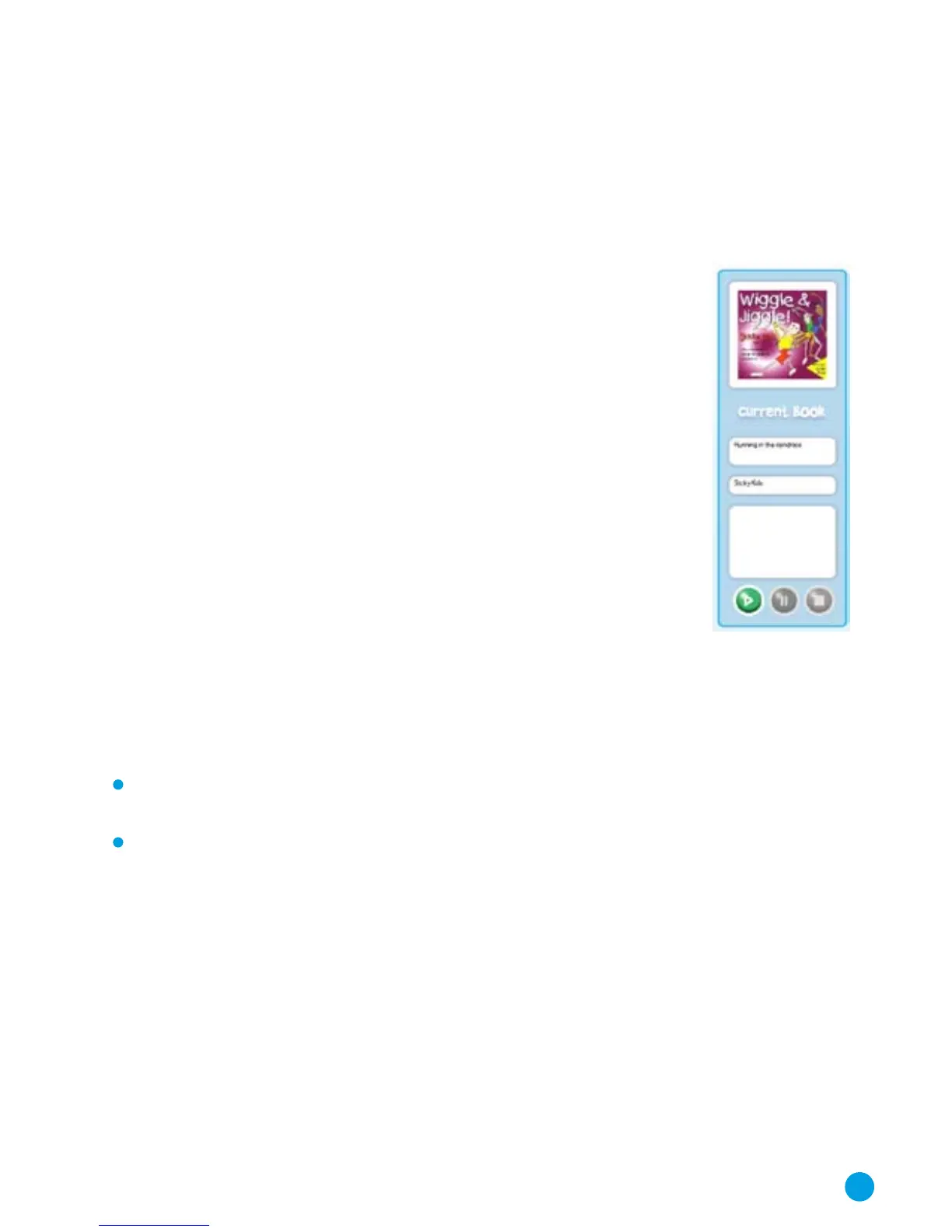
The MP3 Info and Player Panel
This part of the program allows you to see the details of an audio
file in your library and also to listen to the track, maybe just to
preview the file to check it is what you want, or to allow children
to listen audio content through the computer. To see details of
an audio content file, simply click on the file and the information
will be displayed. To listen to the file, use the Play, Pause and Stop
buttons at the bottom of the panel.
The Bookshelf Panel
This section shows where all of your audio files are stored and
allows you to manage the audio files. You can rename a file or
folder, add tags to audio files, create and delete folders and
organise the content as you wish. Most functions are accessed
by a right mouse click on the file or folder.
Renaming a Content File
Click the right mouse button on the file and select ‘Rename File’
from the menu that appears.
Enter the new name for the file in the popup window that
appears and click OK.
Deleting a Content file
Click the right mouse button on the file and select ‘Delete
File’ from the menu that appears.
Click OK to delete the file from your computer. Warning: you
are deleting this file permanently from your computer by
doing this. Note that if you accidentally delete a file that you
have bought from the StoryPhones Online Bookshop, you
can go back online and download the story or song again at
no cost.
9



 To Next Page