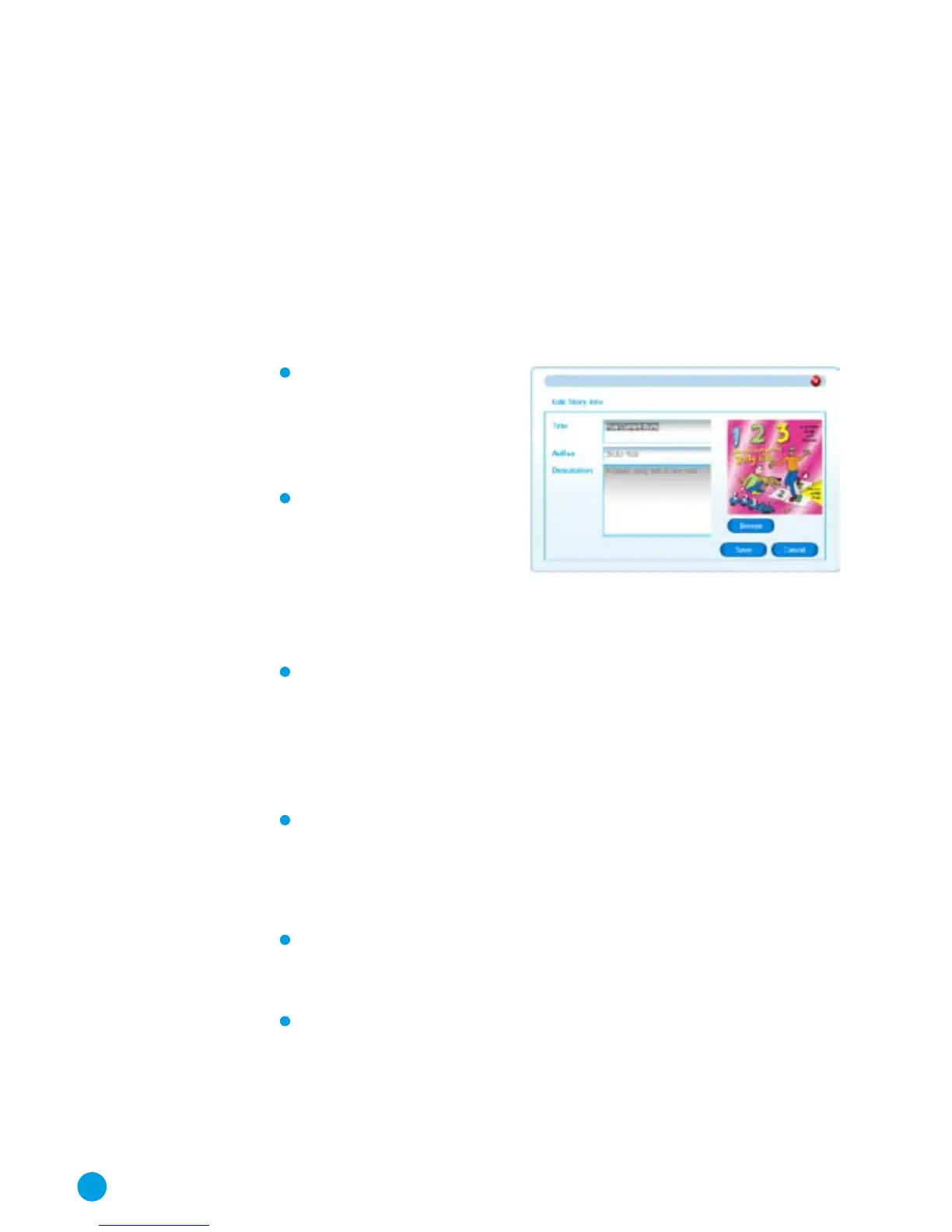
Edit the ID3 Tags for a file
ID3 tags are used in MP3 files to save information such as Title,
Author, Publisher etc. Bookshelf uses these tags to display infor-
mation about each audio file in the MP3 Info and Player panel.
All of the audio content that you buy from StoryPhones will have
tags included but if you add you own files they may not have this
information. The tag editor allows you to add this information as
follows:
Click the right mouse
button on the file and
select ‘Edit ID3 Tags’
from the menu that
appears.
A new window will
appear with boxes to
allow you to add a Title,
Author information and
a description. Just type
the details into each of
the boxes.
You can also add a picture for each audio file. To do this,
click the Browse button and then the folder browse button
in the pop-up window that appears to navigate to the folder
containing the image file. The image file should be a ‘jpeg’ of
no more than 200x200 pixels. Select the image file and then
click OK. The image will appear in the tag editor window.
When you have finished editing the tags, click OK to close
the editor.
Create a Folder
Click the right mouse button on the white background of the
Bookshelf panel and select ‘Create a Folder’ from the menu
that appears.
A new folder will be created in the current folder and you can
then rename this as follows.
10



 To Next Page