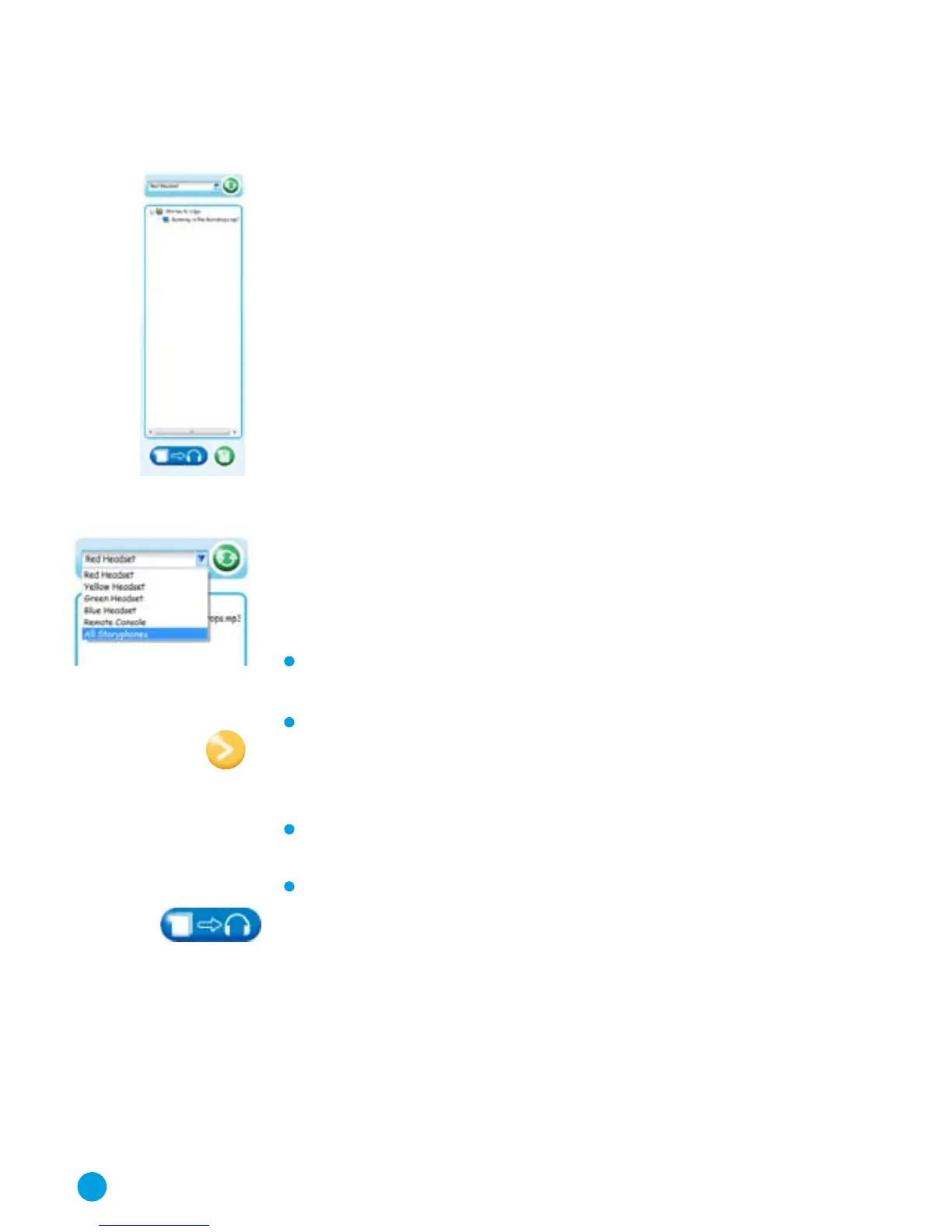
The Players Panel
This section allows you to list the content on each of the
Headsets or Remote Console and also to transfer and delete
content from the MP3 players.
Copying Audio Content to the Players
The most common task that you will want to do is to copy stories
or songs or any other audio file onto the players. This is done by
selecting files in the BookShelf pane and copying them over to
the Player pane, either by drag and drop or the click of a button.
Here is how to do it.
In the Players panel, click on the drop down arrow and a list of the
MP3 Headsets and Remote players connected will appear. This
will only show the players which are currently in the Base Unit
and available for the transfer of audio content.
Select the MP3 Headset you want to use from the list.
In the content window below, a list of the content on this player
will appear. Copy new content to the selected player as follows:
Choose an audio file on the Bookshelf window and click on it,
this will then be highlighted.
Next, click on the top arrow in the centre panel. The content
will appear in the content window. Alternatively you can
drag the desired file from the Bookshelf panel over to the
Players panel.
If you wish to add more content to the selected player, repeat
steps 1 and 2.
When you have finished choosing your content, click on the
‘Send Stories’ button at the bottom of the Players panel.
A window will appear asking you if you want to copy these
activities to your chosen player. Click ‘Yes’ to transfer the
content.
12



 To Next Page