Converting CDs to MP3 format
You can add the tracks from CDs to the Bookshelf library using
the built-in converter. You may want to create a new folder to
hold the tracks that you are going to add before converting the
CD. If so do this as previously described and then open the folder.
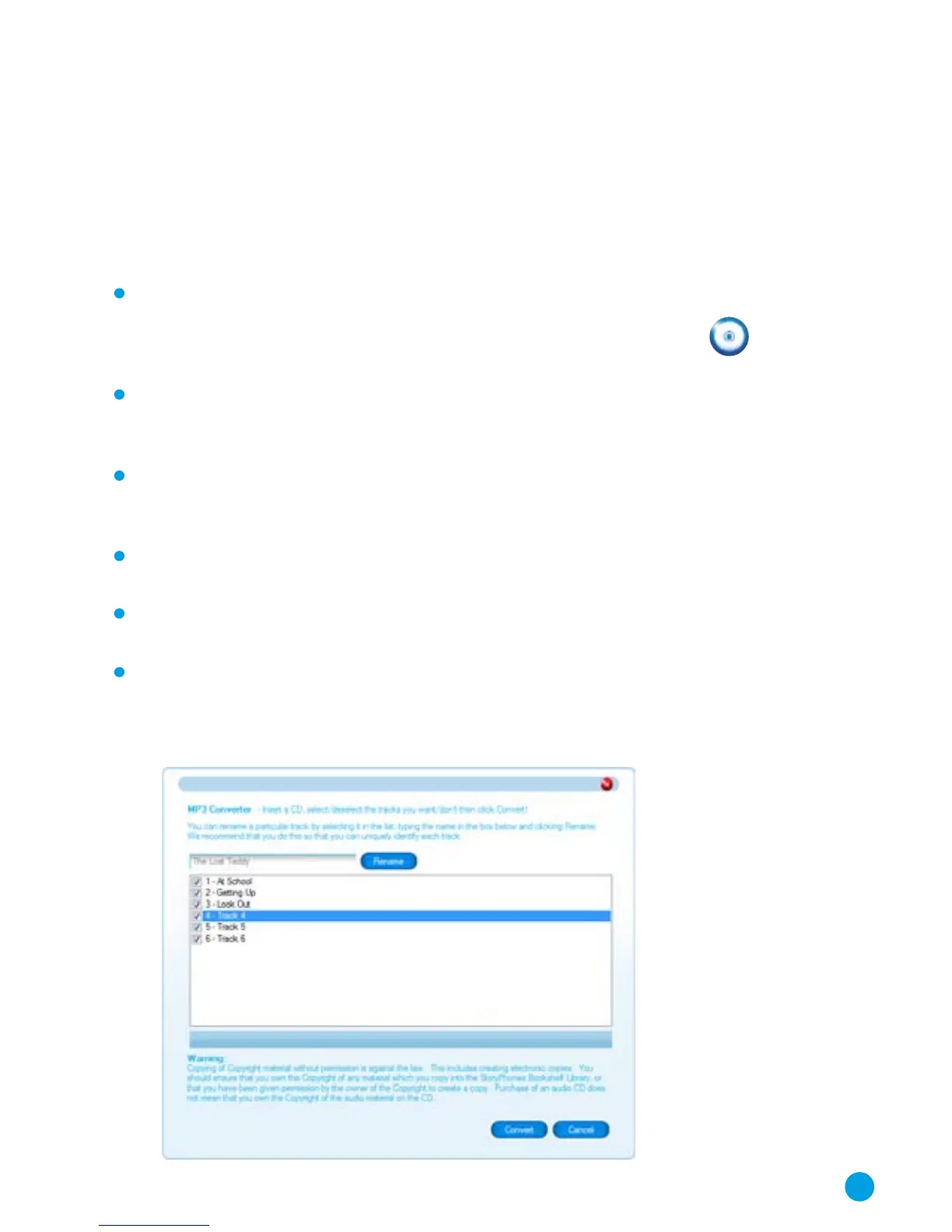
Put the CD into the CD drive on your computer and click on
the ‘Convert’ button. A window will appear with a list of the
tracks on the CD and a tick alongside each one. It may take a
little time for the list to appear.
A tick in the box by the track name will mean that the track
will be converted. You can un-select tracks for conversion by
selecting the track and then clicking on the box.
You can rename the selected track by clicking on the track,
then in the Rename box, type the title and click on the
‘Rename’ button.
The new files will appear in the currently open folder on your
Bookshelf.
When you have decided which tracks you want to convert,
click on the convert button.
The green bar along the bottom of the window will show the
conversion progress. It can take several minutes to convert
a number of tracks. When the conversion is complete the
window will disappear.
19



 To Next Page