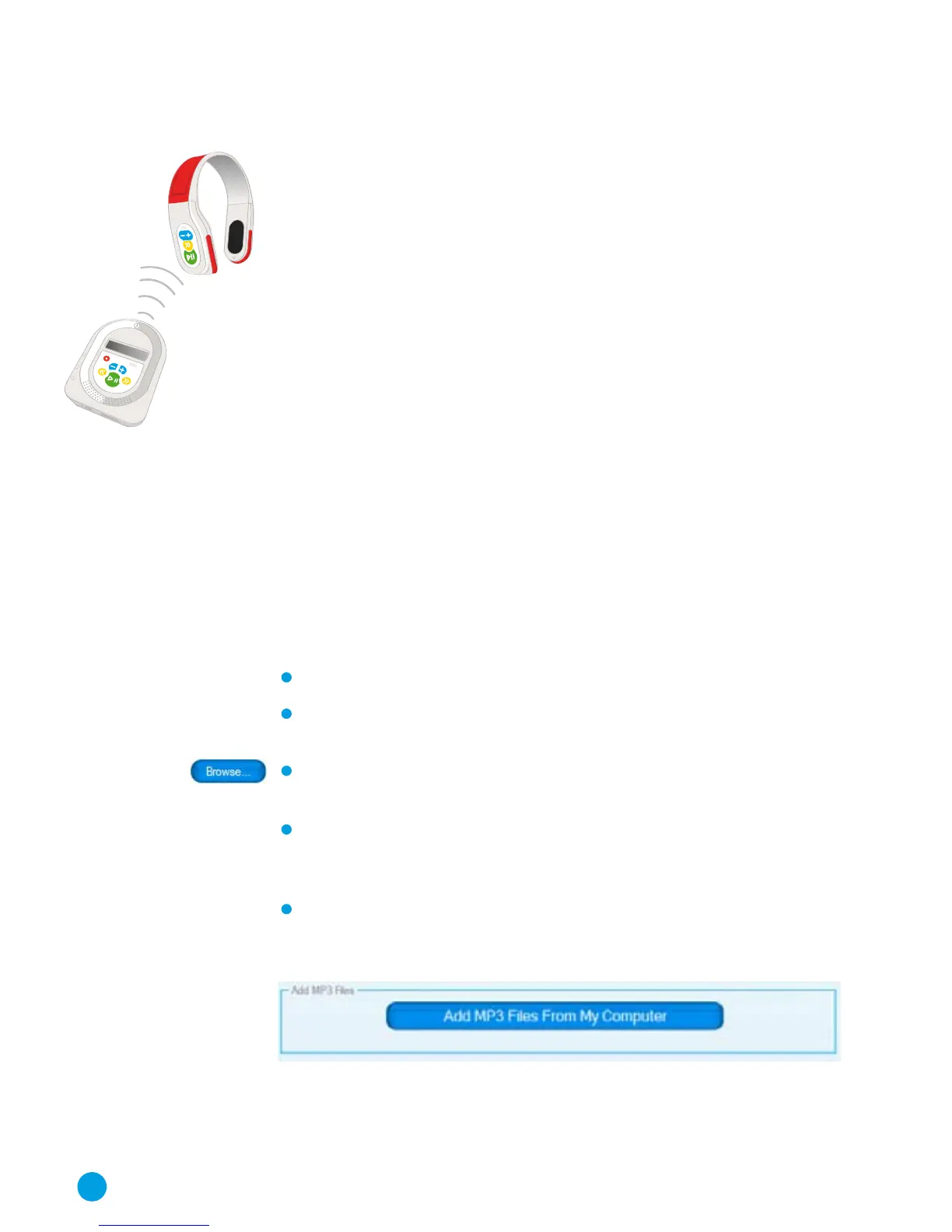
Setting the Remote ID
The Remote ID setting determines which Remote Console
controls which particular player. The number refers to the
Remote Console, not the player. You must ensure that the
Remote ID for the Headsets matches that for the Remote
Console that you are using and also that each class in your school
uses a different Remote ID setting for their Remote Console and
Headsets. If not the Remote Console in one class may control the
Headsets in another class – this can be very confusing!
Save the Settings
Once you have made the changes to the settings for a Headset
click the Save button to save the changes before moving on to
another Headset or the Remote Console. When all of the MP3
Headsets have been set, click the OK button to close the window
and return to the main Bookshelf page.
Importing Audio Content to The Bookshelf Library
You can add any MP3 files on your computer to the StoryPhones
Bookshelf library. They can then be used on any Headset or
Remote Console. You do this from the Settings window as
follows:
Click on the ‘Add MP3 Files From My Computer’ button.
Click on the ‘Browse button’ to navigate to the folder
containing the files that you wish to import.
For each file that you wish to import, click on the file and
click on the check box.
Once all files are selected, click on the ‘Import checked’
button. When the import is complete the Import window
will disappear.
The MP3 files will have been added to the folder that is
currently open in Bookshelf. You can then right click on the
files to rename them and to add ID3 tags.
18



 To Next Page