BKS630E
This chapter provides information on how to setup the peripheral device.
Setup the Audio System
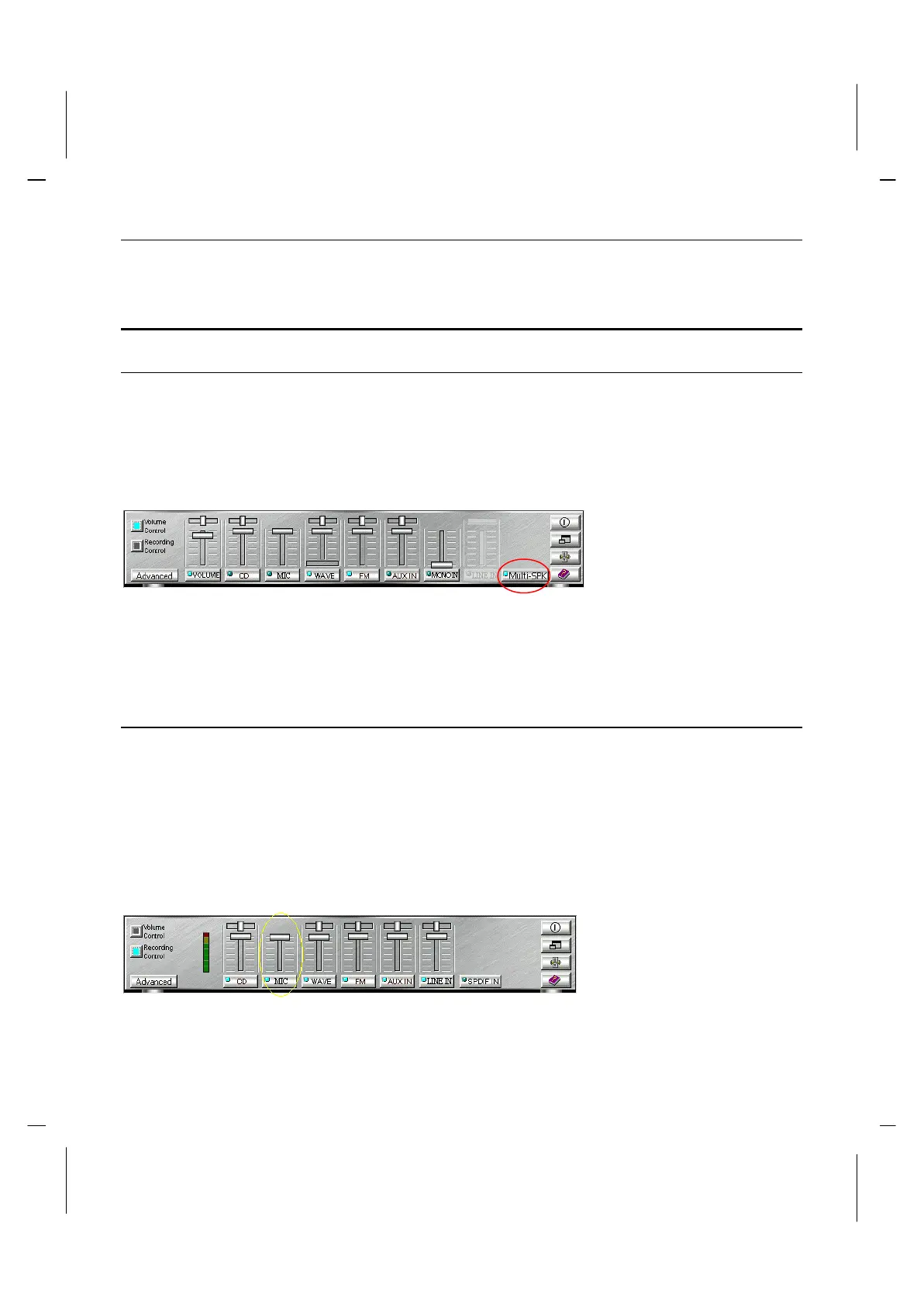
How to Enable Multi-Speaker Mode
You have to open the "Mixer" program and enable the Multi-SPK mode to let the audio
driver recognize your rear, subwoofer and center speakers. The audio driver will set the
audio chip to output different signal configurations to the speakers based on the speaker
setting. The following illustration shows is the Mixer console. Left-click the mouse on the
speaker mode button to set the output mode. As you see, the Multi-SPK mode is enabled
here.
Notice: If users set Multi-SPK mode and connect only stereo speakers to Speaker jack
on the front panel or Front Out jack on the back of PC, that will cause an incomplete
audio output.
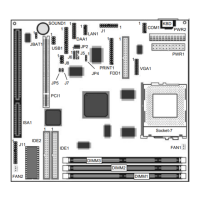
How to Adjust the Microphone Volume
If the microphone is on and very close to the speakers, it will cause feedback between the
two, unusually high frequencies or buzzing sounds might come from the speakers. To
avoid this, you have to adjust the microphone volume in both recording and playback
modes. You have to use the Echo function with the microphone if you want to use the
Karaoke feature.
Occasionally you might have to adjust the main and Wave volume as well. Please left-
click and drag the mouse to adjust the micro-phone (MIC) setting in both Volume and
Recording Control.



 To Next Page