Upgrading Firmware
26
MST-431/MSD-431-L 4.3" Modero S Series® Touch Panels
7. Click the Reboot Device checkbox if it is not already checked. This causes the touch panel to reboot after
the firmware update process is complete.
8. Click Send to begin the transfer. The file transfer progress is indicated on the bottom-right of the dialog.
9. After the file transfer is complete, the panel will automatically reboot.
10. After the panel has finished rebooting, right-click the associated System number and select Refresh
System. This causes a refresh of all project systems, establishes a new connection to the Master, and
populates the System list with devices on your particular system.
11. Confirm that the panel has been properly updated to the correct firmware version.
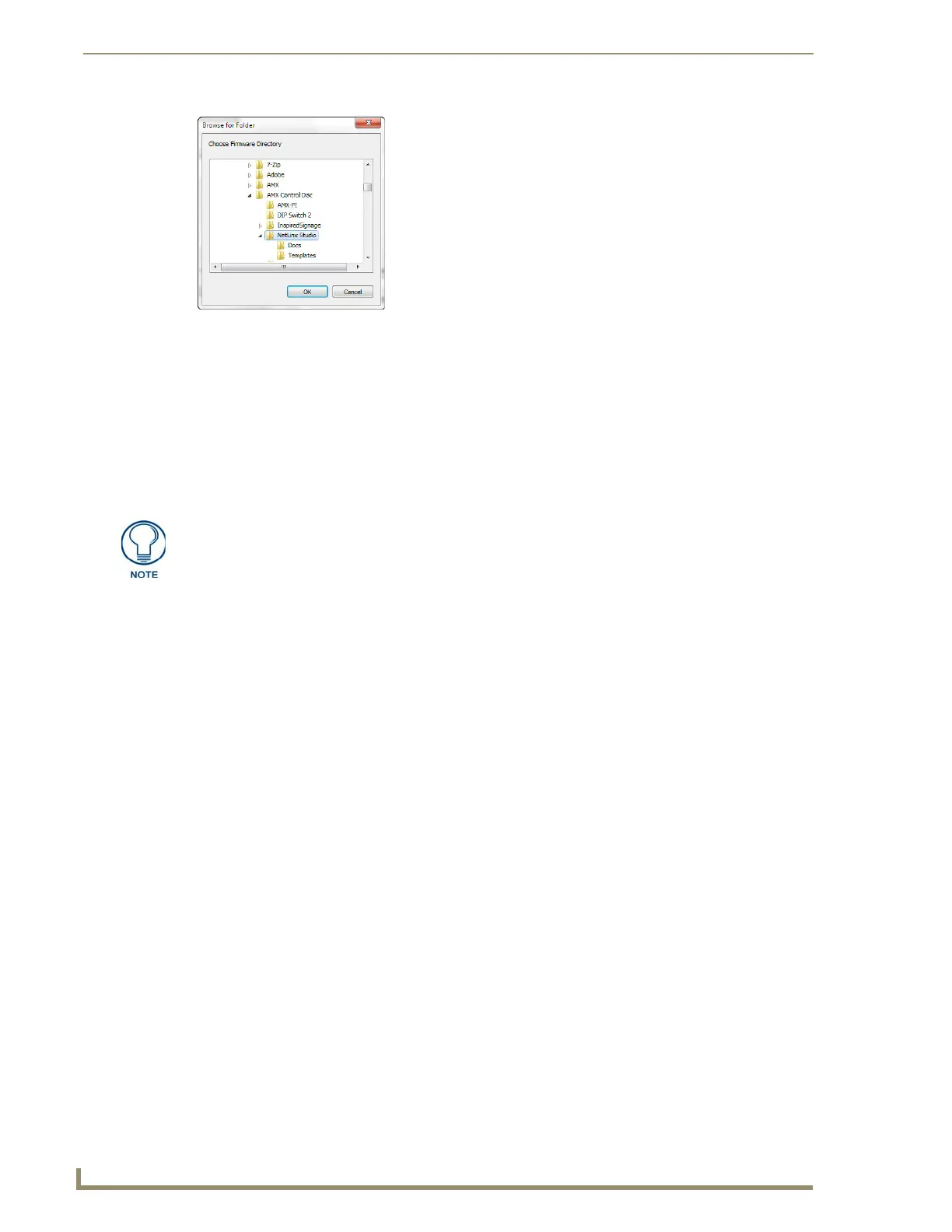
FIG. 25 Browse for Folder window
Verify you have downloaded the latest firmware file from www.amx.com and then
save the Kit file to your computer.


 To Next Page
 Loading...