42
7.3.3 Eects
Aer selecng the layout, the changes are applied on the selected screen. The size and posion of all layers
are updated. Aer applying a layout template, you can make further modicaons to the layers before Taking
your selecons to Program.
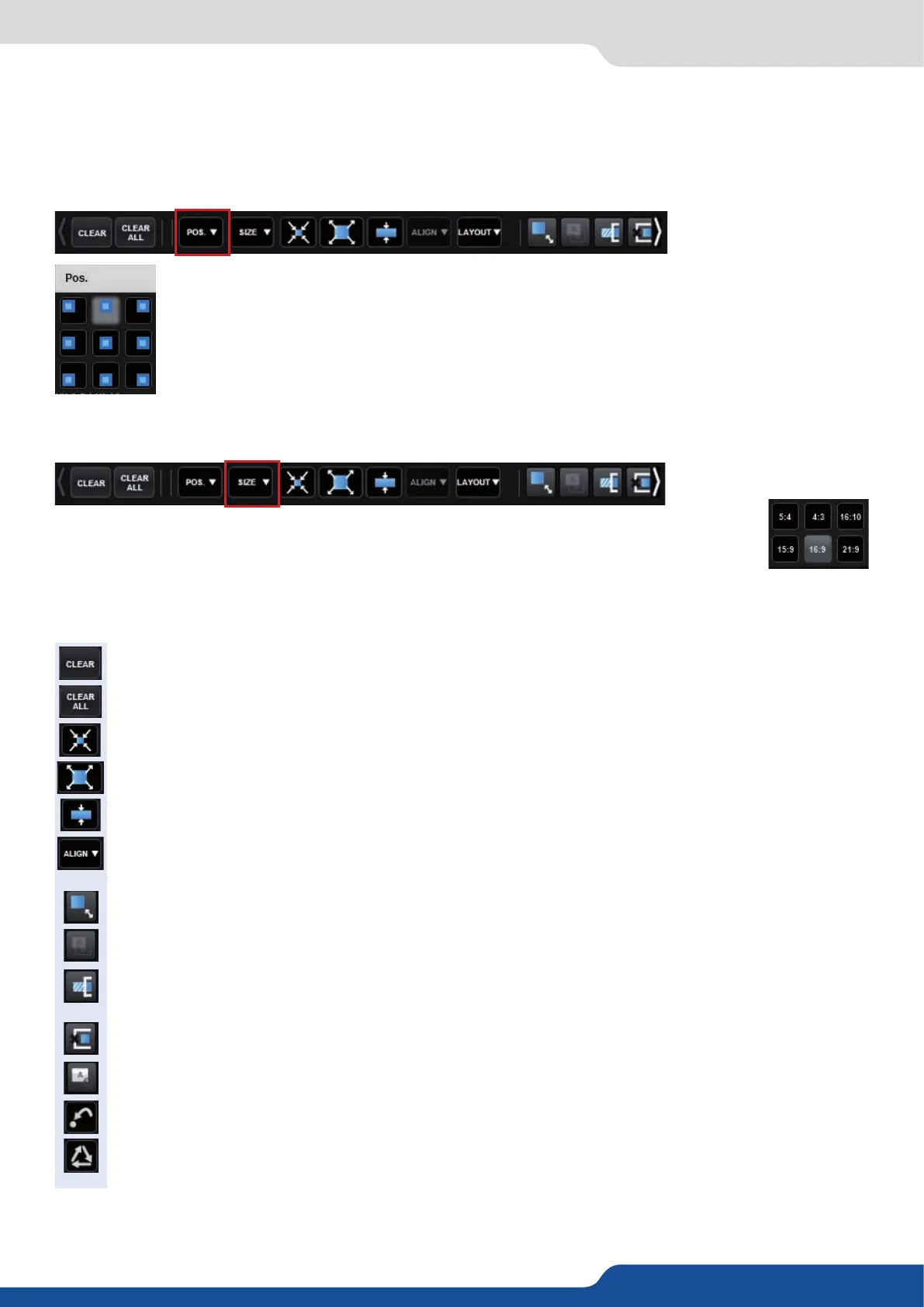
A layer posion shortcut is also available. Aer having selected a layer, simply click on the
buon to have quickly access to a layer posion. Choose the new posion. The change
is applied straight away on your preset.
You can choose between several aspect rao. Once selected, the new aspect rao is applied
on the selected layer.
- CLEAR BUTTON: this buon allows you to clear the selected layer from your preset,
- CLEAR ALL BUTTON: remove all layers from your preset,
- CONTENT SIZE: set layer size to its content size,
- SCREEN SIZE: set layer size to screen size,
- LAYER SIZE/SOURCE RATIO: set the layer size to t the source rao,
- ALIGN BUTTON: you need rst to select at less 2 layers, then you can align them horizontally or
vercally (use Shi to select 2 layers),
- KEEP ASPECT RATIO BUTTON: enabling this feature will keep the layer aspect rao during resizing,
- WIREFRAME MODE: allows to enable/disable the layer thumbnails on your RCS²,
- SHOW LAYER OUT OF SCREEN: enable/disable the possibility to display a layer out of the screen
into the RCS²,
- TRAP LAYERS ON SCREEN: disable the ability to posion the layer o of the screen,
- HIDE UNUSED LAYERS: empty layers will not be displayed in the RCS²,
- RELOAD PROGRAM: load the preset of the Program screen into the Preview screen,
- STEP BACK: return to the conguraon you had before the last TAKE,


 To Next Page