Graphical User Interface
General Handling of the GUI
The operating principle of the graphical user interface (GUI) presented on the touch
screen display is that it guides you through all setup steps required for running a
specific test and then finally presents you with the test results.
Toolbars
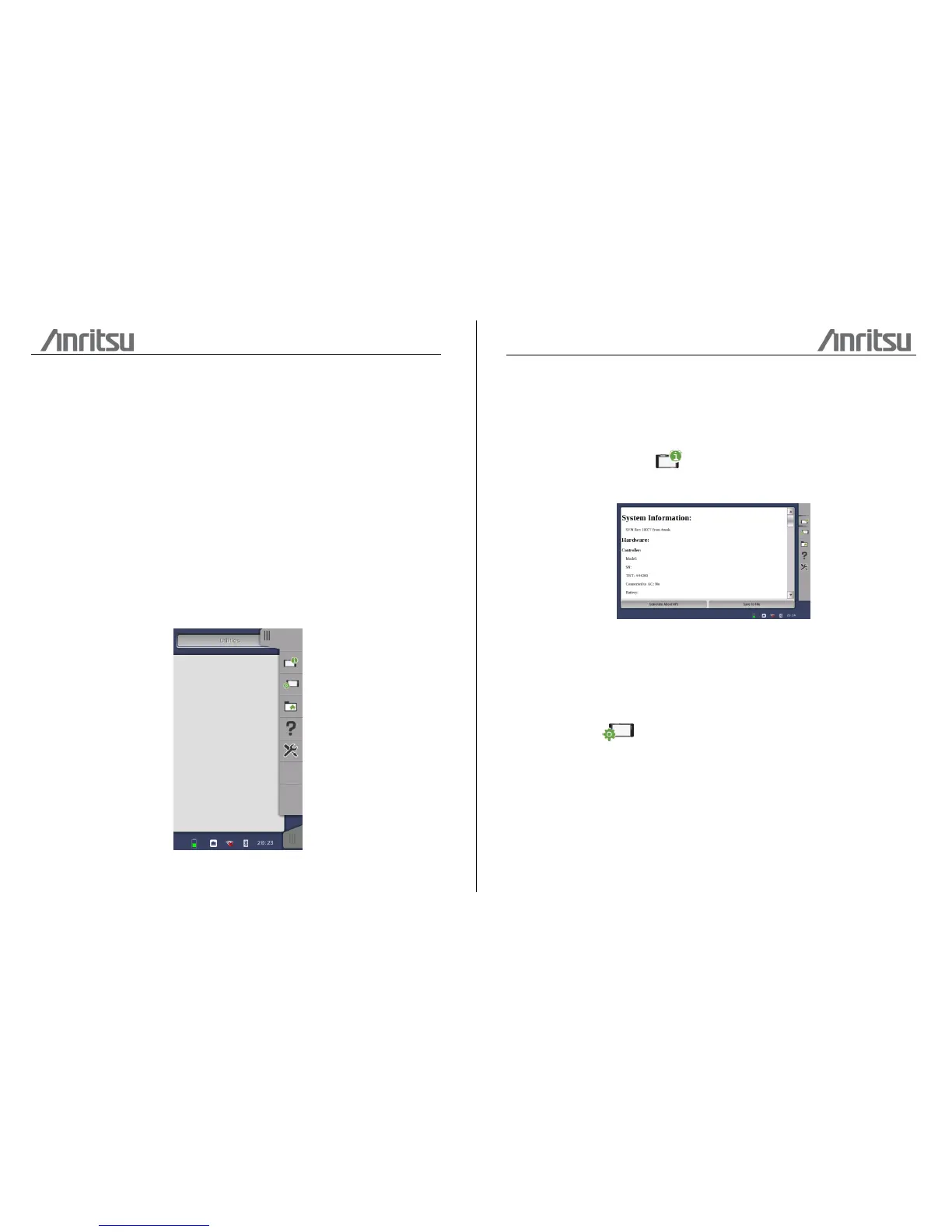
A toolbar is available on the right-hand side of the screen. The Instrument toolbar
contains general system functions and information (e.g. Instrument configuration,
Battery time etc.). It is available directly on the screens related to the desktop.
The Instrument toolbar is shown in the figure below. When the toolbar is hidden, it is
represented by its icon tab in the top right-hand corner of the screen.
The Instrument toolbar contains the following functions/status:
・Instrument information
・Configuration
Instrument information
The Information icon launches the System Information screen. Press the Generate
About Info button to generate the instrument information.
The following information is presented on the screen:
・The instrument's Serial Number
・Version Number of the software, the hardware, and the mechanics used
・List of Options Installed
Configuration
The Configuration icon launches the Global Configuration screen. From this
screen it is possible to configure both the general instrument settings (such as
date/time, password etc.) and various network settings.





 To Next Page