2. Click ‘MAC Clone’ button; the button will copy the PC’s MAC Address which is accessing to the Router
[Button Descriptions]
OK : Save the data on screen.
RESET : discard any data you have entered and reload the file form the Router
4.1.2.2 Static IP Address
[Screen Descriptions]
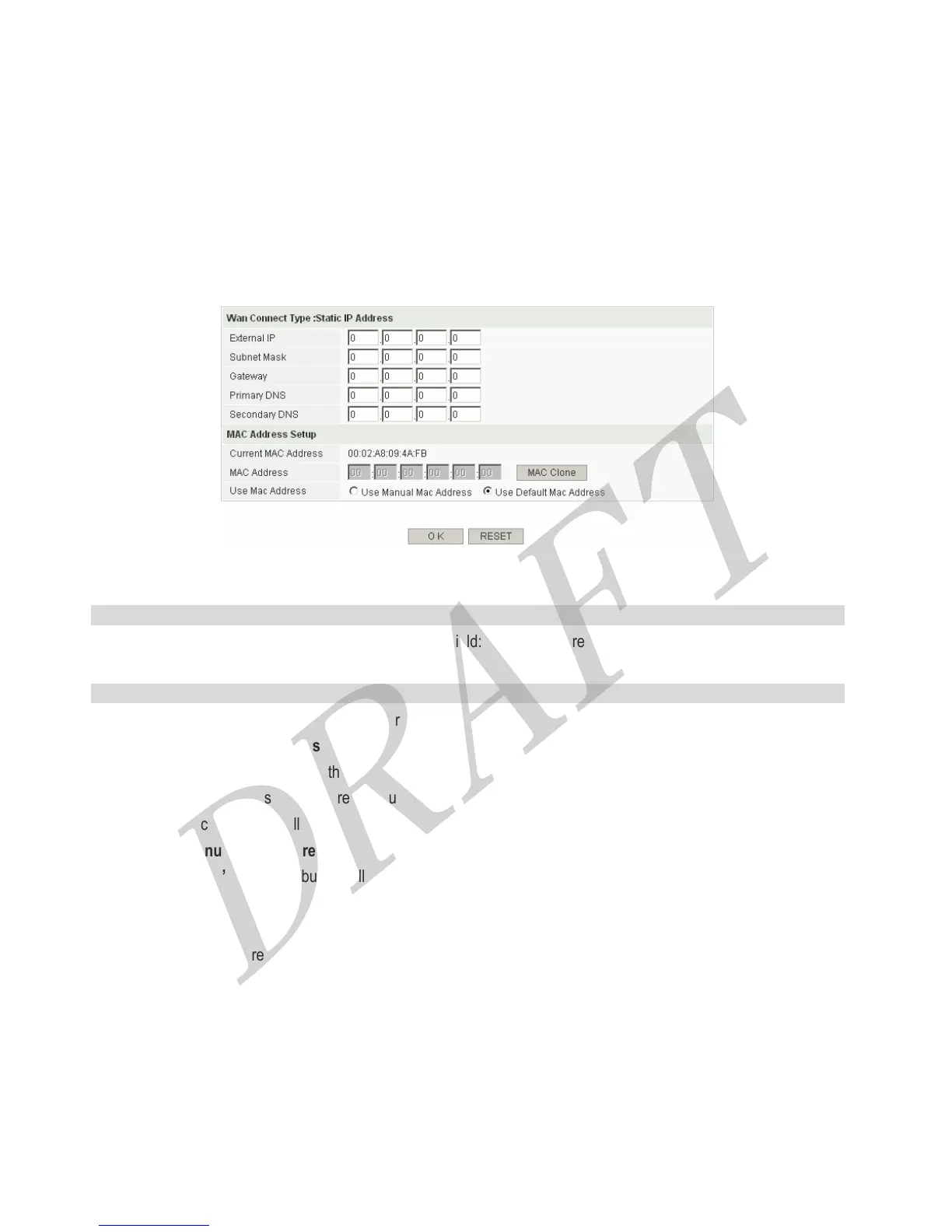
Wan Connect Type : Static IP Address
Enter the correct value provided from your ISP at each field: Static IP Address, Static Subnet Mask, Static Gateway,
Primary DNS, and Secondary DNS.
MAC Address Setup
Current MAC Address : the Router’s MAC Address.
MAC Address / Use MAC Address :
This function allows you to use the other MAC address on LAN side PCs, not the Router’s MAC Address. If your ISP
request your LAN side PC’s MAC address, you can clone PC’s MAC Address from your PC with MAC Clone button.
Configuration procedure is as follows,
1. Select ‘Use Manual MAC Address’
2. Click ‘MAC Clone’ button; the button will copy the PC’s MAC Address which is accessing to the Router
[Button Descriptions]
OK : Save the data on screen.
RESET : discard any data you have entered and reload the file form the Router
22



 To Next Page