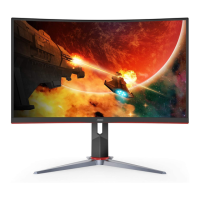
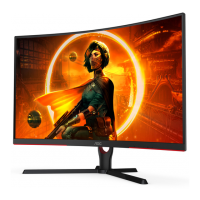
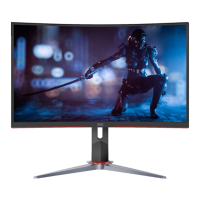
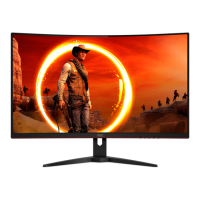
This document is a user manual for an AOC LCD Monitor, model C32G2AE, providing comprehensive instructions for its setup, operation, and maintenance.
The primary function of this device is to serve as a visual display unit for computers and other compatible devices. It is designed to offer a high-definition multimedia interface, supporting various input signals for a versatile viewing experience.
Usage Features:
The monitor offers a range of adjustable settings to optimize the user's viewing experience.
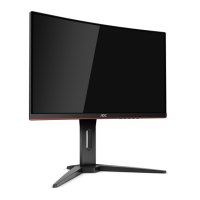
- Adjusting Viewing Angle: For optimal viewing, users can adjust the monitor's angle from -5° to 23°. It is recommended to hold the stand firmly while adjusting to prevent the monitor from toppling. Users are cautioned not to touch the LCD screen during angle adjustments to avoid damage.
- Hotkeys: The monitor features several hotkeys for quick access to common functions:
- Source/Auto/Exit: This button serves multiple purposes. When the On-Screen Display (OSD) is closed, it acts as a Source hotkey. Pressing it continuously for about 2 seconds initiates an auto-configure function (available only for models with D-Sub).
- Game Mode: When the OSD is closed, pressing the "<" key opens the game mode function. Users can then use the "<" or ">" keys to select from various game modes such as FPS, RTS, Racing, Gamer 1, Gamer 2, or Gamer 3, tailored to different game types.
- Dial Point: When the OSD is not active, this button toggles the display of the Dial Point feature.
- Menu/Enter: This button is used to display the OSD menu or confirm a selection within the menu.
- Power: This button turns the monitor on or off.
- OSD Setting: The OSD menu provides detailed control over various display parameters.
- Navigation: The OSD is activated by pressing the MENU-button. Users navigate through functions using the Left (<) or Right (>) buttons. Once a function is highlighted, pressing the MENU-button activates it, and then Left (<) or Right (>) buttons are used to navigate sub-menu functions. Settings are changed using Left (<) or Right (>) buttons, and the Exit button is used to leave the menu.
- OSD Lock Function: To prevent accidental changes, the OSD can be locked by pressing and holding the MENU-button while the monitor is off, then pressing the power button to turn it on. To unlock, the same procedure is followed.
- Luminance Settings: This section allows adjustment of Contrast (0-100) and Brightness (0-100) for backlight adjustment. It also includes "Eco mode" with options like Standard, Text, Internet, Game, Movie, Sports, and Reading, each optimizing the display for specific content. The "Gamma" setting offers Gamma1, Gamma2, and Gamma3 adjustments. "DCR" (Dynamic Contrast Ratio) can be enabled or disabled. "HDR Mode" provides options for HDR Picture, HDR Movie, and HDR Game, but note that when HDR Mode is active, Contrast, Brightness, and Gamma cannot be adjusted.
- Image Setup: This menu provides controls for fine-tuning image quality. "Clock" (0-100) reduces vertical-line noise, "Phase" (0-100) reduces horizontal-line noise, and "Sharpness" (0-100) adjusts image sharpness. "H. Position" (0-100) and "V. Position" (0-100) adjust the horizontal and vertical placement of the picture, respectively.
- Color Setup: This section allows users to customize color temperature and other color-related settings. "Color Temp." offers Warm, Normal, Cool, sRGB, and User modes. "DCB Mode" (Dynamic Color Boost) includes options like Full Enhance, Nature Skin, Green Field, Sky-blue, and AutoDetect, which can be enabled or disabled to enhance specific color ranges. "DCB Demo" can be turned on or off to see the effect of DCB. Red, Green, and Blue gain (0-100) can be adjusted. Similar to Luminance settings, when "HDR Mode" is active, all items under "Color Setup" cannot be adjusted.
- Picture Boost: This feature allows users to enhance a specific area of the screen. "Bright Frame" can be turned on or off. "Frame Size" (14-100) adjusts the size of the bright frame. "Brightness" (0-100) and "Contrast" (0-100) adjust the bright frame's luminance and contrast. "H. position" (0-100) and "V. position" (0-100) adjust the horizontal and vertical position of the bright frame. When "HDR Mode" is active, all items under "Picture Boost" cannot be adjusted.
- OSD Setup: This menu manages the OSD itself. "Language" selects the OSD language. "Timeout" (5-120 seconds) sets how long the OSD remains on screen. "DP Capability" (1.1/1.2) allows selection based on the DP video content, noting that only DP1.2 supports Adaptive-Sync. "H. Position" (0-100) and "V. Position" (0-100) adjust the OSD's position. "Volume" (0-100) adjusts the audio output. "Transparence" (0-100) adjusts the OSD's transparency. "Break Reminder" can be turned on or off to remind users to take breaks after continuous work. "Frame Counter" displays the vertical frequency on a selected corner of the screen.
- Game Setting: This menu is dedicated to optimizing the monitor for gaming. "Game Mode" offers FPS, RTS, Racing, Gamer 1, Gamer 2, Gamer 3, and Off options, each tailored for different game genres or user preferences. "Shadow Control" (0-100) adjusts dark theme black level details, improving visibility in dark areas or reducing over-whiteness. "Game Color" (0-20) adjusts saturation for better picture quality. "Low Blue Mode" (Reading / Office / Internet / Multimedia / Off) decreases blue light to control color temperature. "Low Input Lag" can be turned On/Off to reduce input lag. "Overdrive" (Weak, Medium, Strong, Boost, Off) adjusts response time. "MBR" (Motion Blur Reduction) (0-20) adjusts motion blur. "Adaptive-Sync" can be turned on or off to prevent screen tearing, with a reminder that flashing may occur in some game environments when enabled. Note that MBR and Overdrive Boost are only available when Adaptive-Sync is off and vertical frequency is up to 75 Hz. Screen brightness will be reduced when adjusting MBR or Overdrive to Boost. When "HDR Mode" is active, "Game Mode", "Shadow Control", "Game Color", and "Low Blue Mode" cannot be adjusted.
- Extra: This menu includes additional settings. "Input Select" allows users to choose the input signal source. "Auto Config." (Yes/No) automatically adjusts the picture to default settings. "Off timer" (0-24hrs) sets the DC off time. "Image Ratio" offers various aspect ratio options (Wide, 4:3, 1:1, 17" (4:3), 19" (4:3), 19" (5:4), 19"W (16:10), 21.5"W (16:9), 22"W (16:10), 23"W (16:9), 23.6"W (16:9), 24"W (16:9), 27"W (16:9)) to select the image ratio for display. "DDC/CI" (Yes/No) turns ON/OFF DDC/CI Support. "Reset" (Yes/No) resets the menu to default settings.
- LED Indicator: The LED indicator shows the monitor's status: White for Full Power Mode and Orange for Active-off Mode.
- Plug and Play DDC2B Feature: The monitor supports VESA DDC2B, allowing it to communicate its identity and display capabilities to the host system. This bi-directional data channel, based on the I2C protocol, enables the host to request EDID information.
Maintenance Features:
Proper maintenance ensures the longevity and optimal performance of the monitor.
- Cleaning: The cabinet should be cleaned regularly with a soft cloth and mild detergent. Strong detergents should be avoided as they can damage the cabinet. When cleaning, care must be taken to prevent detergent from leaking into the product, and the cleaning cloth should not be too rough to avoid scratching the screen. The power cord must be disconnected before cleaning.
- Installation: The monitor should be placed on a stable surface, using only manufacturer-recommended carts, stands, tripods, brackets, or tables. Mounting accessories should also be manufacturer-approved. Objects should never be pushed into the monitor's slots, and liquids should not be spilled on it, as this can cause damage or electric shock. The front of the product should not be placed on the floor. Adequate space (at least 4 inches/10cm on sides and top, 12 inches/30cm at the back) should be left around the monitor for proper air circulation to prevent overheating.
- Power: The monitor should only be operated from the specified power source indicated on its label. If unsure, consult a dealer or power company. The monitor is equipped with a three-pronged grounded plug for safety; if the outlet doesn't accommodate it, an electrician should install the correct outlet or an adapter should be used safely. The unit should be unplugged during lightning storms or prolonged periods of non-use to protect against power surges. Power strips and extension cords should not be overloaded to prevent fire or electric shock. For satisfactory operation, the monitor should be used with UL listed computers with appropriate receptacles (100-240V AC, Min. 5A). The wall socket should be easily accessible.
- Other Precautions: If the monitor emits a strange smell, sound, or smoke, the power plug must be disconnected immediately, and a Service Center contacted. Ventilating openings should not be blocked. The LCD monitor should not be subjected to severe vibration or high impact during operation. It should also not be knocked or dropped during operation or transportation.

 Need help?
 General

 To Next Page