EasyManua.ls Logo

AOC C32G2ZE - User Manual

AOC C32G2ZE
27 pages
Print Icon
To Next Page IconTo Next Page
Loading...
1
www.aoc.com
LCD Monitor User Manual
C32G2ZE
LED backlight
©2020 AOC. All Rights Reserved.
Question and Answer IconNeed help?

Do you have a question about the AOC C32G2ZE and is the answer not in the manual?

Summary

Safety

National Conventions

Defines notational conventions like Notes, Cautions, and Warnings used throughout the manual.

Power Safety

Provides essential safety guidelines for operating the monitor using the correct power source and avoiding hazards.

Installation Safety

Details safe installation procedures, including placement and ventilation for the monitor.

Cleaning Precautions

Offers instructions on how to safely clean the monitor's cabinet and screen to prevent damage.

Other Safety Measures

Lists important safety measures for unusual conditions, ventilation, and handling the monitor.

Setup

Contents in Box

Lists all the components and accessories included in the monitor package.

Stand and Base Assembly

Step-by-step guide for assembling and disassembling the monitor's stand and base.

Adjusting Viewing Angle

Instructions on how to adjust the monitor's tilt angle for optimal viewing comfort.

Adjusting

FreeSync Premium Function

Details the FreeSync Premium feature and lists compatible graphics cards for optimal performance.

Hotkeys Overview

Explains the function of each hotkey on the monitor for quick access to features.

OSD Setting

Luminance Settings

Covers adjustments for contrast, brightness, gamma, and dynamic contrast ratio (DCR).

Color Setup Options

Guides users through color temperature, DCB modes, and RGB gain adjustments.

Picture Boost Features

Details settings for enhancing picture quality, including bright frame and frame size.

OSD System Configuration

Configuration options for OSD language, timeout, DP capability, and transparency.

Game Setting Modes

Optimizes monitor settings for gaming, including game modes, shadow control, and input lag.

Extra OSD Options

Includes input selection, auto-configuration, off-timer, and DDC/CI settings.

Exit OSD Menu

Provides the option to close the On-Screen Display (OSD) menu.

LED Indicator

Troubleshoot

Specification

General Specification

Provides detailed technical specifications for the monitor model.

Preset Display Modes

Lists supported display resolutions, refresh rates, and corresponding frequencies.

Pin Assignments

Plug and Play

Overview

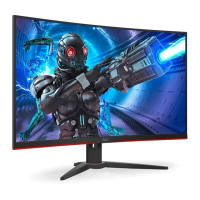
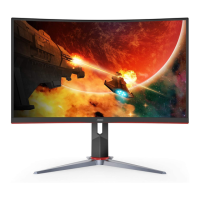
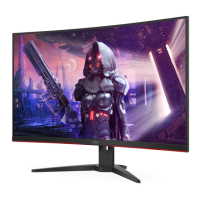
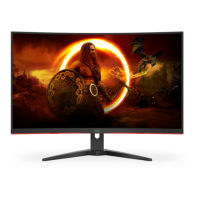
This document serves as a user manual for the AOC C32G2ZE LCD Monitor, which features an LED backlight. It provides comprehensive instructions for setup, adjustment, troubleshooting, and maintenance, ensuring users can effectively operate their display.

The monitor's primary function is to provide a visual display for computers and other compatible devices. It is designed for various applications, including gaming, office work, and multimedia consumption, offering a range of features to enhance the user experience.

Usage Features:

The manual details several key usage features, starting with the physical setup of the monitor. Users are guided through the process of assembling the stand and base, ensuring a stable and secure foundation for the display. The monitor's design allows for adjustment of the viewing angle, specifically from -5° to 23°, to optimize comfort and visibility. Users are advised to hold the stand firmly when adjusting the angle to prevent the monitor from toppling. A crucial note emphasizes avoiding direct contact with the LCD screen during angle adjustments to prevent damage.

Connecting the monitor to a PC is straightforward, with clear instructions provided for connecting the power cord, display signal cables (HDMI-1, HDMI-2, DisplayPort), and earphone. The manual highlights the importance of turning off both the computer and the LCD monitor before making any connections to protect the equipment.

The monitor features an On-Screen Display (OSD) for adjusting various settings. The OSD is accessed via a set of hotkeys located on the monitor. These hotkeys include Source/Exit, Game Mode, Dial Point, Menu/Enter, and Power. The Menu/Enter button activates the OSD and confirms selections, while the Power button turns the monitor on and off. The Dial Point button, when no OSD is active, shows or hides a dial point on the screen. The Game Mode hotkey allows users to quickly switch between predefined game modes (FPS, RTS, Racing, Gamer 1, Gamer 2, Gamer 3) optimized for different game types. The Source/Exit button functions as a source hotkey when the OSD is closed.

Within the OSD, settings are categorized into Luminance, Color Setup, Picture Boost, OSD Setup, Game Setting, Extra, and Exit.

Luminance Settings:

  • Contrast: Adjustable from 0-100, controlling the contrast from the digital register.
  • Brightness: Adjustable from 0-100, for backlight adjustment.
  • Eco Mode: Offers various preset modes like Standard, Text, Internet, Game, Movie, Sports, and Reading, each optimizing the display for specific content.
  • Gamma: Provides Gamma1, Gamma2, and Gamma3 options for adjusting gamma levels.
  • DCR (Dynamic Contrast Ratio): Can be turned On or Off to enable or disable dynamic contrast ratio.
  • HDR Mode: Allows selection of HDR Picture, HDR Movie, or HDR Game modes. It's noted that when HDR Mode is active (not "non-off"), Contrast, Brightness, and Gamma settings cannot be adjusted.

Color Setup:

  • Color Temp.: Options include Warm, Normal, Cool, sRGB, and User, allowing users to recall preset color temperatures or customize them.
  • DCB Mode: Features Full Enhance, Nature Skin, Green Field, Sky-blue, and AutoDetect, which can be turned On or Off to disable or enable various color enhancement modes.
  • DCB Demo: Can be turned On or Off to enable or disable a demo mode for DCB.
  • Red, Green, Blue: Individual gain adjustments from 0-100 for each color component. Similar to Luminance, when HDR Mode is active, all Color Setup items cannot be adjusted.

Picture Boost:

  • Bright Frame: Can be turned On or Off to disable or enable a bright frame.
  • Frame Size: Adjustable from 14-100.
  • Brightness (Frame): Adjustable from 0-100 for the bright frame.
  • Contrast (Frame): Adjustable from 0-100 for the bright frame.
  • H. position & V. position (Frame): Adjustable from 0-100 to set the horizontal and vertical position of the bright frame. This feature allows users to adjust the brightness, contrast, and position of a specific frame for better viewing. Again, when HDR Mode is active, Picture Boost items cannot be adjusted.

OSD Setup:

  • Language: Selects the OSD language.
  • Timeout: Sets the OSD timeout duration from 5-120 seconds.
  • DP Capability: Allows selection between DP1.1 and DP1.2. Users are advised to select DP1.2 if the video content supports it, noting that only DP1.2 supports Adaptive-Sync.
  • H. Position & V. Position (OSD): Adjusts the horizontal and vertical position of the OSD.
  • Volume: Adjusts the audio volume.
  • Transparence: Adjusts the transparency of the OSD from 0-100.
  • Break Reminder: Can be turned On or Off to provide a reminder if the user continuously works for more than 1 hour.

Game Setting:

  • Game Mode: Includes FPS, RTS, Racing, Gamer 1, Gamer 2, Gamer 3, and Off. These modes optimize display settings for different game genres.
  • Shadow Control: Adjustable from 0-100, this feature enhances dark theme black level details, making it easier to see details in dark areas of the screen.
  • Game Color: Provides 0-20 levels for adjusting saturation to improve picture quality.
  • Low Blue Mode: Offers Reading / Office, Internet / Multimedia, and Off options to decrease blue light waves, controlling color temperature for reduced eye strain.
  • Low Input Lag: Can be turned On or Off to reduce input lag by turning off the frame buffer.
  • Overdrive: Options include Weak, Medium, Strong, Boost, and Off, adjusting the response time of the display.
  • Frame Counter: Displays the vertical frequency on a selected corner of the screen (Off / Right-up / Right-Down / Left-Up).
  • MBR (Motion Blur Reduction): Adjustable from 0-20, this feature reduces motion blur.
  • Adaptive-Sync: Can be turned On or Off to disable or enable Adaptive-Sync. It's important to note that MBR and Overdrive Boost are only available when Adaptive-Sync is off and the vertical frequency is up to 75 Hz. Adjusting MBR or Overdrive to Boost will reduce screen brightness. Also, when HDR Mode is active, Game Mode, Shadow Control, Game Color, and Low Blue Mode cannot be adjusted.

Extra Settings:

  • Input Select: Allows users to select the input signal source.
  • Auto Config.: Can be set to Yes or No to auto-adjust the picture to default settings (for D-SUB models).
  • Off Timer: Sets the DC off time from 0-24 hours.
  • Image Ratio: Offers various aspect ratio options like Wide, 4:3, 1:1, and specific resolutions (e.g., 17" (4:3), 19" (4:3), 19" (5:4), 19"W (16:10), 21.5"W (16:9), 22"W (16:10), 23"W (16:9), 23.6"W (16:9), 24"W (16:9), 27"W (16:9)) for display.
  • DDC/CI: Can be set to Yes or No to turn ON/OFF DDC/CI Support.
  • Reset: Can be set to Yes or No to reset all menu settings to default.

LED Indicator:

The monitor's LED indicator provides visual feedback on its status:

  • Full Power Mode: White LED.
  • Active-off Mode: Orange LED.

Troubleshooting:

The manual includes a comprehensive troubleshooting section to address common issues:

  • Power LED Is Not ON: Check power button, power cord connection, and power supply.
  • No images on the screen: Verify power cord and signal cable connections (VGA, HDMI, DP). Reboot the computer and check if the initial screen appears. If "Input Not Supported" message appears, adjust video card resolution and frequency. Ensure AOC Monitor Drivers are installed.
  • Picture Is Fuzzy & Has Ghosting Shadowing Problem: Adjust Contrast and Brightness, use auto-adjust, and avoid extension cables or switch boxes.
  • Picture Bounces, Flickers Or Wave Pattern Appears In The Picture: Move electrical devices away from the monitor, use maximum refresh rate, check computer power and video card, and inspect monitor's video cable for bent pins.
  • Monitor Is Stuck In Active Off-Mode: Check computer power, video card, and monitor's video cable connection.
  • Missing one of the primary colors (RED, GREEN, or BLUE): Inspect monitor's video cable for damage and proper connection.
  • Screen image is not centered or sized properly: Adjust H-Position and V-Position or use the auto-adjust hot-key.
  • Picture has color defects (white does not look white): Adjust RGB color or select desired color temperature.
  • Horizontal or vertical disturbances on the screen: Use Windows 7/8/10 shut-down mode to adjust CLOCK and FOCUS, or use auto-adjust.
  • Regulation & Service: Refer to the CD manual or www.aoc.com for regulation and service information.

Maintenance Features:

The manual provides clear guidelines for maintaining the monitor to ensure its longevity and safe operation.

  • Cleaning: Users are instructed to regularly clean the cabinet with a soft cloth and mild detergent, avoiding strong detergents that could damage the product. It's crucial to prevent detergent from leaking into the product and to use a soft cleaning cloth to avoid scratching the screen surface. Most importantly, the power cord must be disconnected before cleaning the monitor to prevent electric shock.
  • Safety Precautions: The manual emphasizes several safety measures:
    • Power Source: The monitor should only be operated from the specified power source.
    • Grounded Plug: The monitor's three-pronged grounded plug is a safety feature and should only be used with a grounded power outlet. Adapters should be used safely if the outlet doesn't accommodate the plug.
    • Power Surges: Unplugging the unit during lightning storms or prolonged disuse protects it from power surge damage.
    • Overloading: Avoid overloading power strips and extension cords to prevent fire or electric shock.
    • UL Listed Computers: For satisfactory operation, use the monitor only with UL listed computers with appropriate receptacles.
    • Wall Socket Accessibility: The wall socket should be easily accessible.
  • Installation:
    • Stability: Do not place the monitor on unstable surfaces. Use only manufacturer-recommended carts, stands, tripods, brackets, or tables.
    • Foreign Objects/Liquids: Never push objects into monitor slots or spill liquids on it to prevent damage, fire, or electric shock.
    • Placement: Do not place the front of the product on the floor.
    • Wall Mounting: If wall-mounting, use a manufacturer-approved kit and follow its instructions.
    • Ventilation: Ensure adequate space around the monitor (at least 12 inches/30cm at the top and 4 inches/10cm on the sides) for proper air circulation to prevent overheating and potential damage or fire.
  • Other Precautions:
    • Unusual Smells/Sounds/Smoke: Immediately disconnect the power plug and contact a Service Center if the product emits strange smells, sounds, or smoke.
    • Ventilation Openings: Ensure ventilation openings are not blocked by tables or curtains.
    • Vibration/Impact: Avoid severe vibration or high impact conditions during operation.
    • Handling: Do not knock or drop the monitor during operation or transportation.

The manual also mentions the FreeSync Premium function, which works with DP/HDMI and lists compatible AMD Radeon graphics cards, directing users to www.AMD.com for more information. The monitor is equipped with VESA DDC2B capabilities, allowing it to communicate its identity and display capabilities to the host system via a bi-directional data channel based on the I2C protocol.

AOC C32G2ZE Specifications

General IconGeneral
Panel typeVA
Color depth8 bit
Pixel pitch0.3637 x 0.3637 mm
Backlight typeW-LED
Display diagonal31.5 \
Adobe RGB coverage91 %
Display technologyLED
Native aspect ratio16:9
Maximum refresh rate240 Hz
Horizontal scan range30 - 255 kHz
Supported video modes1080p
Screen curvature rating1500R
Viewable size, vertical392.85 mm
sRGB coverage (typical)123 %
Contrast ratio (dynamic)80000000:1
Contrast ratio (typical)4000:1
Display number of colors16.78 million colors
Viewable size, horizontal698.4 mm
Display brightness (typical)300 cd/m²
Supported graphics resolutions1920 x 1080 (HD 1080)
HDMIYes
DisplayPort version1.2
Headphone connectivity3.5 mm
Tilt angle range-3.5 - 21.5 °
Panel mounting interface100 x 100 mm
On Screen Display (OSD) languagesCHI (SIMPL), CHI (TR), CZE, DEU, DUT, ENG, ESP, FIN, FRE, ITA, JPN, KOR, POL, POR, RUS, SER
AC input voltage100 - 240 V
Energy efficiency scaleA to G
Power consumption (standby)0.3 W
Power consumption (typical)45 W
AMD FreeSync typeFreeSync
AMD FreeSync refresh rate range48 - 240 Hz
Sustainability certificatesRoHS
Cables includedDisplayPort, HDMI
Package depth551 mm
Package width807 mm
Package height242 mm
Package weight9810 g
CertificationISO
Product colorBlack
Market positioningGaming
Weight and Dimensions IconWeight and Dimensions
Depth (with stand)244.9 mm
Width (with stand)713.1 mm
Height (with stand)530 mm
Weight (with stand)6830 g
Weight (without stand)5670 g

Related product manuals