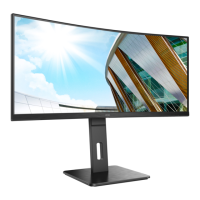
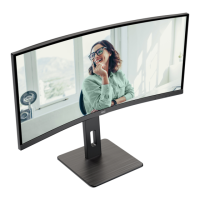
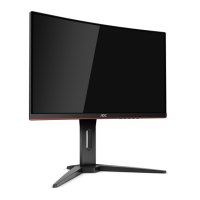
Need help?
Do you have a question about the AOC CU34G3S and is the answer not in the manual?
Describes notational conventions used in the document.
Safety precautions related to the monitor's power source and usage.
Guidance on how to install the monitor safely and correctly.
Instructions for cleaning the monitor cabinet and screen safely.
Covers other important safety precautions and handling instructions.
Lists all items included in the monitor packaging.
Instructions for attaching and detaching the monitor's base.
Guidance on how to adjust the monitor's tilt angle for optimal viewing.
Steps to connect the monitor to a PC using various cables.
Instructions for mounting the monitor on a wall using an optional arm.
Information on the monitor's Adaptive-Sync feature and compatible graphics cards.
Overview of the monitor's physical control buttons and their functions.
Basic instructions for navigating and using the On-Screen Display (OSD) menu.
Details on adjusting brightness, contrast, and other luminance-related settings.
Guide to adjusting color temperature, DCB mode, and RGB gain.
Explanation of the Picture Boost feature for enhanced image quality.
Detailed settings for OSD language, timeout, DP capability, and volume.
Configuration options for Picture-in-Picture (PIP) and Picture-by-Picture (PBP) modes.
Settings tailored for gaming, including game modes, shadow control, and adaptive-sync.
Additional settings like input select, off timer, image ratio, DDC/CI, and reset.
Functionality to exit the main On-Screen Display (OSD) menu.
Information about the status LED colors and their meanings.
Technical specifications of the monitor, including panel, video, and power details.
List of supported display resolutions and their corresponding frequencies.
Details of pin assignments for HDMI and DisplayPort signal cables.
Explanation of the monitor's Plug & Play DDC2B feature.
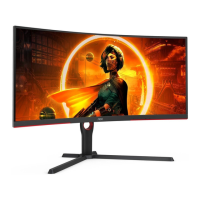
This document serves as the user manual for the AOC LCD Monitor, model CU34G3S, providing comprehensive instructions for its safe operation, setup, adjustment, and troubleshooting. It is designed to guide users through the various features and functionalities of the monitor, ensuring an optimal viewing experience and proper maintenance.
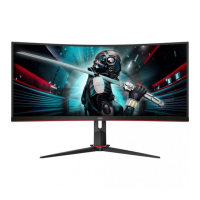
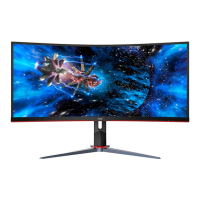
The AOC CU34G3S is an LCD monitor designed for a wide range of applications, from general computing to gaming and multimedia consumption. Its primary function is to display visual information from a connected computer or other video sources. The monitor supports various display modes and resolutions, allowing users to tailor the visual output to their specific needs.
A key feature of this monitor is its Adaptive-Sync function, which works with both DisplayPort (DP) and HDMI inputs. This technology synchronizes the monitor's refresh rate with the graphics card's frame rate, effectively eliminating screen tearing and stuttering for a smoother and more fluid visual experience, particularly beneficial for gaming. The manual lists compatible AMD Radeon™ graphics card series, including RX Vega, RX 500, RX 400, R9/R7 300, Pro Duo (2016), R9 Nano, R9 Fury, and R9/R7 200 series (with some exceptions), indicating its focus on delivering a high-performance visual experience.
The monitor also incorporates Picture-in-Picture (PIP) and Picture-by-Picture (PBP) functionalities, allowing users to display content from multiple sources simultaneously on the screen. This is particularly useful for multitasking or monitoring different inputs without needing multiple displays.
The AOC CU34G3S offers a user-friendly interface for adjustments and settings, primarily through its On-Screen Display (OSD) menu and dedicated hotkeys.
The manual provides clear instructions for setting up the monitor, including attaching the base and connecting it to a computer. It emphasizes placing the monitor on a soft, flat surface during assembly to prevent scratches. For connectivity, the monitor features USB 3.2 Gen 1 ports (including one with Quick Charging), a USB-PC upstream port, HDMI, DisplayPort, and an earphone out port. Users are advised to connect the power cord, turn off the computer, connect the display signal cable, and then power on both devices.
For users who prefer wall mounting, the manual outlines the steps to remove the base and attach a VESA-compatible wall mounting arm (purchased separately). It stresses the importance of using a manufacturer-approved mounting kit and following its instructions.
The monitor allows for adjustment of its viewing angle to optimize comfort and visual quality. Users can tilt the monitor from -5° to 23° and adjust its height up to 130mm. A crucial warning is included to avoid tilting the monitor downward by more than -5° to prevent potential screen damage, such as panel peeling, which would not be covered under warranty. Users are also advised to grasp only the bezel when adjusting the angle and to avoid touching the LCD screen directly.
The monitor features a set of hotkeys for quick access to common functions:
The OSD menu is navigated using the Left and Right buttons, with the Menu/Enter button used to activate functions and confirm selections. The OSD offers extensive customization options, categorized into:
OSD Lock Function: The manual describes a feature to lock and unlock the OSD by pressing and holding the MENU button while the monitor is off, then pressing the power button to turn it on.
A dedicated section addresses common issues such as the power LED not being on, no image on the screen, fuzzy or ghosting pictures, flickering, monitor stuck in "Active Off-Mode," missing primary colors, color defects, and horizontal/vertical disturbances. Solutions range from checking cable connections and power supply to adjusting monitor settings, installing drivers, and moving electrical devices causing interference.
Proper maintenance is crucial for the longevity and optimal performance of the AOC CU34G3S monitor. The manual provides specific guidelines for cleaning and general care.
Users are instructed to regularly clean the monitor cabinet with a soft cloth and a soft-detergent to remove stains, avoiding strong detergents that could damage the product cabinet. It is important to ensure that no detergent leaks into the product and that the cleaning cloth is not too rough to prevent scratching the screen surface. A critical safety measure is to disconnect the power cord before cleaning the product.
The manual emphasizes several safety precautions:
By adhering to these guidelines, users can ensure the safe and effective operation, maintenance, and longevity of their AOC CU34G3S LCD monitor.
 General
| Panel type | VA |
|---|---|
| Pixel pitch | 0.23175 x 0.23175 mm |
| Backlight type | W-LED |
| Display diagonal | 34 \ |
| Surface hardness | 3H |
| Anti-glare screen | Yes |
| Adobe RGB coverage | 96 % |
| Display technology | LED |
| Native aspect ratio | 21:9 |
| NTSC coverage (typical) | 98 % |
| Screen curvature rating | 1000R |
| sRGB coverage (typical) | 119 % |
| Contrast ratio (dynamic) | 80000000:1 |
| Contrast ratio (typical) | 3000:1 |
| Display number of colors | 16.7 million colors |
| Display diagonal (metric) | 86.36 cm |
| Display brightness (typical) | 300 cd/m² |
| AMD FreeSync type | FreeSync Premium |
| AMD FreeSync refresh rate range | 48 - 165 Hz |
| Exterior finish type | Textured |
| Feet color | Black |
| Certification | WEEE, CB, Microsoft WHQL |
| Product color | Black, Red |
| Front bezel color | Black/Red |
| Market positioning | Gaming |
| RMS rated power | 10 W |
| Number of speakers | 2 |
| Tilt angle range | -5 - 21.5 ° |
| Height adjustment | 130 mm |
| Cable lock slot type | Kensington |
| Number of OSD languages | 19 |
| Panel mounting interface | 100 x 100 mm |
| On Screen Display (OSD) languages | CHI (SIMPL), CHI (TR), CRO, CZE, DEU, DUT, ENG, ESP, FIN, FRE, ITA, JPN, KOR, POL, POR, RUS, SWE, TUR, UKR |
| USB hub version | 3.2 Gen 1 (3.1 Gen 1) |
| Headphone outputs | 1 |
| DisplayPort version | 1.4 |
| Headphone connectivity | 3.5 mm |
| USB upstream port type | USB Type-B |
| USB Type-A downstream ports quantity | 4 |
| AC input voltage | 100 - 240 V |
| Power supply type | Internal |
| AC input frequency | 50 - 60 Hz |
| Energy efficiency scale | A to G |
| Power consumption (off) | 0.3 W |
| Power consumption (standby) | 0.5 W |
| Power consumption (typical) | 57 W |
| Package width | 900 mm |
| Package height | 525 mm |
| Package weight | 12100 g |
| Cables included | AC, DisplayPort, HDMI |
| HDMI cable length | 1.8 m |
| Sustainability certificates | WEEE |
| Harmonized System (HS) code | 85285210 |
 Weight and Dimensions
| Depth (with stand) | 339.5 mm |
|---|---|
| Width (with stand) | 794.8 mm |
| Height (with stand) | 532 mm |
| Weight (with stand) | 8250 g |
| Depth (without stand) | 133.4 mm |
| Height (without stand) | 365.8 mm |

 To Next Page