Need help?
Do you have a question about the AOC CU34G2XP and is the answer not in the manual?
Provides safety instructions regarding power sources, plugs, and cord usage.
Details safety precautions for installing the monitor, including placement and mounting.
Provides step-by-step instructions for setting up or removing the monitor stand and base.
Details how to connect the monitor to a PC using various cables.
Provides instructions on how to navigate and use the On-Screen Display (OSD) menu.
Details adjustments for Contrast, Brightness, Eco mode, Gamma, DCR, and HDR settings.
Explains settings for Color Temperature, DCB Mode, and RGB color adjustments.
Covers OSD settings such as Language, Timeout, DP Capability, H/V Position, Volume, and Transparence.
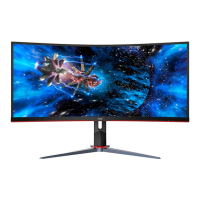
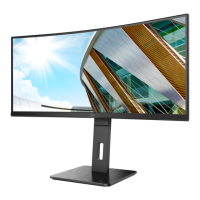
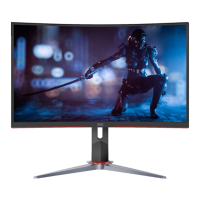
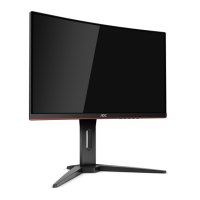
This document serves as a user manual for the AOC CU34G2XP LCD Monitor, providing comprehensive information on its setup, operation, and maintenance. The monitor is designed for gaming, as indicated by the "AOC GAMING" branding, and offers a range of features to enhance the user experience.
The AOC CU34G2XP is a high-definition multimedia interface (HDMI) LCD monitor primarily intended for use with personal computers. It supports various display modes and resolutions, making it versatile for different applications, including gaming, internet browsing, and document viewing. The monitor incorporates AMD FreeSync Premium technology, which works with both DisplayPort (DP) and HDMI inputs to provide a smooth, tear-free gaming experience by synchronating the monitor's refresh rate with the graphics card's frame rate. This feature is compatible with a wide range of AMD Radeon™ graphics cards and Ryzen™ processors, ensuring broad accessibility for gamers.
The monitor's On-Screen Display (OSD) menu allows users to adjust various settings, including luminance, color, picture boost, and game-specific parameters. It also includes PIP (Picture-in-Picture) and PBP (Picture-by-Picture) functionalities, enabling the display of multiple input sources simultaneously. The OSD is accessible via hotkeys located on the monitor, providing quick access to frequently used functions like Game Mode and Dial Point.
Connectivity options include multiple USB 3.2 Gen 1 ports (including one with quick charging), a USB-PC upstream port, two HDMI inputs, two DisplayPort inputs, and an earphone out jack. This extensive connectivity allows users to connect various peripherals and multiple video sources.
The AOC CU34G2XP monitor is designed with user convenience and ergonomic flexibility in mind.
Adjusting Viewing Angle: The monitor stand allows for adjustment of the viewing angle to achieve optimal comfort and visual experience. Users can tilt the monitor from -5° to 23° and adjust the height by 130mm. It is recommended to hold the stand when adjusting the angle to prevent the monitor from toppling. A crucial warning advises against tilting the monitor downward by more than -5 degrees to prevent potential screen damage, such as panel peeling, which would not be covered under warranty. Users should also avoid pressing the screen directly when adjusting the angle, instead grasping only the bezel.
OSD Setting: The OSD menu is a central feature for customizing the monitor's performance. It is activated by pressing the Menu/Enter button. Navigation through the menu is done using the Left and Right buttons, and selections are confirmed with the Menu/Enter button. Settings can be changed using the Left and Right buttons, and the Exit button is used to leave the menu. The OSD also features a lock function, which can be activated or deactivated by holding the Menu/Enter button while turning the monitor on or off.
Luminance Adjustments: The "Luminance" section of the OSD allows users to control contrast and brightness. It also includes an "Eco mode" with presets like Standard, Text, Internet, Game, Movie, Sports, Reading, and Uniformity, each optimized for different viewing scenarios. Gamma settings (Gamma1, Gamma2, Gamma3) are available for fine-tuning image display. Dynamic Contrast Ratio (DCR) can be enabled or disabled to enhance image depth. HDR (High Dynamic Range) mode offers options like DisplayHDR, HDR Picture, HDR Movie, and HDR Game, which are displayed for adjustment when HDR content is detected.
Color Setup: The "Color Setup" menu provides extensive options for color calibration. Users can select from various color temperatures (Warm, Normal, Cool, sRGB) or customize their own settings. The "DCB Mode" (Dynamic Color Boost) offers modes like Full Enhance, Nature Skin, Green Field, Sky-blue, and AutoDetect, which can be enabled or disabled to boost specific color ranges. A "DCB Demo" mode is also available to showcase the effects of these enhancements. Red, Green, and Blue gain can be individually adjusted from 0-100.
Picture Boost: This feature allows users to highlight a specific area of the screen with enhanced brightness and contrast. Users can enable or disable "Bright Frame," adjust its size, brightness, contrast, and horizontal/vertical position. This is particularly useful for focusing on details in games or specific content.
OSD Setup: This menu provides general settings for the OSD itself, including language selection, OSD timeout, and transparency. It also allows adjustment of the OSD's horizontal and vertical position. The "DP Capability" setting is important for users utilizing DisplayPort, as it allows selection between DP1.1, DP1.2, or DP1.4, with DP1.2 being necessary for AMD FreeSync Premium functionality. A "Break Reminder" can be set to alert users who continuously work for more than one hour, promoting eye health.
PIP Setting: The Picture-in-Picture (PIP) and Picture-by-Picture (PBP) functions allow users to display content from two different input sources simultaneously. Users can select the main and sub-screen sources, adjust the size of the PIP window (Small, Middle, Large), and position it (Right-Up, Right-Down, Left-Down, Left-Up). Audio can be enabled or disabled for the PIP/PBP mode, and the screen sources can be swapped.
Game Setting: This menu is specifically tailored for gamers. "Game Mode" offers presets like FPS (First Person Shooter), RTS (Real Time Strategy), Racing, and three customizable Gamer modes (Gamer1, Gamer2, Gamer3). "Shadow Control" allows adjustment of black levels in dark scenes, improving visibility. "Low Input Lag" can be turned on or off to reduce delay between input and display. "Game Color" provides a 0-20 level adjustment for saturation. "LowBlue Mode" offers settings like Reading, Office, Internet, Multimedia, Weak, Medium, Strong, and Boost to reduce blue light emission, which can help reduce eye strain. "Overdrive" adjusts the response time of the pixels, and "Frame Counter" displays the vertical scanning frequency. "MBR" (Motion Blur Reduction) provides 0-20 levels for adjusting visible motion blur. Finally, "AMD FreeSync" can be adjusted to optimize the FreeSync Premium experience.
Extra Settings: The "Extra" menu includes options for "Input Select" to choose the signal source, "Off Timer" to set an automatic shutdown time, and "Image Ratio" to select the aspect ratio (e.g., Wide, 4:3, 1:1). "DDC/CI" (Display Data Channel/Command Interface) support can be toggled on or off, and a "Reset" option is available to revert all OSD settings to default.
The manual provides clear guidelines for maintaining the monitor to ensure its longevity and safe operation.
Cleaning: Regular cleaning of the monitor cabinet is recommended using a water-dampened, soft cloth. For the screen, a soft cotton or microfiber cloth should be used, damp and almost dry, to prevent liquid from entering the case. It is crucial to disconnect the power cord before cleaning the product to avoid electric shock.
Power Safety: The monitor should only be operated from the specified power source. It is equipped with a three-pronged grounded plug for safety; if the outlet does not accommodate this, a qualified electrician should install the correct outlet or an adapter should be used. Users are advised to unplug the unit during lightning storms or prolonged periods of disuse to protect against power surges. Overloading power strips and extension cords should be avoided to prevent fire or electric shock. The wall socket must be easily accessible.
Installation Safety: The monitor should be placed on a stable surface. When wall mounting, only manufacturer-approved kits should be used, and the instructions followed carefully. Adequate space around the monitor (at least 4 inches/10cm on the sides and top, and 12 inches/30cm at the back) is necessary for proper air circulation to prevent overheating.
General Safety: Users are warned against pushing objects into the monitor's slots or spilling liquids on it. The front of the product should not be placed on the floor. If the monitor emits strange smells, sounds, or smoke, the power plug should be disconnected immediately, and a service center contacted. Ventilating openings must not be blocked. The monitor should not be subjected to severe vibration, high impact conditions, knocking, or dropping during operation or transportation. Excessive sound pressure from earphones or headphones can cause hearing loss, and adjusting the equalizer to maximum increases output voltage and sound pressure level.
Troubleshooting: A dedicated "Troubleshoot" section offers solutions to common problems such as the power LED not being on, no image on the screen, fuzzy pictures, flickering, the monitor being stuck in active-off mode, missing primary colors, improperly centered or sized images, color defects, and horizontal/vertical disturbances. These solutions range from checking cable connections and power supply to adjusting OSD settings and rebooting the computer. For more complex issues or regulation and service information, users are directed to the AOC website or a service center.
The manual emphasizes the importance of following these guidelines to ensure the safe and effective use of the AOC CU34G2XP LCD Monitor.
 General
| Haze rate | 25 % |
|---|---|
| Panel type | VA |
| Pixel pitch | 0.23175 x 0.23175 mm |
| Pixel density | 109.7 ppi |
| Backlight type | W-LED |
| Display diagonal | 34 \ |
| Surface hardness | 3H |
| Anti-glare screen | Yes |
| Display technology | LED |
| Native aspect ratio | 21:9 |
| Maximum refresh rate | 180 Hz |
| NTSC coverage (typical) | 105.4 % |
| Screen curvature rating | 1500R |
| sRGB coverage (typical) | 126.5 % |
| Contrast ratio (dynamic) | 80000000:1 |
| Contrast ratio (typical) | 4000:1 |
| Display number of colors | 1.073 billion colors |
| Display diagonal (metric) | 86.4 cm |
| High Dynamic Range (HDR) technology | DisplayHDR 400 |
| RMS rated power | 4 W |
| Number of speakers | 2 |
| LED indicators | Operation, Stand-by |
| Tilt angle range | 3.5 - 21.5 ° |
| Height adjustment | 130 mm |
| Cable lock slot type | Kensington |
| HDCP version | 2.2 |
| Headphone outputs | 1 |
| Charging port type | USB Type-A |
| DisplayPort version | 1.4 |
| USB upstream port type | USB Type-B |
| USB Type-A downstream ports quantity | 4 |
| AC input voltage | 100 - 240 V |
| Power supply type | Internal |
| AC input frequency | 50/60 Hz |
| Power consumption (max) | 120 W |
| Power consumption (off) | 0.3 W |
| Power consumption (standby) | 0.5 W |
| Power consumption (typical) | 59 W |
| Package depth | 903 mm |
| Package width | 280 mm |
| Package height | 548 mm |
| Package weight | 8020 g |
| Feet color | Black/Red |
| Product color | Black |
| Market positioning | Gaming |
 Weight and Dimensions
| Depth (with stand) | 237.4 mm |
|---|---|
| Width (with stand) | 808.3 mm |
| Height (with stand) | 528.2 mm |
| Weight (with stand) | 12000 g |
| Depth (without stand) | 102.9 mm |
| Height (without stand) | 367.5 mm |
| Weight (without stand) | 6510 g |


 To Next Page