The AON BUSINESS PR-250 is a thermal receipt printer designed for fast, low-noise printing with high reliability. It produces perfect print quality and eliminates the need for ribbons, simplifying maintenance. This printer is suitable for commercial cash registers, POS systems, bank POS, and various other receipt printing applications.
Technical Specifications:
- Print Method: Direct thermal
- Print Paper Width: 79.5 ± 0.5 mm
- Print Density: 8 dots/mm, 576 dots/line
- Print Speed: Approximately 250 mm/sec (max)
- Reliability:
- Print Head Life: 150 km
- Cutter Life: 1,500,000 cuts
- Valid Print Width: 72 mm
- Character Printing: Prints 12 × 24 ASCII characters, 50 lines each time, with intermittent repeated printing. Each line of dot printing should not exceed 25% simultaneously, and each character line and vertical dot printing should not exceed 11 times repeatedly.
- Paper Type: Specified thermal paper is recommended.
Print Paper:
- Thermal Paper Roll: Type: thermal paper 79.5 x Φ80 mm (max)
- Thickness: 0.06 mm ~ 0.08 mm
Print Font:
- ANK Character Set: 12 × 24 dots, 1.5 (W) × 3.00 (H) mm
- GB GB2312-80 (Chinese): 24 × 24 dots, 3.00 (W) × 3.00 (H) mm
Interface:
- Serial Interface RS-232C:
- DB-25 socket (female)
- Supports XON/XOFF and TR/DSR protocols
- Baud Rate: Adjustable: 2400, 4800, 9600, 19200, 38400, 57600, 115200 bps. The default baud rate in serial interface mode is 9600bps.
- Data Structure: 1 start bit + (7 or 8) data bits + 1 stop bit
- Parity Checking: No parity, odd, or even parity optional.
- Pin Assignment (DB-25):
- 1 (FG): Cover ground
- 2 (TXD): Output, Printer transmits control code X-ON/X-OFF and data to host
- 3 (RXD): Input, Printer receives data from host
- 4 (RTS): Output, Printer, same as 20pins DTR signal
- 6 (DSR): Input, Host, Signal "MARK" means host is busy and cannot receive data. Signal "SPACE" means host is ready to receive data.
- 7 (GND): Signal Ground
- 20 (DTR): Output, Printer, Signal "MARK" means host is busy and cannot receive data. Signal "SPACE" means host is ready to receive data.
- Connection to IBM PC (DB9 Socket):
- 2 (TXD): Printer transmits control code X-ON/X-OFF and data to host
- 3 (RXD): Printer receives data from host
- Ethernet Interface: Standard Ethernet interface
- USB Interface: USB interface
- Cash Drawer Control: DC24V, 1A, 6-pin RJ-11 socket.
- Pin Assignment (RJ-11):
- 1: Chassis Ground
- 2: Out, Cash drawer driver signal 1
- 3: In, Cash drawer on/off status signal
- 4: +24VDC
- 5: Out, Cash drawer driver signal 2
- 6: Signal ground
Print Control Commands:
- Character Print Commands: Supports double-width, double-height printing of ANK characters, user-defined characters, and Chinese characters. The character line spacing is adjustable.
- Graphics Print Commands: Supports printing of bit-map graphics and downloading bit-map graphics with different densities.
- GS Bar Code Print Commands: Supports UPC-A, UPC-E, EAN-13, EAN-8, CODE39, ITF25, CODABAR, CODE93, CODE128, PDF417, and QR bar code printing.
Power Supply:
- DC24V ± 10%, 2A, A-1009-3P power socket.
- Pin Assignment (A-1009-3P):
- 1: +24VDC
- 2: Ground
- 3: NC
Operation Environment:
- Operation Temperature: 0 ~ 50 °C
- Relative Humidity: 10 ~ 80%
- Storage Temperature: -20 ~ 60 °C
- Relative Humidity: 10 ~ 90%
Outline Dimension & Weight:
- Dimension: 200 (L) mm × 150 (W) mm × 139 (H) mm
- Weight: 1500g (not including paper roll)
Usage Features:
Printer Appearance:
The printer features a paper cover, power indicator (green), status indicator (red), paper-end indicator (red), paper feed button (FEED), decap button, paper-out slot, cutter cover, and power switch. The rear panel includes ports for power supply, RS232, LAN, USB, and cash drawer.
Paper Installation:
- To load paper, hold down the upper cover button on the left side, open the movable upper cover, and put the paper roll into it.
- Draw a certain length of paper, put the paper end on the print head, close the upper cover, and press it downwards lightly.
- Caution: Pay attention to the direction of loading paper, making sure the printing surface faces the print head. Do not feed or draw the paper forwards or backwards with hands. Keep the print head clean to avoid affecting print quality.
- FEED Button: Paper feed button. Its enable/disable function can be configured via print command. When enabled, pressing FEED starts paper feeding; releasing it stops feeding.
- POWER Indicator (Green): Power indicator.
- ERROR Indicator (Red): Status indicator. It is off during normal operation and blinks to report abnormal emergencies.
Self-test:
- The self-test checks the printer's condition. If the self-test receipt prints correctly, the printer is working normally, except for the host interface. Otherwise, repair is needed.
- The self-test prints 96 ANK characters, default code page, Chinese character library name, interface setting, and software version.
- How to Perform: Hold down the 【FEED】 button and turn on the power. The self-test starts automatically.
Hexadecimal Printing:
- To Enter Mode:
- Open the cover.
- Hold down the 【FEED】 button and connect power.
- Close the cover. The printer will print 3 lines: "Hexadecimal Dump".
- In this mode, all input will be printed as hexadecimal numbers.
- To Feed One Line: Single-click the "FEED" button.
- To Terminate: Press the "FEED" button three times. The printer will print "*** Completed ***" and exit hexadecimal printing mode.
Parameter Setting:
- This function allows setting printer parameters.
- Steps to Enter:
- When the printer is off, open the paper case cover.
- Hold the 【FEED】 button, then switch on the printer.
- Release the 【FEED】 button when the status indicator and paper-out indicator flash alternately.
- Press the 【FEED】 button twice and close the paper cover. The printer enters setting mode and prints the first set parameter and its default value.
- Steps to Exit:
- Open the paper case cover and press the 【FEED】 button.
- Close the paper case cover and release the 【FEED】 button. The printer saves the settings, exits setting mode, and enters normal working mode. Data will not be saved if the printer is turned off directly.
- Setting Parameters: Use the 【Paper cover】 button to choose a setting (one press selects the next setting and prints its current value). Use the 【FEED】 button to set the value (one press changes the value to the next option and prints the current set value).
- General Settings Include: Print speed, language, font, print density, buzzer, paper-out reprint, and black mark mode.
Enter Program Upgrade Mode:
- Method 1:
- When the printer is off, open the paper case cover.
- Hold the 【FEED】 button, then switch on the printer.
- Release the 【FEED】 button when the status indicator and paper-out indicator flash alternately.
- Press the 【FEED】 button five times and close the paper cover. The printer enters program upgrade mode. The status indicator flashes once per second.
- Method 2 (Quick Enter):
- When the printer is off, open the paper case cover.
- Hold the 【FEED】 button and switch on the printer.
- Release the 【FEED】 button quickly. The printer enters program upgrade mode. The status indicator flashes once per second.
Maintenance Features:
Paper Jam Solution:
- If the cutter jams, turn off the power and turn it on again. The cutter will return to its original position.
- If paper jams, open the paper cover and take out the paper. If the cutter cannot return to its original position, open the cover, turn the white plastic gear in the direction suggested on the cutter by hand to make the cutter return to its original position.
Error Indicators:
- Paper Ending: "ERROR" indicator flashes, buzzer rings. Description: Paper is running out.
- Print Head Uplift: Buzzer rings. Description: Put down print head.
- Print Head Overheat: Hurried buzzer ring. Description: Recovers automatically when the print head cools.
- Auto Cutter Position Error: Buzzer rings and indicator blinks. Description: Impossible to recover, check if there is paper jam.
- "Paper Out" Indicator (Red): Lights up when there is no paper in the printer head and is off under normal status.
- When any error occurs, the parallel change pin "nFault" goes to "0" level, and a 1-bit wrong code is sent via serial TXD. The printer can also send its status by responding to the ESC v command.
Cleaning:
- Keep the print head clean to ensure optimal print quality.

 Need help?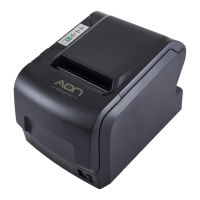

 To Next Page
 General