Apogee Element Series User’s Guide
Apogee Control iOS App
Many of the features and settings of the Apogee Element Thunderbolt interface can be controlled by the free Apogee Control
iOS app. Here’s how it works:
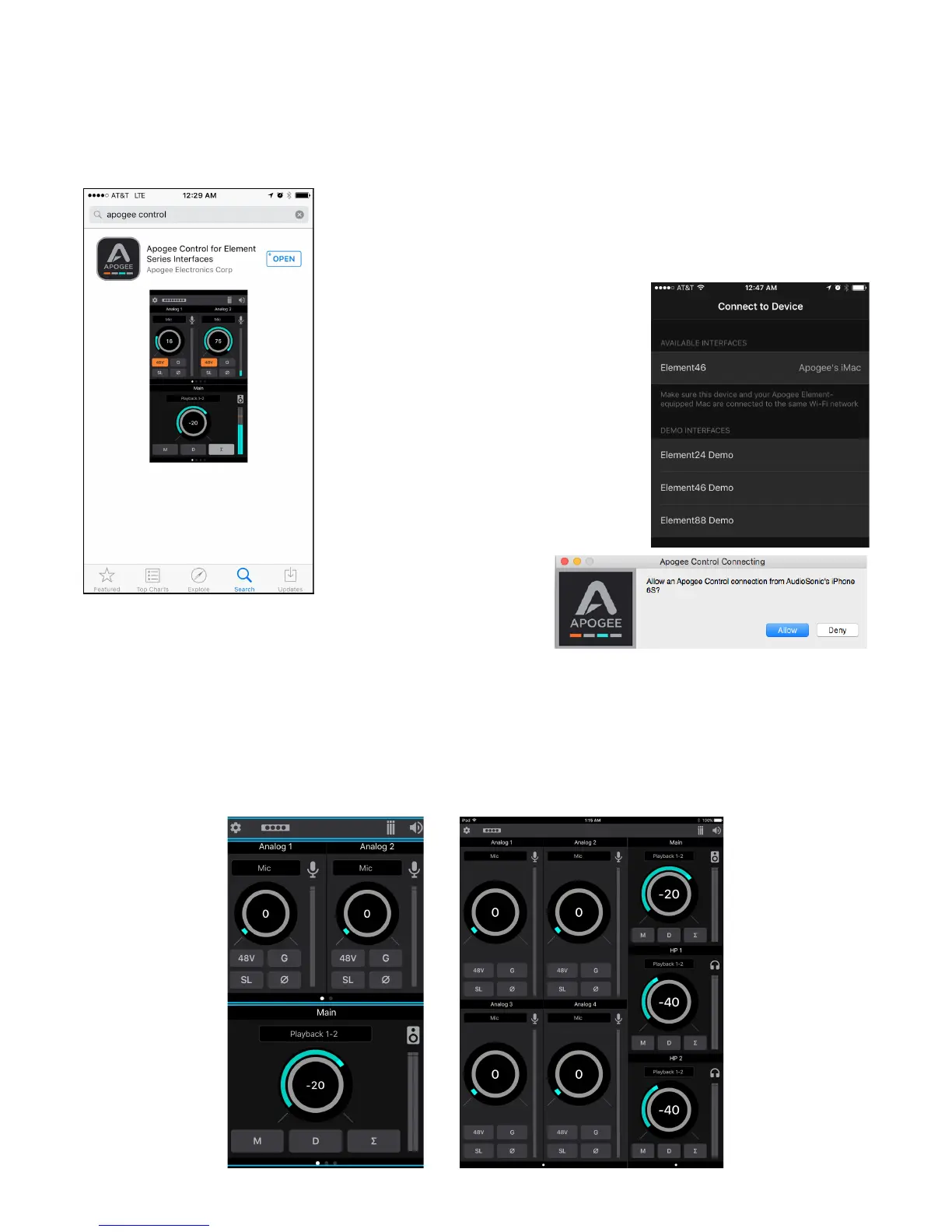
1. Open the App Store app on your iPad, iPhone, or iPod Touch and search for
Apogee Control.
2. Download and open the Apogee Control app and the “Connect to Device” screen
will appear.
3. Your Apogee Element interface will appear
in the “Available Interfaces” list if:
● Your iOS device is connected to the same
WiFi network as your Mac
● The Element Driver Software has been
installed on this Mac computer
● The Element Interface is powered on and
connected to your Mac computer
5. Select your Element Interface from the list of
Available Interfaces
6. A message will appear on your Mac: Click Allow.
7. The main Control screen will appear. It is separated into three sections:
● Toolbar
● Analog Input settings
● Monitor Output settings
18



 To Next Page