Chapter 1
An Overview of Image Adjustments
7
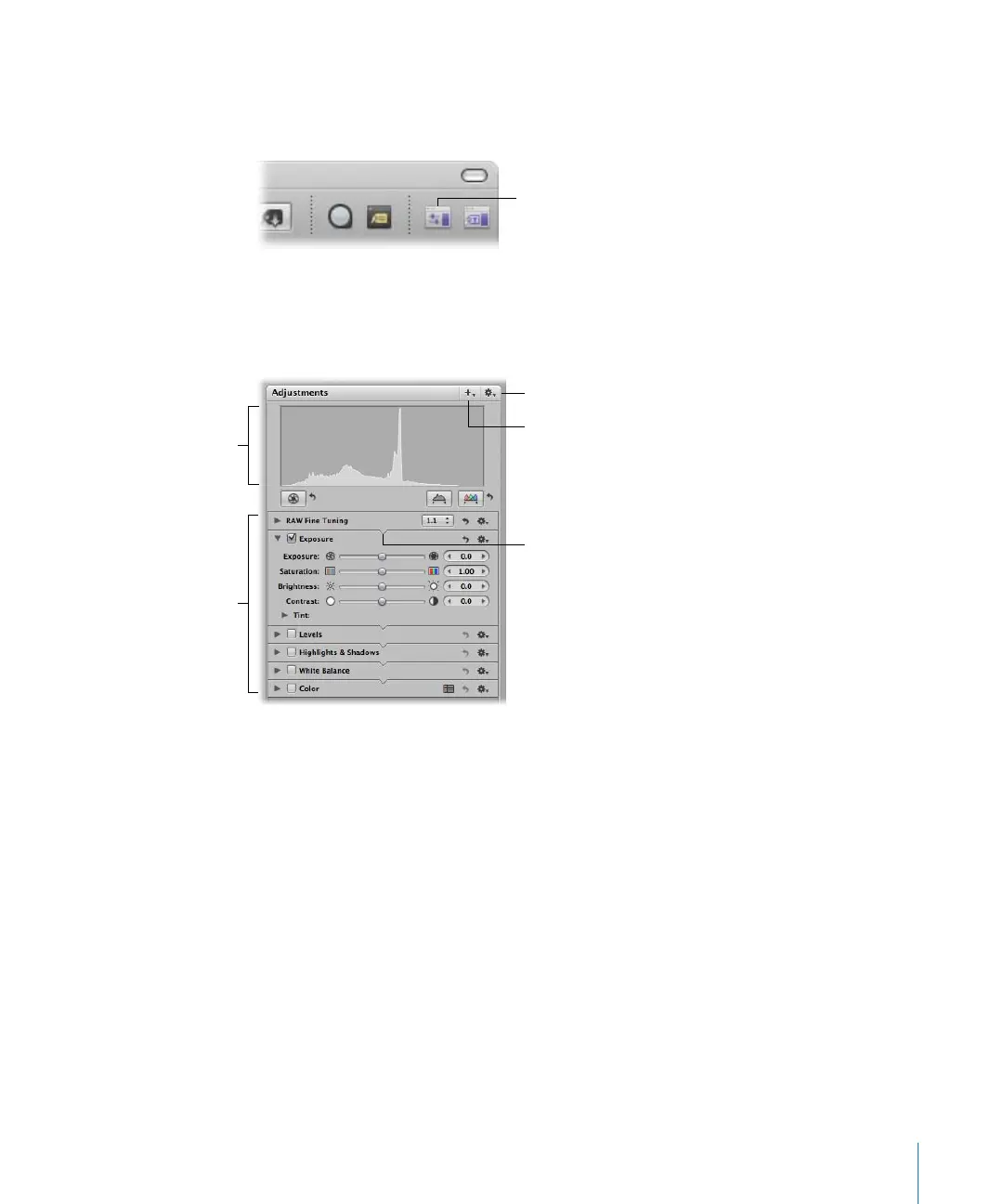
Showing the Adjustment Controls
You can use menu commands, keyboard shortcuts, or the buttons on the right side of
the toolbar to show and hide the Adjustments Inspector.
To show the Adjustments Inspector, do one of the following:
m
Choose Window > Show Adjustments (or press Control-A).
m
Click the Adjustments Inspector button in the toolbar.
Each adjustment contains individual properties, called
parameters
, for which you can
specify a range of values. You click an adjustment’s disclosure triangle, or double-click
the top of the adjustment, to view the parameters for the adjustment and the controls
you use to change parameter values. For more information about using the adjustment
controls to change parameter values, see “Using the Adjustment Controls” on page 9.
You can use menu commands and buttons in the Full Screen mode toolbar to show or
hide the Adjustments HUD.
Adjustments Inspector
button
Available adjustments
(Click a disclosure
triangle to view the
controls for an
adjustment.)
Histogram
(set to show luminance)
Adjustment Action pop-up menu
Add Adjustments pop-up menu
Double-click the top of the
adjustment to show and hide the
adjustment’s controls.





 To Next Page