Chapter 2 Making Image Adjustments 97
Adjusting the Tint of the Image with the Tint Controls
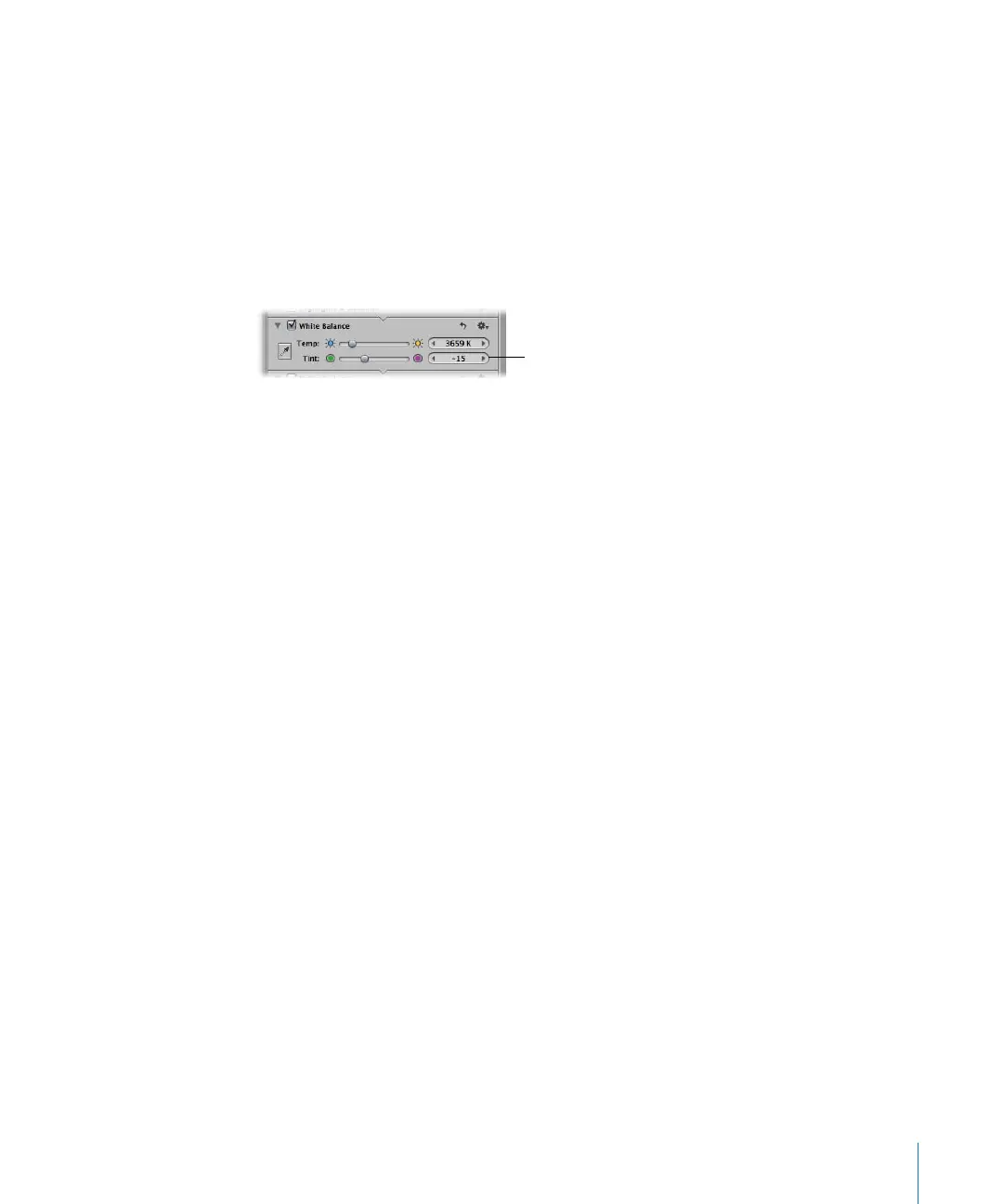
You can also manually adjust the tint of an image using the Tint parameter controls.
You use the tint parameter controls when you need to fine-tune the white balance
adjustment by neutralizing the remaining green or magenta tint.
To manually adjust the tint of your image:
1 Select an image.
2 In the White Balance area of the Adjustments Inspector or Adjustments HUD, adjust the
Tint parameter by doing one of the following:
 Drag the Tint slider to the left to add a green tint to the image, or drag it to the right
to add a magenta tint.
 Click the left or right arrow in the Tint value slider to change the tint of the image by
single increments, or drag in the value field.
The left arrow adds a green tint to the image, and the right arrow adds a magenta tint.
 Double-click the number in the Tint value slider, then enter a value from –150 to 150
and press Return.
The image’s tint updates as you change the parameter value.
Use the Tint slider and value slider to
adjust the tint of the image.





 To Next Page