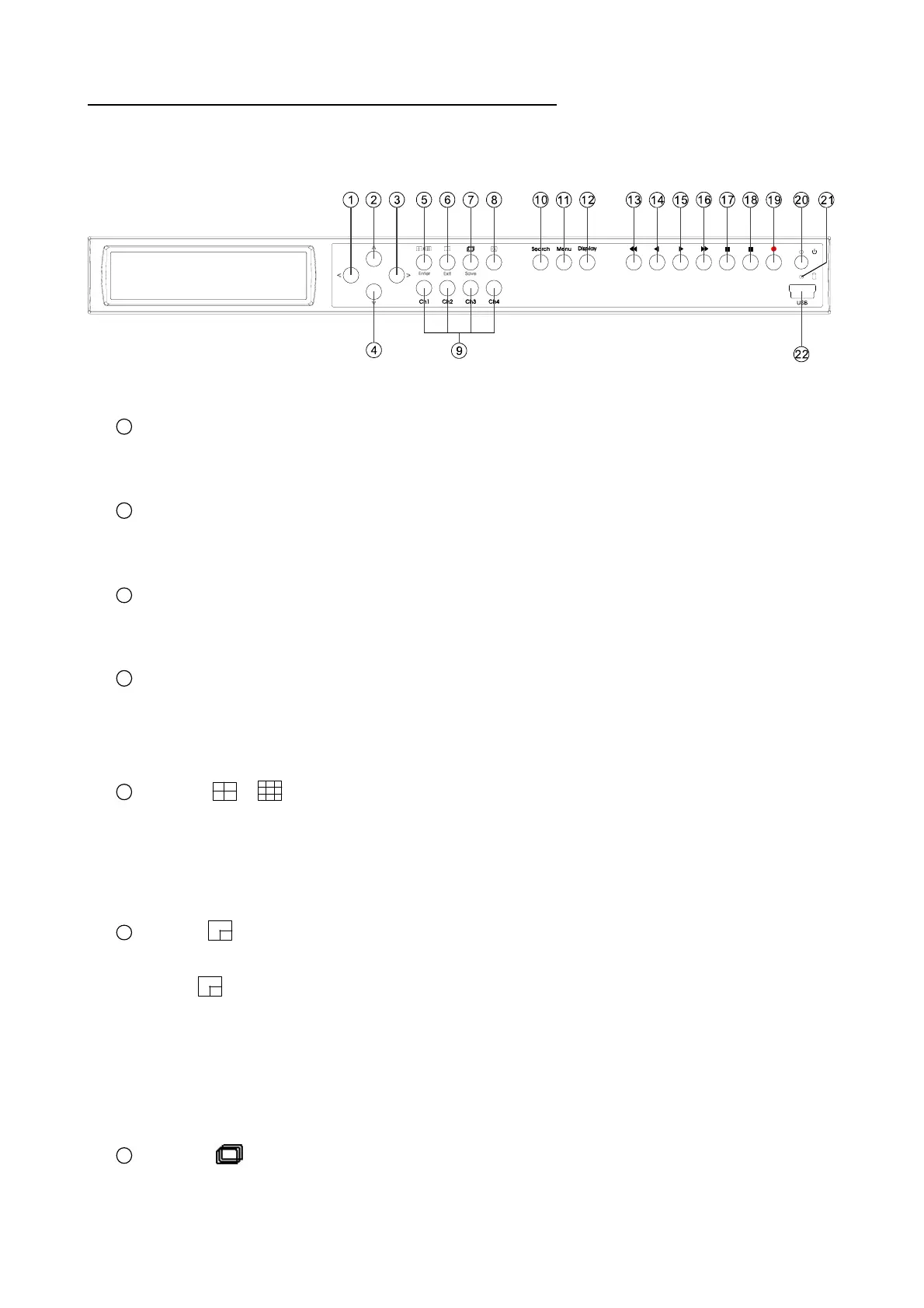
2. DESCRIPTION OF THE FRONT/REAR VIEW
2.1 FRONT VIEW
4CH DIGITAL VIDEO RECORDER
1
< button:
Press to move the focus to desired items in the menu setup mode.
2
> button:
Press to move the focus to desired items in the menu setup mode.
3
^ button:
Press to move within a desired option or value in the setup mode in the upward direction.
4
v button:
Press to move within a desired option or value in the setup mode in the downward direction.
Press the “v” button to activate/deactivate the key lock function (refer to section 3.4).
5
Enter ( / ) button:
Press to enter a selected item in the menu setup mode.
In both the live and play modes, press twice successively to get two multi-channel modes on the
main monitor, the first time in a 4-way vision, and the last in a 9-way mode.
6
Exit / PIP button:
Press to exit the menu setup mode.
The
button is used to select video modes and video channels. In the Live / Record mode,
press this button to loop the picture-in-picture modes in turns.
Note: Press the button for at least 3 seconds to enter a single channel with one, two or three
insets of the channels and highlight the channel to exchange the video sources. Press the
button for at least 3 seconds to exit the setting.
7
Save / button:
Press to enter the sequential jumping mode, each multi-screen, and one sequence; the picture will
sequentially switch to different channels according to the sequence setting in the setup menu.
6



 To Next Page