35
Change the Network Setting — DDNS.
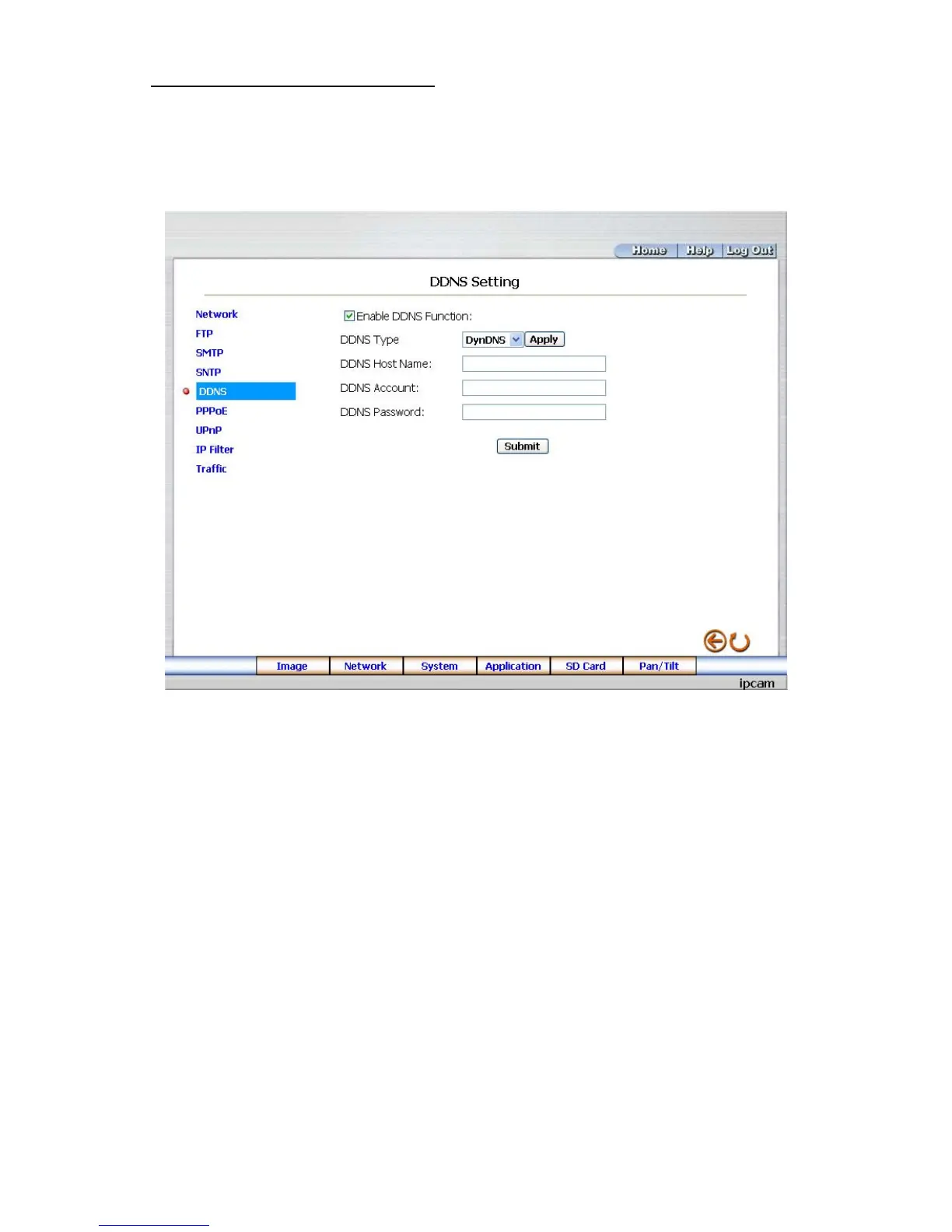
The “Network” page has, on its upper left, the “DDNS” icon. Please follow the steps below to change the
DDNS setting through the network if necessary.
1. Click the DDNS button at upper left above to enter the “DDNS Setting” page.
2. Click “Enable DDNS Function” to checkmark the attached box and activate the function.
3. Click ”DDNS Type” to open the list of two DDNS modes to choose from: “DynDNS” and “hn”. Click
the “Apply” button and connect their website automatically and visit it. Type in your dynamic IP
Address and Email Address. If they are accepted by the website, you will get an Email containing
your DDNS Account and DDNS Password in your Email box.
4. Type in the “DDNS Host Name”, the “DDNS Account” and the “DDNS Password”.
5. Click the Submit button to submit the new setting.
6. Click the Home button to return to the home page.
NOTE: Please refer to section 5.1.8 (PPPoE & DDNS) for more details.



 To Next Page