27
5.1.2 Change Image Setting
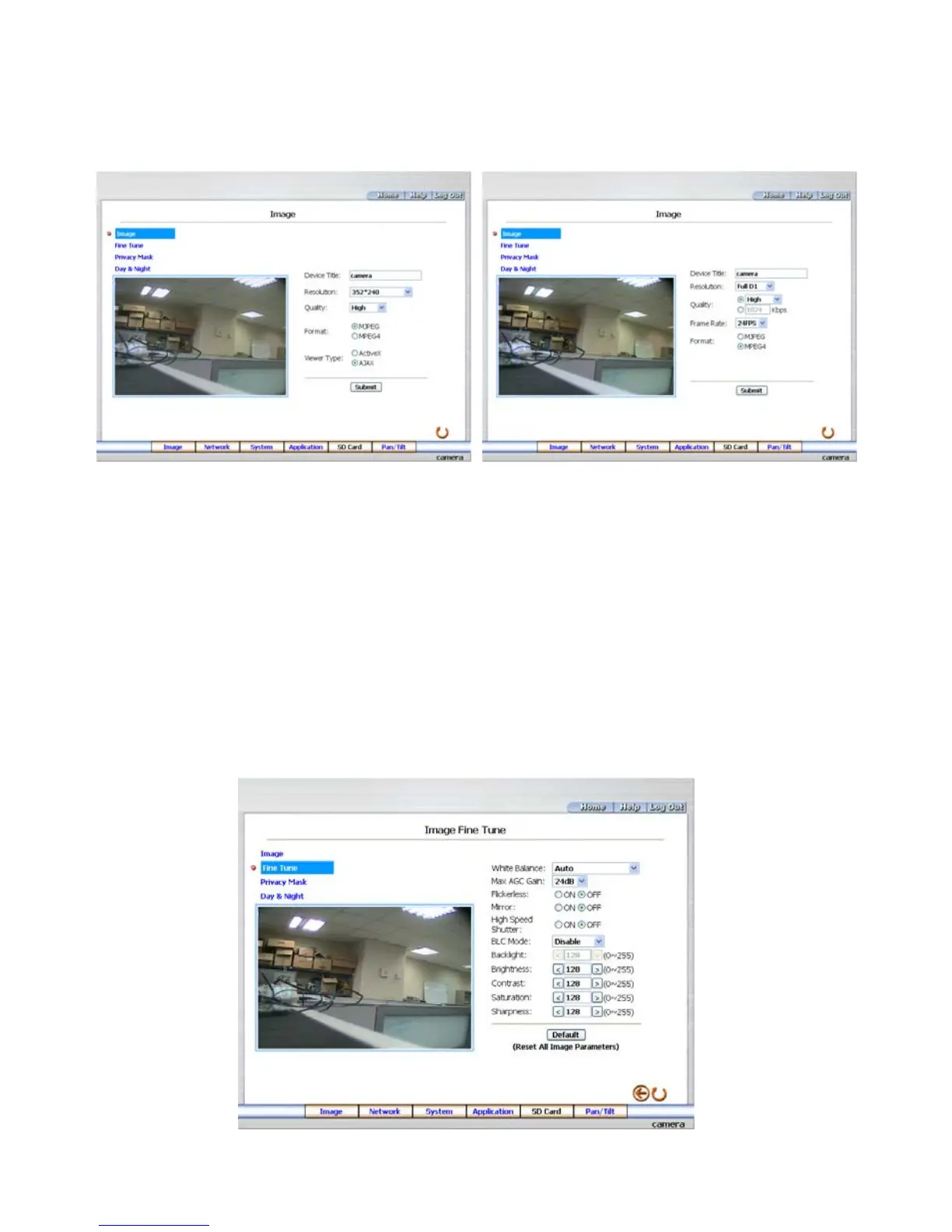
Please follow the steps below to change the image setting through the network if necessary.
1. Click the Image button on the home page to enter the image-setting page.
Image setting page of MJPEG mode Image setting page of MPEG4 mode
2. Adjust the image setting including “Device Title”, “Resolution”, “Quality”, “Frame rate”
(MPEG4 mode only), “Format”, and “Viewer Type” (MJPEG mode only) if necessary.
3. Click the Submit button to submit the new image setting.
4. Click the Fine Tune button to enter the Image Fine Tune page to set the details of the device
including: “Brightness”, “Saturation” and “Sense Up”. Click the Default button to reset all the
settings.
NOTE: The revised image will appear immediately after any change in made.
5. Click the Privacy Mask button to enter the Privacy Mask page.



 To Next Page