78
The user has to modify the “Sequence Views Setting” to make it work. For example, if you
want to see the 4-window sequence, please follow the steps given below:
Step 1: Click the Sequence Views button to enter the Sequence Views setting page.
Step 2: Select the “4 SEQ views” and the
4-windows will show in the Location Setting
area.
Step 3: Select one of the four channels (Location1-4), then click the “Setting” button.
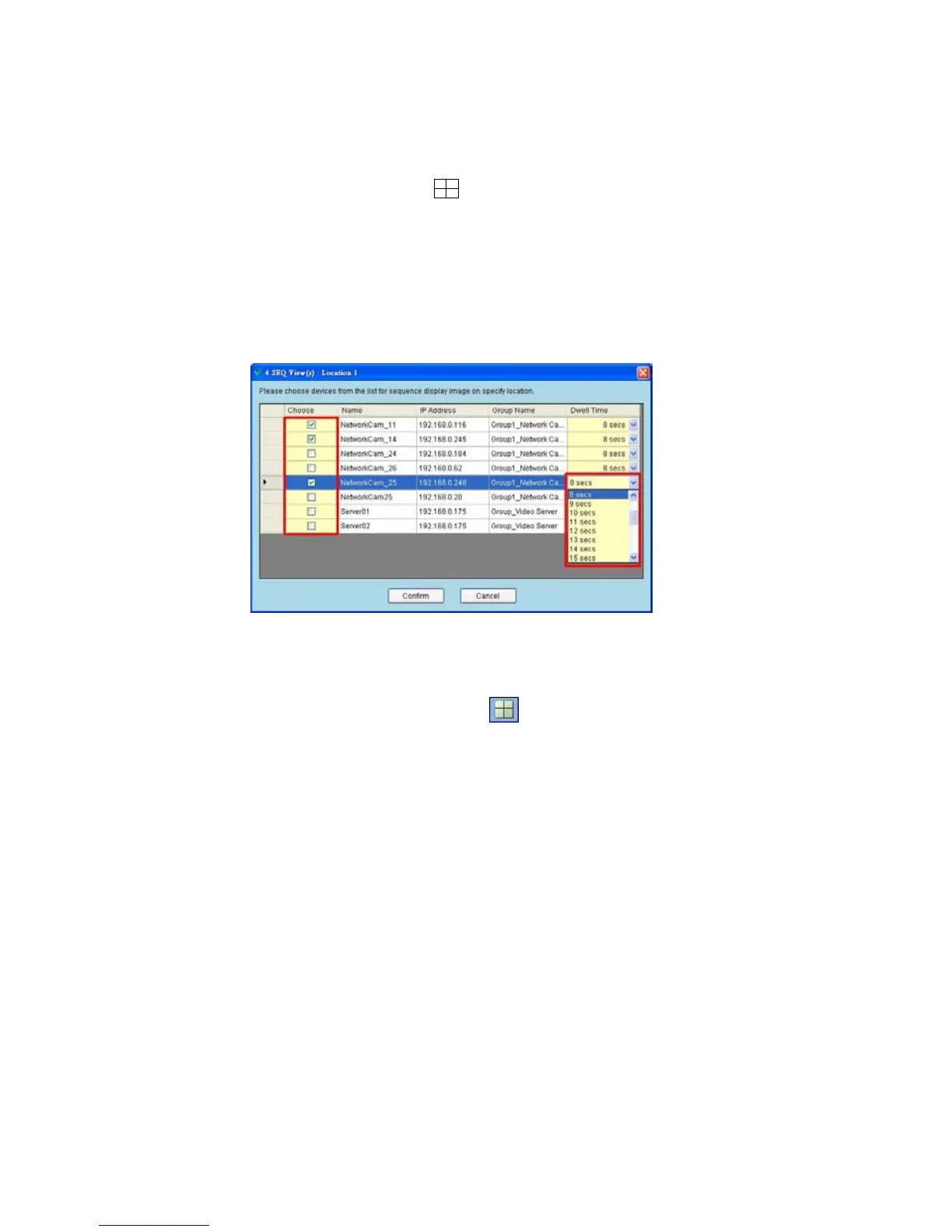
Step 4: The 4 SEQ View(s) page will show below. Choose the device(s) and set the Dwell
Time (3-30seconds) from the drop-down list, then press the “Confirm” button.
Step 5: Set the other channels as in step 3-4.
Step 6: Click “Save all” button, then press “Close” button to exit the setting page.
Step 7: Open the Live Monitor page, then click the
(4 SEQ views) button to see the
4-window sequence.



 To Next Page