150Mbps Wireless Lite-N USB Adapter – APPUSB150 User’s Guide English
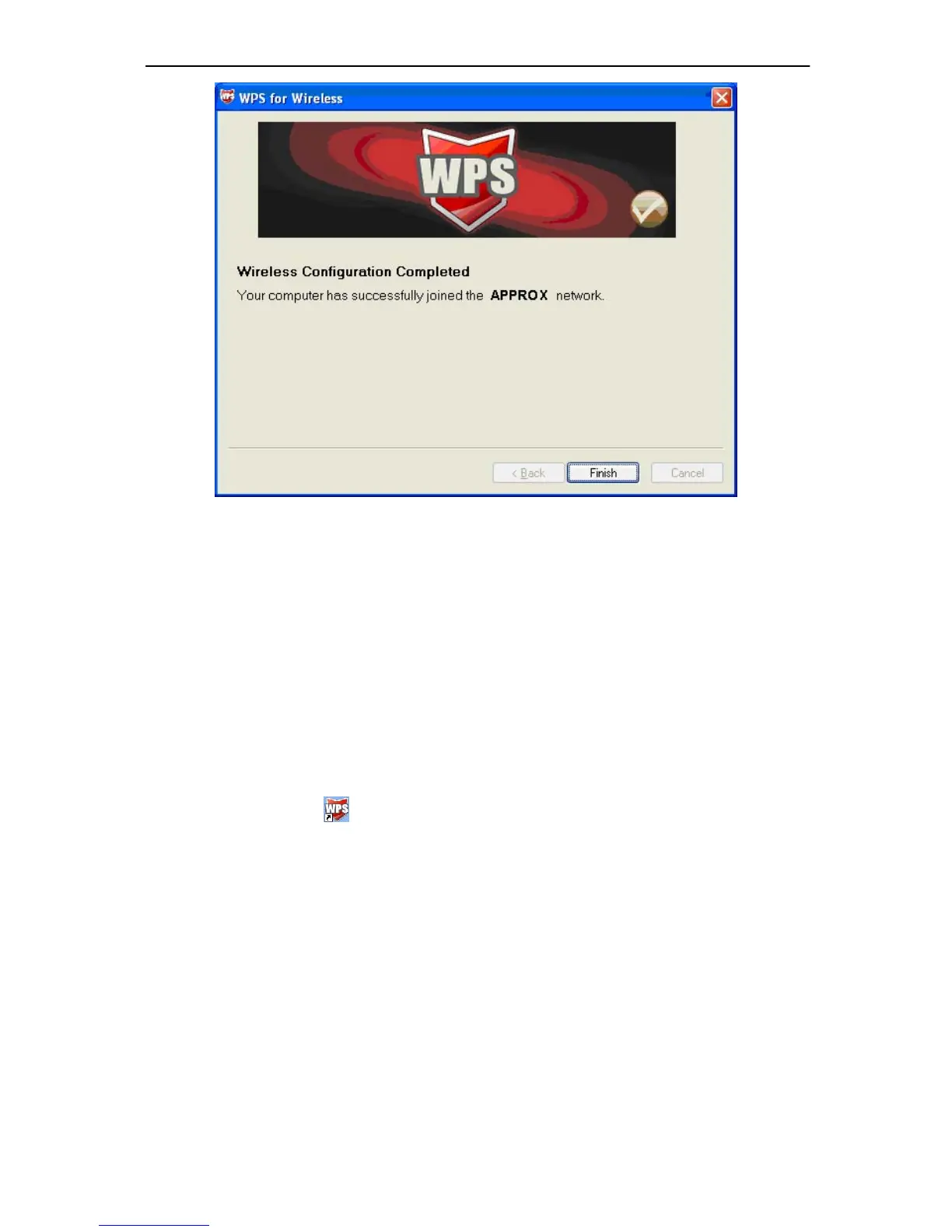
Figure 4-7
4.2 PIN method
There are two ways to configure the WPS by PIN method:
1) Enter a PIN into your AP device.
2) Enter the PIN from your AP device.
Following are the detailed configuration procedure of each way.
4.2.1 Enter a PIN into your AP device
1. Double click the icon on the desktop to open the WPS Utility and then you can see the
welcome screen shown as Figure 4-5 Click Next to continue. Figure 4-8 will appear. Select
the second option, and you w ill see the PIN value of the adapter whic h is random ly
generated. Click Next.



 To Next Page