150Mbps Wireless Lite-N USB Adapter – APPUSB150 User’s Guide English
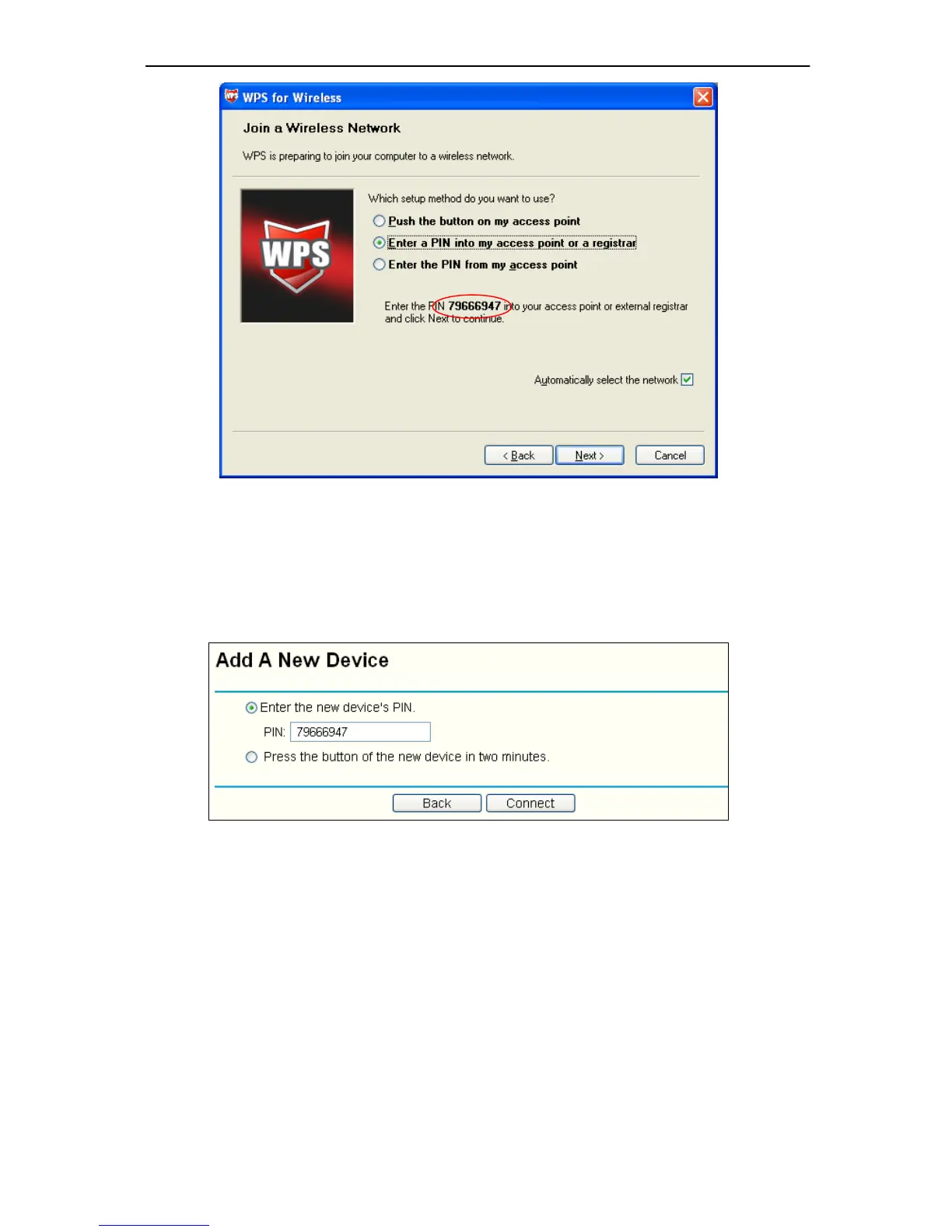
Figure 4-8
2. Open the Router’s Web-based Utility and click WPS link on the left of the main menu. Then
Figure 4-3 will appear. Cl
ick Add device, then you can see
Figure 4-8 Select Enter the
new device’s PIN and enter the PIN value of the ada pter shown in Figure 4 -8, cli ck
Connect.
Figure 4-9
3. When Figure 4-7 appears, the WPS configuration is complete.
4.2.2 Enter the PIN from your AP device
1. Open the WPS Utility and you will see Figure 4- 5 . Click Next to c ontinue. Then Figure
4-10will appear. Select the third opti on and enter the PIN value which is labeled on the
bottom of the Router. Click Next.



 To Next Page