D5 NEXT
HWiNFO automatically exports all sensor values, the “Sensor Status” Window has
to be open.
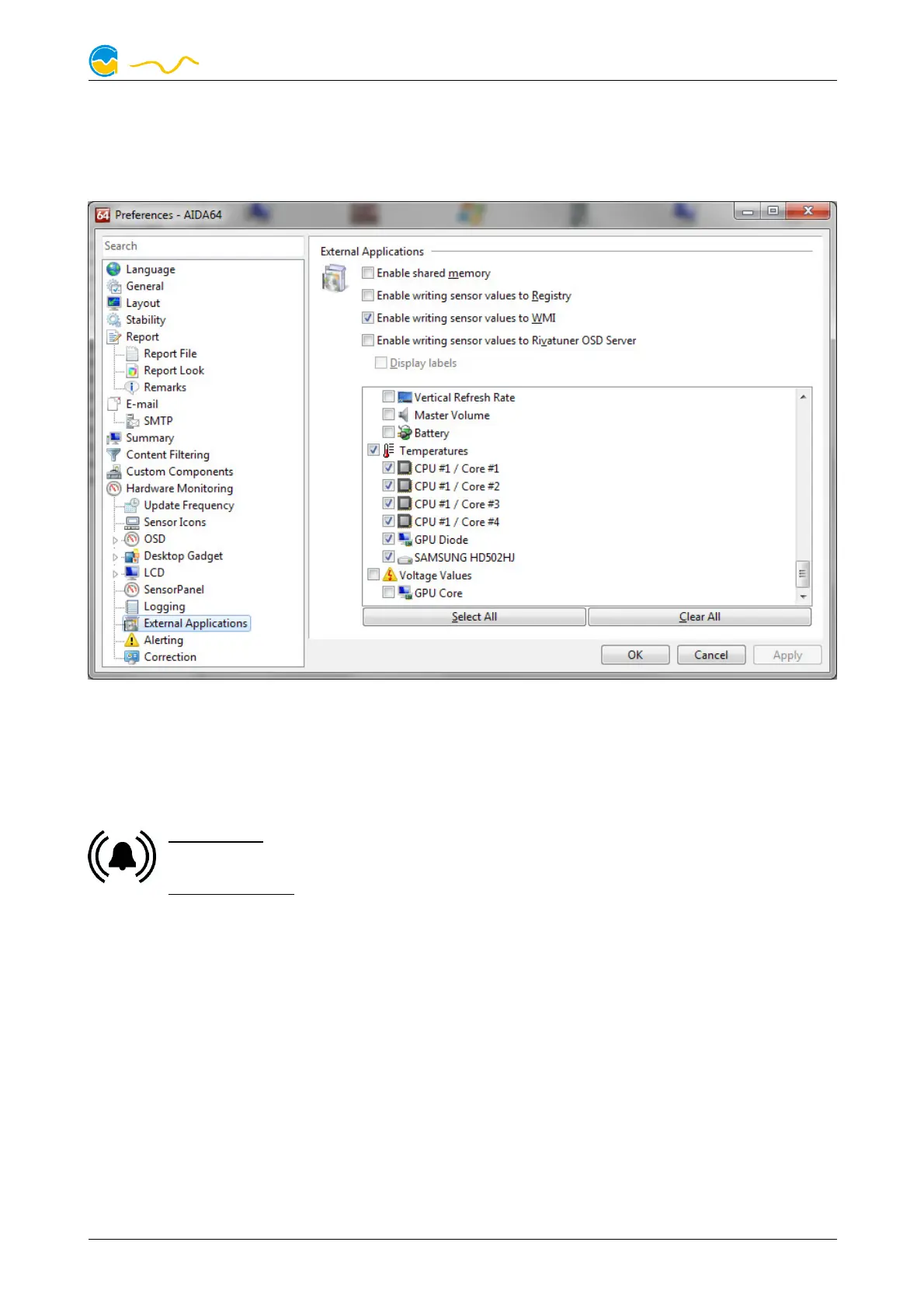
In the AIDA64 preferences menu, writing to WMI must be activated in the "external
applications“ sub-menu:
Click the “Select data source” button to assign each software sensor to a tempera-
ture sensor provided by third party software.
14.
14.14.
14. Alarm configuration
Alarm configurationAlarm configuration
Alarm configuration
aquasuite: Select “Alarms” from the device list below the “D5 NEXT” en-
try.
Device menu: Select “Alarms” from the menu list and confirm by pressing
the middle key.
14.1.
14.1.14.1.
14.1. Acoustic alarm and lighting
Acoustic alarm and lightingAcoustic alarm and lighting
Acoustic alarm and lighting
The acoustic alarm setting determines whether the alarm buzzer will activated dur-
ing alarm conditions. The alarm buzzer is always active for non-configurable sys-
tems alarms regardless of this setting.
Additionally, the LEDs integrated into the controller unit and connected RGBpx
components can be configured to flash red during alarm conditions.
14.2.
14.2.14.2.
14.2. Alarm reporting and alarm limits
Alarm reporting and alarm limitsAlarm reporting and alarm limits
Alarm reporting and alarm limits
Select the data sources to be monitored and set appropriate alarm limits. If the
current reading is below the limit (flow sensors) or higher than the limit (tempera-
© 2019-2020 Aqua Computer GmbH & Co. KG - 21 -
Gelliehäuser Str. 1, 37130 Gleichen


 To Next Page