EasyManua.ls Logo

Arcam AV40 - User Manual

Arcam AV40
18 pages
Print Icon
To Next Page IconTo Next Page
Loading...
23425
AVR10/AVR20/AVR30/AV40 Software Release Notes
– 1 –
Arcam, The West Wing, Stirling House, Waterbeach, CB25 9PB, UK
Required Equipment:
1. WiFi Internet router
2. Android or iOS device with Google Home App installed
3. Low capacity USB Memory stick 1GB to 4GB
4. Latest Unit Software. (see at www.arcam.co.uk
)
5. Computer with Internet access.
WARNINGThis Update will RESET all your settings.
*If updating from HOST 0.82 NET 239 (or lower) contact support at luxurysupport@harman.com for assistance*
USB update procedure (Host and Net):
1. Confirm the current software version installed by pressing and holding the “MENU” button on the front
panel for 5 seconds. Scroll through the options checking HOST and NET versions comparing them to the
latest release versions.
2. Once you have confirmed the current installed versions exit the engineering menu.
If an update is required, locate the Unit Software files you download from our website on your computer,
unzip the folder (In windows right click the folder and select “Extract All”)
3. Once you have extracted the files copy the files ending in “.SWU” & “.FW” on to a freshly FAT32
formatted, clear USB Thumb Drive. After the Copying process finished, safely eject the USB Drive before
disconnecting.
4. Turn on your AVR making sure it is fully booted (> 40 Sec).
5. Insert the USB Stick in to the AVR.
6. Press & Hold INFO & DISPLAY simultaneously till the HOST Update process starts. This update will take
around 20 minutes, the AVR will prompt you to press “OK” to reset the settings & then enter standby
upon completion.
*As contents change between versions, restoring settings from a USB or secure backup is NOT recommended*
Alternative Update Method: Automatic Over-the-AIR Update
Now your AVR is fully up to date and setup within Google Home you can enable the Auto-Net-Update feature.
1. Go to MENU > HDMI SETTINGS > HDMI Bypass & IP = HDMI & IP ON
This Setting will prevent the Unit from entering the “low power standby” and will keep the NET Part of
the AVR active.
Once an update is released, your AVR will automatically download and install the NET update overnight.
2. You will be notified next time you start the AVR that an update is available. To manually start a HOST
update after an automatic overnight NET update, go to the engineering menu and select “Check for
Update” the HOST will now update.
This will take 90 to 100 minutes to complete. After the HOST has updated you will need to perform a
HOST reset by simultaneously pressing the INFO & MODE buttons on the front panel.
*It is worth noting that a HOST reset will delete all user settings configuration data. Also, Dirac
calibrations will need reloading on to the unit after the reset. As contents change between versions,
restoring settings from a USB or secure backup is NOT recommended*
Useful commands
INFO & ZONE (SYNC on AVR10) = Full factory reset of both HOST and NET
INFO + MODE = HOST reset (leaves Google Home and Network details intact)
Net can be individually reset from within the Web Configuration page
INFO + DISPLAY = starts a USB update.
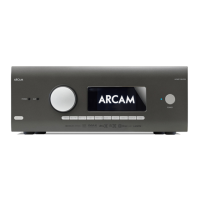
Other manuals for Arcam AV40

Questions and Answers

  • M
    madeline85Aug 17, 2025
    What to do if my Arcam Amplifier remote control doesn't work?
    • J
      James BishopAug 17, 2025
      First, check that there are fresh batteries in the remote control. Next, make sure that the front panel window is visible and that you are pointing the remote control towards it.
  • I
    igarrisonAug 19, 2025
    Why is there no sound coming from my Arcam Amplifier?
    • S
      Sandra NealSep 12, 2025
      Ensure that the correct input has been selected and that the ‘audio source’ has been set correctly in the ‘input config’ menu. Verify that the source equipment is on, operating normally, and in ‘play’ mode if appropriate. Also, check that the volume is turned up to a reasonable level and that the Arcam Amplifier is not in mute mode.
  • P
    Pamela MontgomeryAug 22, 2025
    How to turn on Arcam Amplifier if there are no lights?
    • T
      tomschwartzAug 22, 2025
      Make sure the power cord is correctly plugged into both the Arcam Amplifier and a switched-on mains socket. Ensure the power button is pressed. If a red LED is present, the Amplifier is in standby mode; press any button on the front panel or the standby button on the remote control to exit standby mode.
  • J
    Jerry JohnsonAug 25, 2025
    Why does sound only come from some speakers on my Arcam Amplifier?
    • T
      Terry MoonAug 26, 2025
      Ensure you have an appropriate surround source selected and playing. Check that the BD/DVD disc is encoded in the correct format and that the correct format has been selected in the disc start menu of the BD player (if applicable). The BD/DVD player should be set to output ‘bitstream’ audio on the digital output. Verify that the display window indicates the disc is a multichannel recording. Confirm all speakers are correctly connected to the speaker terminals and are secure. Ensure you have not selected ‘stereo’ as the decoding mode and that your speaker balance is correct. Finally, verify that you have configured the receiver to include all the speakers in your system.
  • M
    Melissa MaciasAug 27, 2025
    What to do if I am unable to select Dolby or DTS decoding modes on my Arcam Amplifier?
    • S
      Scott TapiaAug 27, 2025
      The Arcam Amplifier can only apply Dolby and DTS decoding to sources encoded in the same format. Check that a digital source is selected and connected. Verify that the source is playing appropriately encoded material. Ensure the BD/DVD disc is encoded in the appropriate format and the correct format has been selected in the disc start menu of the BD player (if applicable). The BD/DVD player should be set to output ‘bitstream’ audio on the digital output.
  • J
    Joseph SantosAug 30, 2025
    How to fix no picture on my Arcam Amplifier?
    • J
      Jennifer CooperAug 30, 2025
      Ensure that your viewing device is turned on and switched to display your receiver. Test by pressing the button on the receiver or on the remote and look for the main menu screen on your display device. Check that the correct video input is selected on the receiver. Confirm that the video source is on, operating normally, and in ‘play’ mode if appropriate.
  • B
    brittany20Sep 1, 2025
    How to fix a blank front panel display on my Arcam Amplifier?
    • D
      danakingSep 2, 2025
      Make sure the display hasn’t been turned off. Press the button on the front panel or remote control to turn it on.
  • P
    Patricia OconnorSep 5, 2025
    How to remove bright edges or ‘ghosts’ on the picture from my Arcam Amplifier?
    • J
      Jessica RussellSep 5, 2025
      Ensure the ‘sharpness’ control on your display device is switched off or set to near minimum. For HDMI connections, try using a shorter cable or a different brand.
  • N
    nicolerussellSep 7, 2025
    How to improve poor or distorted sound on my Arcam Amplifier?
    • D
      derek62Sep 7, 2025
      Check that you have not excessively increased the input sensitivity (i.e., reduced the maximum input signal voltage) in the input config menu if an analogue input is being used. Also, verify that you have selected the correct size of speakers to suit your system in the setup menu.
  • D
    Debra LaneSep 10, 2025
    Why does my Arcam Amplifier select Dolby Surround when playing a Dolby BD/DVD?
    • M
      mandrewsSep 12, 2025
      Ensure you have a digital connection from your BD/DVD player. Sometimes Dolby BD/DVD discs contain material at either the beginning or the end of the main movie that is not in full 5.1 format, but in two-channel.

Arcam AV40 Specifications

General IconGeneral
BrandArcam
ModelAV40
CategoryReceiver
LanguageEnglish

Related product manuals