19
USER MANUAL - version 3
4. reCOrding audiO/VideO
manually
4.1. reCOrding audiO manually
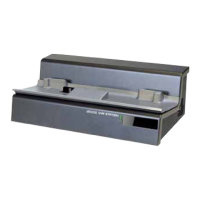
With the DVR Station, you will be able to record audio from most any
standard audio source (hi-, turntable, boombox, etc).
RECORDING PROCEDURE
Your ARCHOS needs to be connected to the DVR Station. Also connect your audio
source’s outputs to the DVR Station’s inputs.
In the Home screen, select the “Recorder” icon and use the tabs ( button) to ac-
cess the “Video Recorder” mode. Then select the “Audio Recorder” menu item.
This screen will allow you to adjust the recording sound gain (left/right arrows) as
well as congure other recording parameters
(see next section)
.
You can now tell the ARCHOS to start recording from the audio source (“REC” yellow
icon, “Start Recording” menu item, or OK button). You can pause and resume your
recording at any time.
Close the screen to stop and save the recording*.
* All audio recordings made by your ARCHOS device are saved in the
Music/(Rec)
folder. If you wish to keep
them in a different location, you can use the “
Move
” function of the ARCHOS le browser after recording.
“AUDIO RECORDER” SETTINGS
To access the “Audio Recorder” settings screen, select the “Settings” menu item:
“Set Title”:
allows you to give a personalized title to the recording, using the keyboard.
“Format”:
you can choose between “
PCM
” (uncompressed) and “
ADPCM
” (compressed) WAV
format.
“Sampling”:
choose the sample rate for your recording (a higher rate gives higher sound quality
but a larger le).
1.
2.
3.
4.
5.
-
-
-


 To Next Page