www.argonaudio.com
7.4 Settings
Dynamic range compression
Some DAB broadcasts offer dynamic range compression (DRC). This feature allows radios to compress
the dynamic range of the output audio stream, so that the volume of quiet sounds is increased, and the
volume of loud sounds is reduced. This can be useful if you are listening to music with a high dynamic
range in a noisy environment (for example, classical music while cooking).
To change the DRC of the Stream3M, select Menu > DRC, and then DRC high, DRC low or DRC off.
Note: The Stream3M’s DRC setting does have any effect if DRC data is not included in the broadcast.
Station order
You can choose the order of the DAB station list to be either Alphanumeric, Ensemble or Valid. Ensemble
lists groups of stations that are broadcast together on the same ensemble, for example BBC or South
Wales local. Valid lists valid stations first, alphanumerically, then off-air stations.
To change station order, select Menu > Station order > then Alphanumeric, Ensemble or Valid.
8. FM radio mode
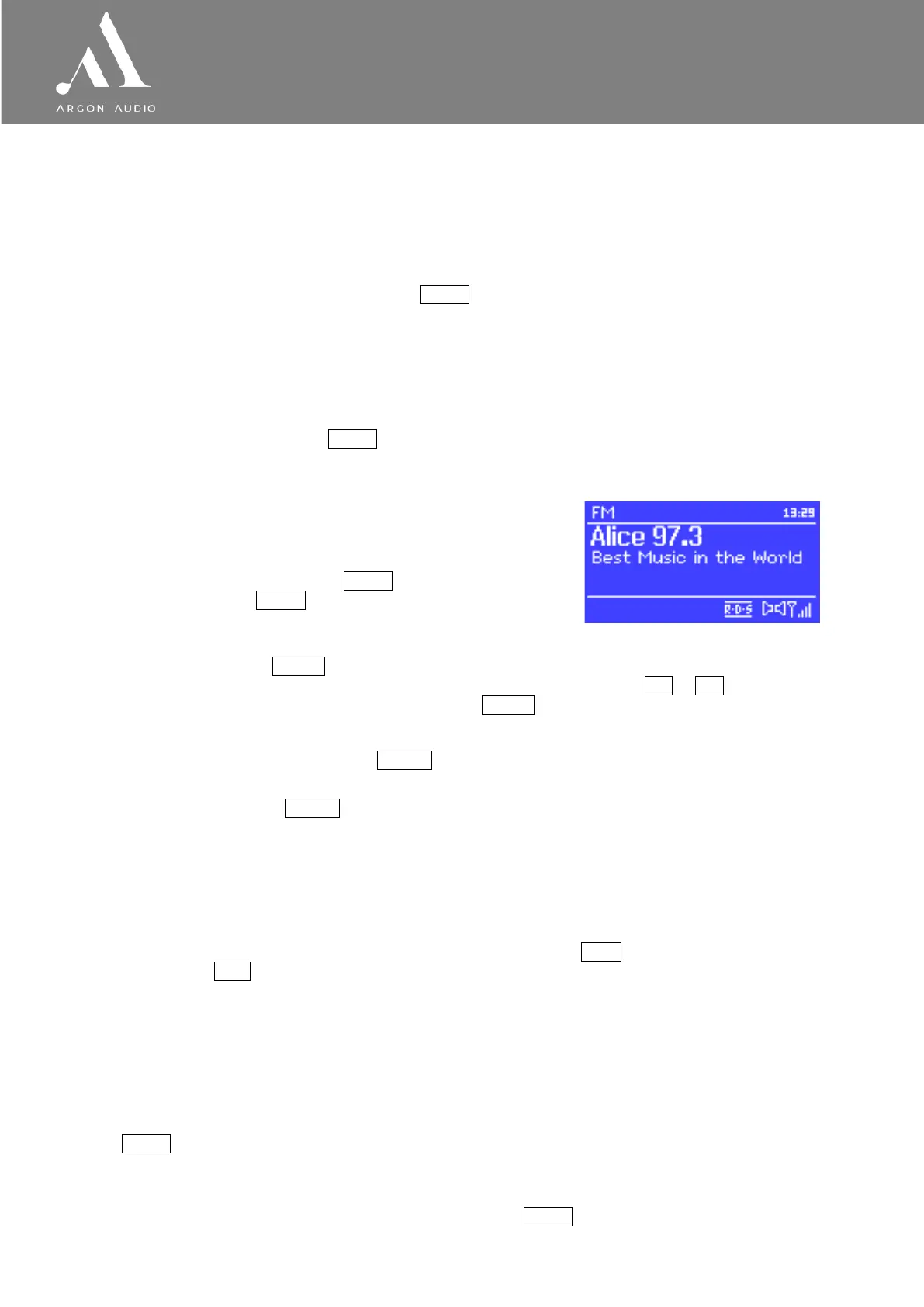
FM radio mode receives analogue radio from the FM band and
displays RDS (Radio Data System) information about the station
and show (where broadcast).
To enter FM mode, either press Mode until the display shows
FM Radio or select Menu > Main menu > FM.
8.1 Selecting stations
To find a station, press Select . The frequency display starts to run up as Stream3M scans the
FM band. Alternatively, you can scan up or down by pressing and holding the >> or << buttons
or tune manually with quick presses, or by turning the Select control.
Presets
To store an FM preset, press and hold Preset until the display shows the Save preset screen.
Select one of the 10 presets to save the currently playing station.
To select a preset, press Preset briefly, then select one of the listed preset stations. When a preset
station is playing, it shows Pn (P1, P2 etc) in the bottom right of the screen.
8.2 Now playing information
While an FM station is playing, the screen shows one of the two following sets data:
• If RDS information is available, by default the service name (i.e. station name) is displayed.
You can cycle through further RDS information by pressing Info . Each time you
press Info , another set of information is displayed, cycling through RDS radio text,
RDS programme type, frequency and today’s date.
• If no RDS information is available, the currently tuned frequency is shown.
8.3 Settings
Scan settings
By default, FM scans stop at any available station. This may result in a poor signal-to-noise ratio (hiss)
from weak stations. To change the scan settings to stop only at stations with good signal strength, select
Menu > Scan setting > Strong stations only? > Yes.
Audio settings
By default, all stereo stations are reproduced in stereo. For weak stations, this may result in a poor signal-
to-noise ratio (hiss). To play weak stations in mono, select Menu > Audio setting > FM weak reception:
Listen in mono only > Yes.


 To Next Page