www.argonaudio.com
2.2 Spotify Connect Control and play back
Listen out loud with Spotify Connect
1. Connect your Stream3M to your wifi network
2. Open up the Spotify app on your phone, tablet or laptop using the same wifi network
3. Play a song and select Devices Available
4. Select your Stream3M and start listening.
The Spotify Software is subject to third party licenses found here:
https://www.Spotify.com/connect/third-party-
licenses
Notice: When you stop Play back on your Stream3M device, Stream3M will show “no media” in the display.
To get back to Internet Radio, DAB, FM, Music Player or Aux, you need to press the MODE button on the
Stream3M remote.
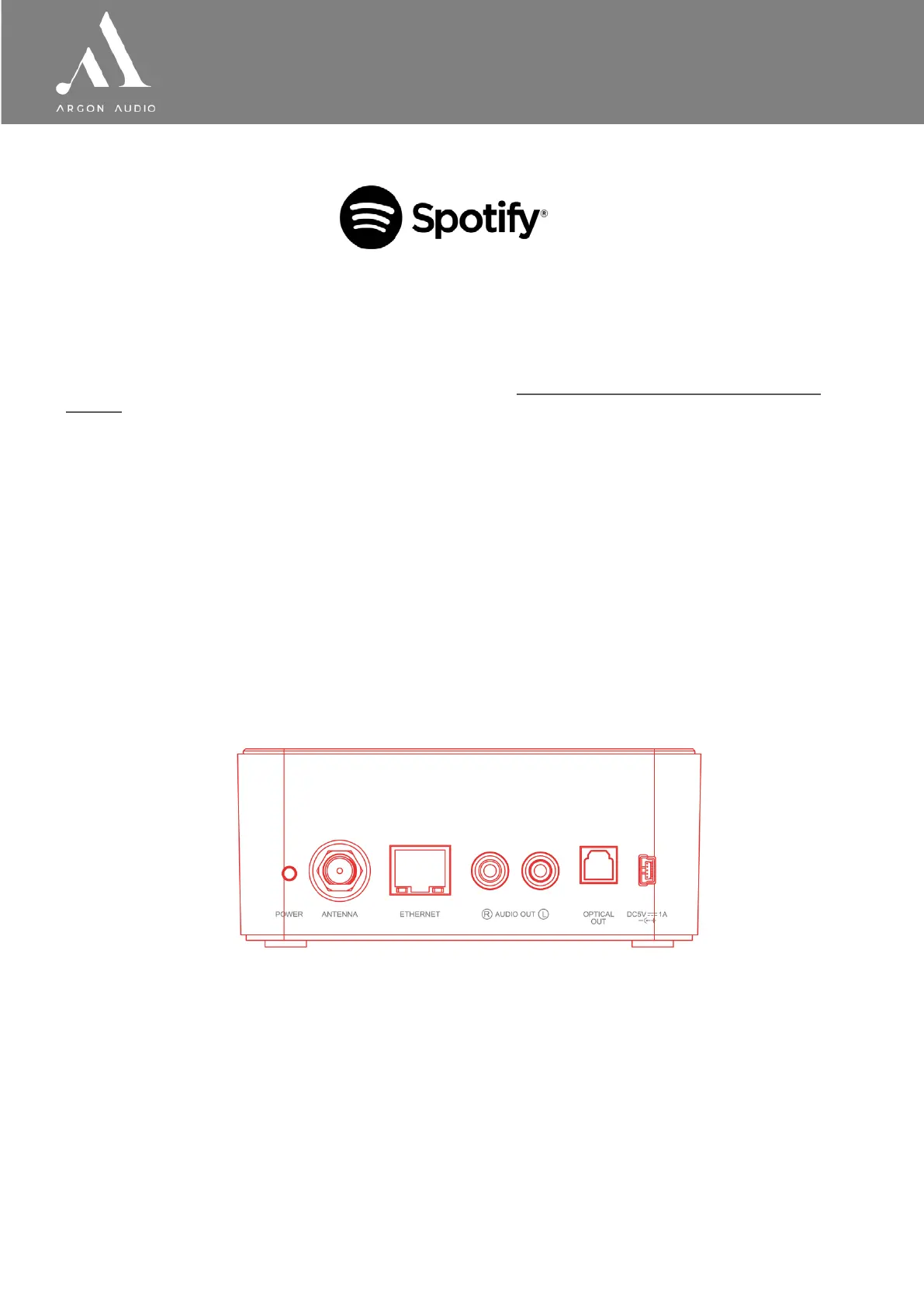
2.3 Connectors
As shown below Stream3M has connectors (from left to right) for the following:
• Power on/Off
• DAB/FM Antenna
• Ethernet/LAN cable to Router connection
• Line out (to connect to an external amplifier)
• Spdiff/optical output
• DC power in (5 V)
2.4 Screens
The screen shows various menus, dialogues and displays, as described below.
There are basically six types of screen:
• Standby (clock)
• Splash (mode)
• Now playing
• Dialogue
• Error/Information
• Menu
When text is too long to fit on the screen, it is first shown truncated, then, after a few seconds,
slowly scrolls so that you can read it all.


 To Next Page