Page 15/17
FreewayCAM Install Guide
Appendix
Adding Alternate IP Address
Windows Vista/Windows 7
1. Click Start and select Control Panel.
2. Make sure you are in Classic View by clicking Classic
View on the left of the Control Panel.
3. Open Network and Sharing Center.
4. Click Manage Network Connections on the left side
of Network and Sharing Center.
5. Right click on the network connection you want to
add an IP address for (to which the camera has been
connected) and select Properties.
6. Select Obtain an IP address automatically and click
on the Alternate Configuration tab.
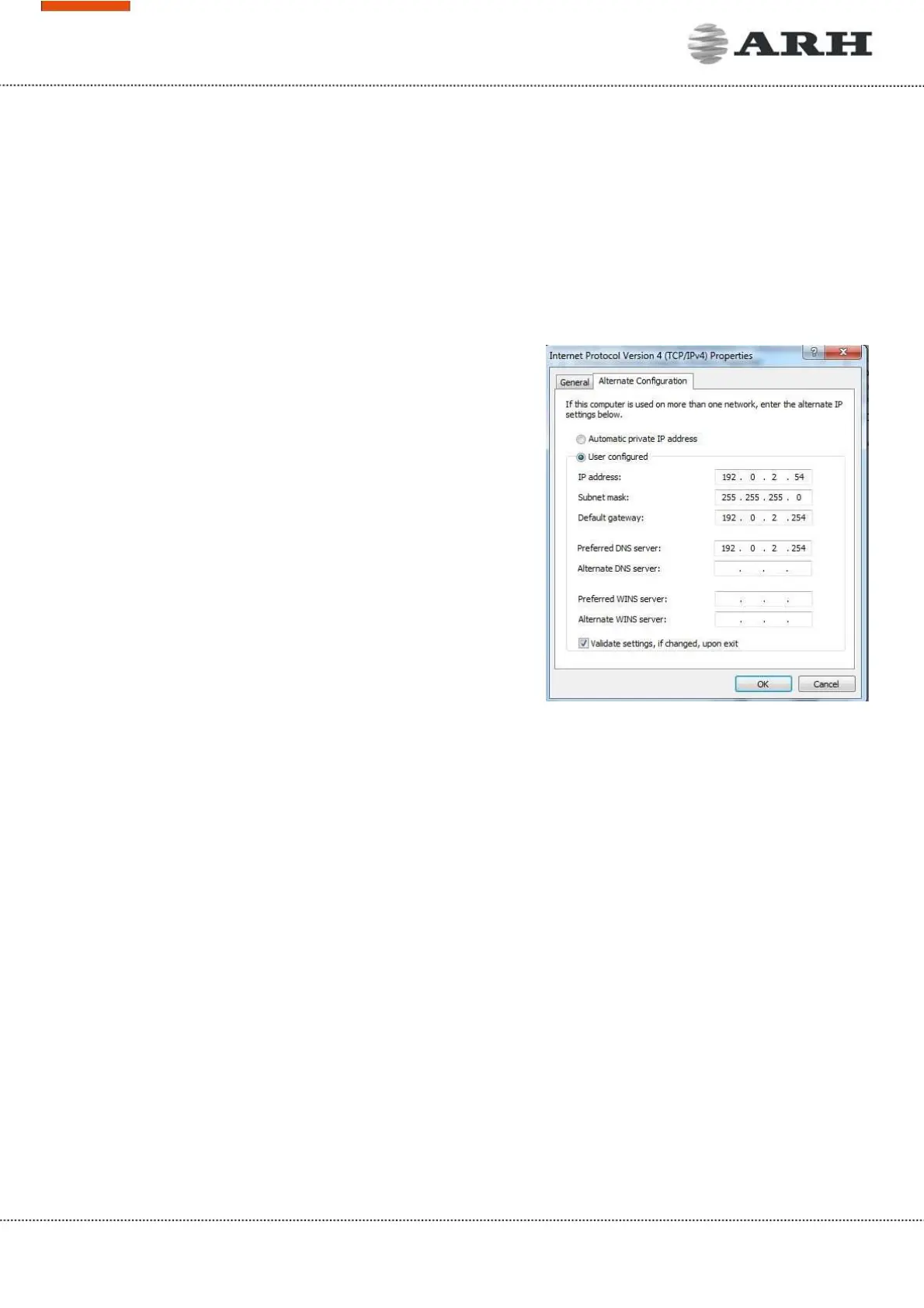
7. Select User configured and enter e.g. the 192.0.2.54
IP address and 255.255.255.0 as Subnet mask as
shown on
Figure 1.
8. Click OK in the opened windows.
Linux
1. Open a terminal.
2. Enter the ifconfig command to see the reserved Ethernets (e.g. eth0).
3. Enter the following command: ifconfig ethY 192.0.2.25
where Y is a free eth (e.g. eth1) and 192.0.2.25 is a sample IP address.
Figure 1.


 To Next Page