Page 11/17
FreewayCAM Install Guide
4. Software Requirements
The cameras are developed to operate without any kind of special software.
Software requirements:
• For network setup, administrator (root) privileges are necessary.
• Web browser: Mozilla Firefox 52, Internet Explorer 11, Google Chrome 51.X.X.X or later editions.
If it is possible, update your browser (Firefox or Chrome) to the newest available version.
NOTE: To enable all camera functions, enable JavaScript control in your browser.
5. Accessing the Camera
Steps of accessing the web interface of the camera from a browser:
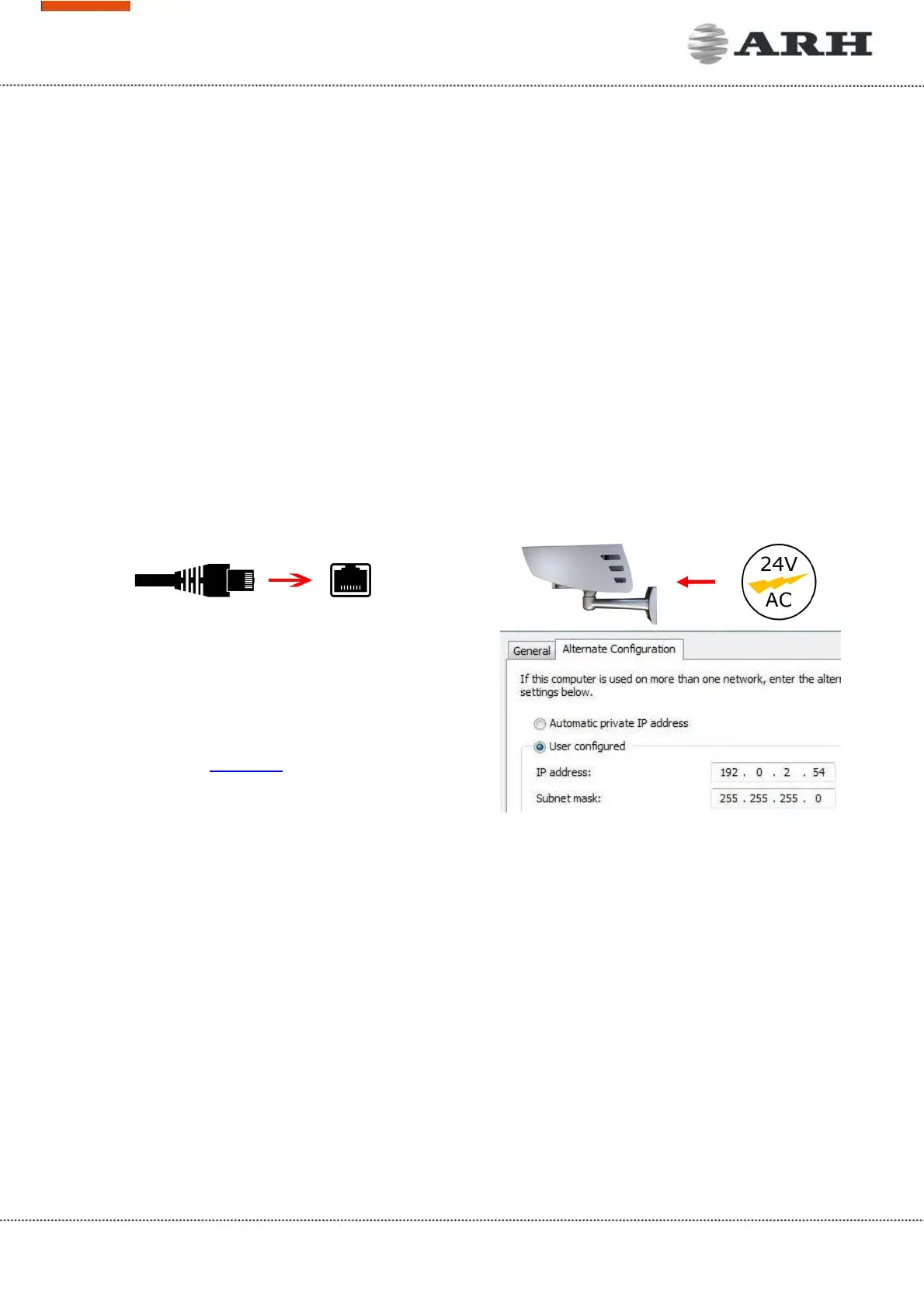
1. Connect the camera to a computer or network switch, then power on the camera. After it is turned
on, both status LEDs (red and green on the camera front) are turned on while the camera is
booting. After finished, the green status LED flashes two times while the red one turns off signaling
that the camera is ready for operation.
2. Enter an alternate IP address (or set your
computer’s IP) in the 192.0.2.x subnet – where x is
an integer number between 1 and 254 except 3 –
with the subnet mask of 255.255.255.0. For more
information, see Appendix.
3. Use the ping command to test the communication
with the camera:
Windows: C: \>ping -t 192.0.2.3
Linux: username@mylinux:~$ ping 192.0.2.3
4. Soon, the ping package returns: Reply from 192.0.2.3. If not:
o first check the Ethernet LEDs at the PC or the switch side
o check whether the IP address is set correctly; the own IP address of the PC can be pinged.
o proxy is set in the browser or the browser is not set to offline.
If these obstacles are checked and there is still no reply, power off then on and enter the previous
ping command again.
5. Start a browser then enter the default IP address of the camera into the address bar
(http://192.0.2.3). After this, the camera starts with administrator privileges, ready to be set up and
configured.
NOTE: To enable all camera functions, enable JavaScript and ActiveX controls in your browser.


 To Next Page