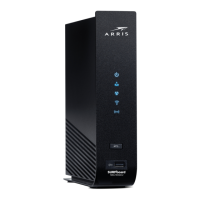
DOCSIS 3.0 technology to provide ultra high-speed Internet access. Using the connection capabilities
of the SBG10, you can connect your computer and other devices via the Ethernet ports or the 2.4 GHz
and 5 GHz wireless connections. The SBG10 connects to the existing coaxial cable connection in your
home.
This quick start guide provides instructions to install your SBG10 and set up a secure Wi-Fi network
connection on your home or small business network.
To customize your Wi-Fi network connection or review other connection methods and advanced Wi-Fi
cable modem settings, refer to the SURFboard SBG10 User Guide. The user guide, Technical Support,
frequently asked questions (FAQs), and additional ARRIS product information are available online at
the ARRIS Support website, www.arris.com/selfhelp.
For information on other ARRIS consumer products, please visit www.surfboard.com.
IMPORTANT! You may need to contact your service provider for assistance to activate your SBG10
after installation. To save time, make sure you have the Wi-Fi cable modem model name (SBG10), HFC
MAC ID, and Serial Number (S/N) listed on the SBG10 label located on the bottom of your SBG10 or
attached to this document in the Wi-Fi Cable Modem Label section.
BEFORE RETURNING THIS PRODUCT TO THE STORE for any reason, please call ARRIS Technical
Support for assistance: 1-877-466-8646.
For Comcast subscribers, please visit xfinity.com/activate before calling Comcast or ARRIS. If there is
an issue with the activation, please call Comcast: 1-800-Xfinity (1-800-934-6489).
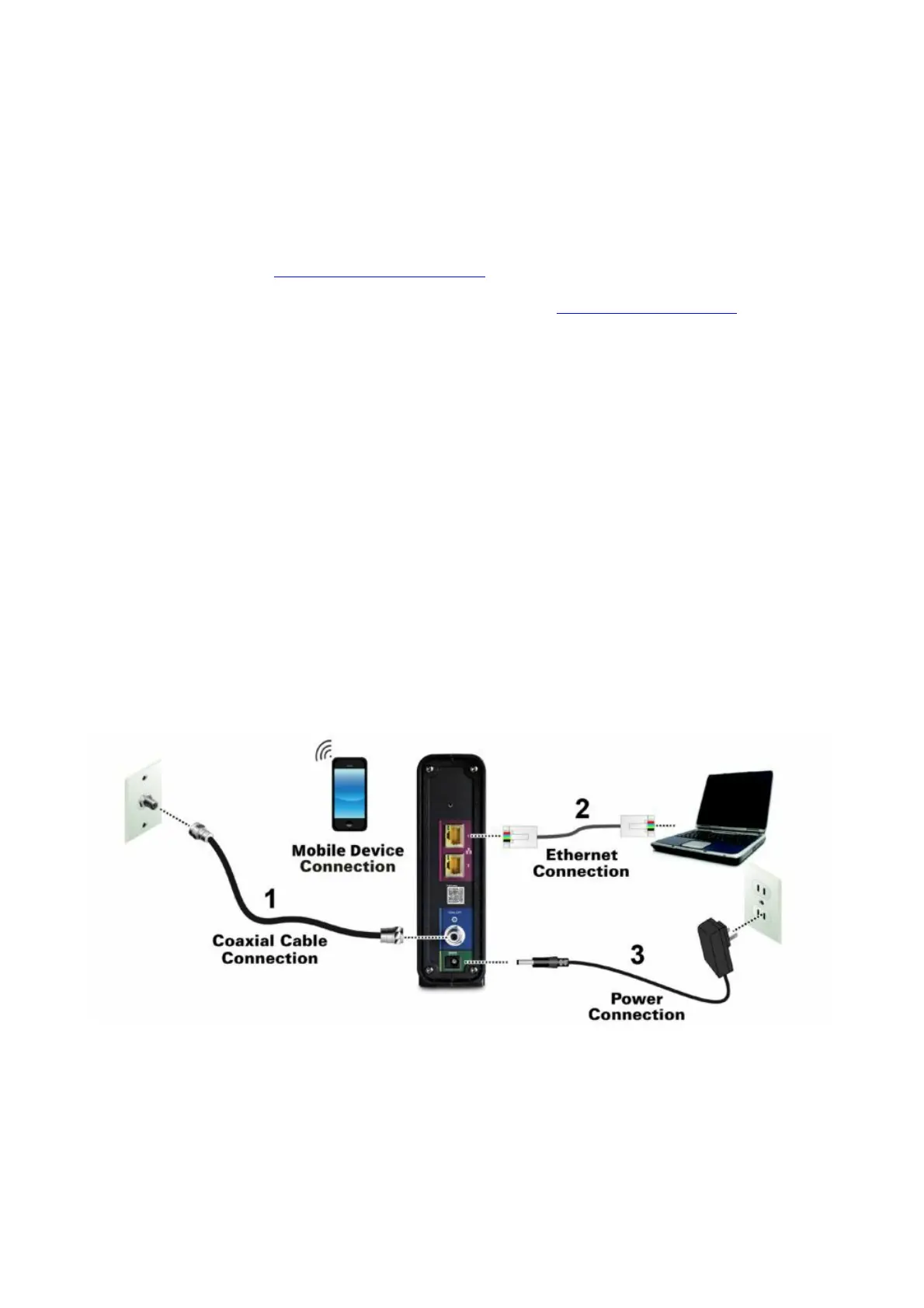
Install the Gateway
1. Connect the coaxial cable from the cable wall outlet or RF splitter (not included) to the Cable
connector on the rear of your SBG10. Use your hand to tighten each connector.
2. Connect the Ethernet cable to the Ethernet port on your Ethernet-enabled device and to an
Ethernet port on the rear of your SBG10.
3. Connect the power cord to the Power port on the rear of your SBG10 and then plug it into an
electrical wall outlet that is not controlled by a wall switch.
This automatically powers ON your SBG10.
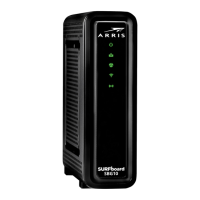
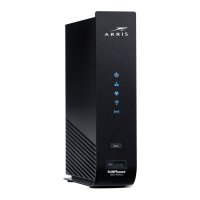
4. Check the front panel LEDs on your SBG10.
During startup, the Power, Send/Receive, and Online LEDs will FLASH. Afterwards, check that all
three LEDs are lit SOLID green. Both Wireless LEDs will light up only when Wi-Fi devices are
connected on your Wi-Fi home network (see Front Panel LEDs & LED Status for more information).
Front Panel LEDs & LED Status
Note: During startup, the first three LEDs will FLASH and then light up SOLID in sequence. If the Power
LED does not light up, please first check the SBG10 power connection before contacting ARRIS. If the
other LEDs do not light up correctly, please call ARRIS Technical Support at 1-877-466-8646.




 To Next Page