EasyManua.ls Logo

Arris VAP3402 - User Manual

Arris VAP3402
20 pages
Print Icon
To Next Page IconTo Next Page
Loading...
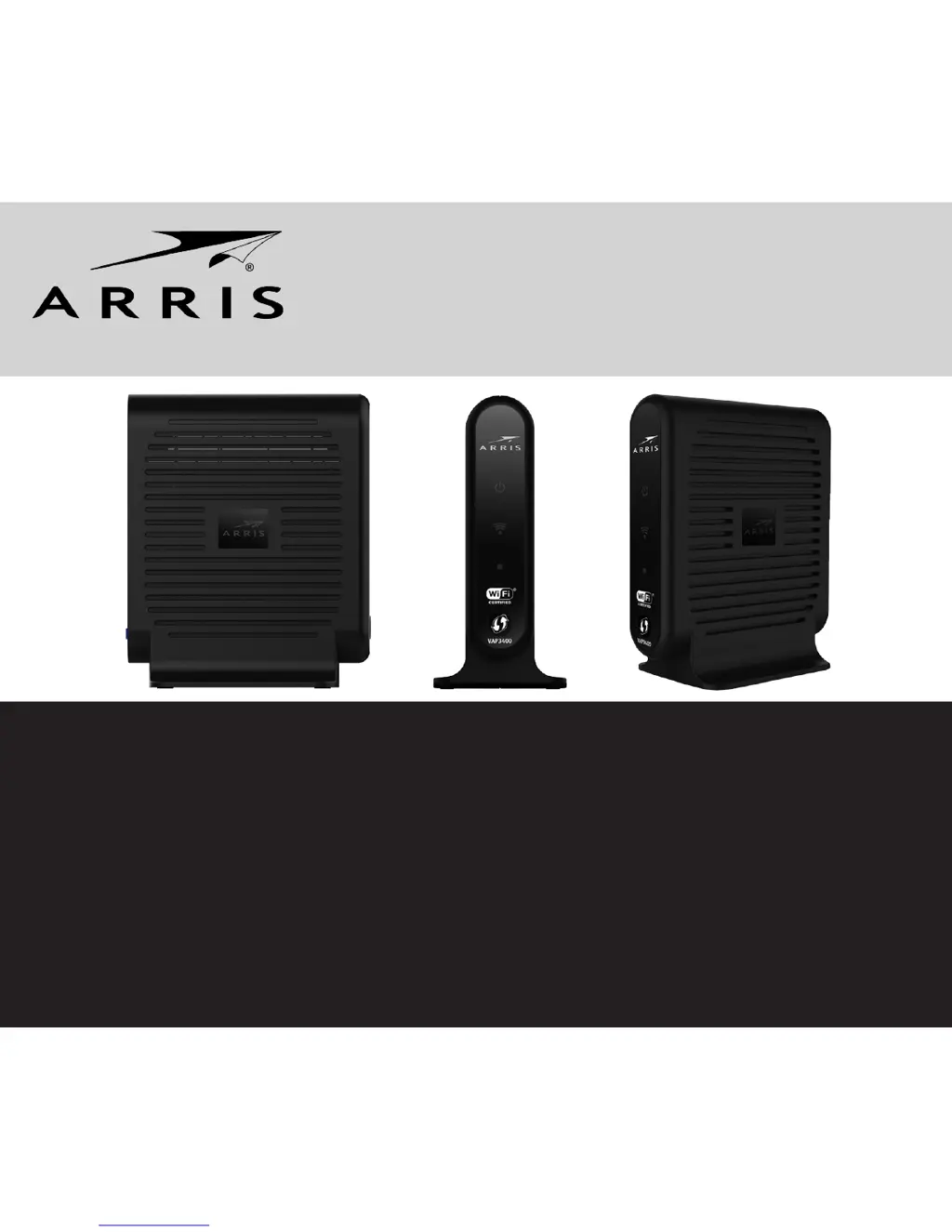
VAP3400/3402
802.11ac Wireless Video Access Point

Other manuals for Arris VAP3402

Questions and Answers

  • R
    Rebekah GambleAug 13, 2025
    What to do if WPS LED is rapidly blinking blue/ green on Arris Wireless Access Point?
    • A
      Anthony BanksAug 13, 2025
      If the WPS LED on your Arris Wireless Access Point is rapidly blinking blue/green, and remains in this state for more than 2 minutes, push the WPS button on the unit's front panel. If the LED continues flashing in a different pattern (rapidly blinking for 1 second, then resting briefly), wait 1 to 2 minutes and press the WPS button again.
  • E
    elizabeth24Aug 17, 2025
    What to do if WPS Status LED is cyan or blue on Arris Wireless Access Point?
    • G
      geraldschwartzAug 17, 2025
      If the WPS Status LED on your Arris Wireless Access Point is cyan or blue, press the Reset button on the rear panel of both the Client and the Access Point. Then, repeat the installation process for both the Access Point and the Client.
  • J
    Jessica JohnsonAug 21, 2025
    What to do if WPS LED is rapidly blinking on Arris VAP3402?
    • K
      Kristina SuttonAug 21, 2025
      If the WPS LED on your Arris Wireless Access Point is rapidly blinking, and remains in this state for longer than two minutes, push the WPS button on the unit’s front panel. If the LED continues flashing in a different pattern, rapidly blinking for 1 second and then resting briefly before blinking again, wait one to two minutes and then press the WPS button again.
  • K
    Kimberly CastroAug 25, 2025
    What to do if WPS Status LED is cyan on Arris Wireless Access Point?
    • C
      calvinreedAug 26, 2025
      If the WPS Status LED on your Arris Wireless Access Point is cyan, press the Reset button on the rear panel of both the Client and the Access Point. Then, repeat the installation process for both the Access Point and the Client.
  • P
    Paul WallerAug 28, 2025
    What to do if Arris VAP3402 cannot send or receive data?
    • M
      Michelle PerezAug 28, 2025
      If you cannot send or receive data with your Arris Wireless Access Point, check that the Ethernet cable is properly connected to both the Access Point and your home gateway/device. Also, ensure you have not experienced an interruption in your cable or Internet service, and that your home gateway is connected and functioning.
  • A
    Alexis MacdonaldSep 1, 2025
    How to fix Arris Wireless Access Point if the Power LED is off?
    • J
      Jennifer BarrSep 1, 2025
      If the Power LED on your Arris Wireless Access Point is off, ensure the Access Point is properly plugged into the electrical outlet and that the rear panel power switch is set to 'On'. Verify that the electrical outlet is working. You may also try pressing and immediately releasing the Reset button.
  • M
    Marc GraySep 5, 2025
    What to do if video is blocky on Arris VAP3402?
    • R
      Richard AguirreSep 5, 2025
      If video isn't showing on your TV, or the video appears blocky and the Wi-Fi Status LED is cyan or blue, try moving the Access Point or client units until the Client Wi-Fi Status LED turns green or cyan, with green being the preferred color. You can also press and quickly release the Reset buttons located on the rear of both the Access Point and the Client.
  • A
    Anita CrawfordSep 8, 2025
    How to fix Arris VAP3402 Wireless Access Point if power LED is off?
    • J
      jamieshawSep 8, 2025
      If the Power LED on your Arris Wireless Access Point is off, check that the VAP is correctly plugged into the electrical outlet and that the power switch on the rear panel is turned “On”. Also, make sure the electrical outlet is working. Finally, press and immediately release the Reset button.

Summary

Installation and Overview

About This Manual

Provides an overview of the VAP3400/3402 user manual and its purpose.

Box Contents

Lists the items included in the VAP3400/3402 package for single and dual unit bundles.

Front Panel Overview

Describes the LEDs and their behavior on the front panel of the VAP3400/3402.

Rear Panel Connections

Details the ports and buttons located on the rear panel of the VAP3400/3402 units.

Installing VAP3400;3402 Dual Units

Step-by-step guide for installing the VAP3400/3402 as a dual-unit system.

Troubleshooting Wireless Video Access Points

VAP3400;3402 Solutions

Provides solutions for common problems encountered with the VAP3400/3402 access points.

Safety and Compliance Information

General Safety Warnings and Precautions

Details essential safety warnings, cautions, and general precautions for using the device.

FCC Compliance Class B Digital Device

Explains compliance with FCC Class B digital device limits and potential interference issues.

Radiation Exposure Statement

Outlines the product's compliance with RF exposure limits for safe operation.

Canadian Compliance Requirements

Covers compliance requirements for Canada, including digital apparatus regulations.

FCC Declaration of Conformity

States ARRIS Enterprises' declaration of conformity with FCC rules for the VAP3400/3402.

Wireless LAN Information and Health

Provides information on wireless LAN technology, health aspects, and usage restrictions.

FCC Certification Details

Details the VAP3400/3402's certification as a radio transmitter by the FCC.

ISED Compliance Statement

Presents the Innovation, Science, and Economic Development Canada (ISED) compliance statement.

Arris VAP3402 Specifications

General IconGeneral
BrandArris
ModelVAP3402
CategoryWireless Access Point
LanguageEnglish

Related product manuals