VAP3400/3402 802.11ac Wireless Video Access Point • User Guide 9
Troubleshooting
If you cannot find a solution to your problem in this manual, or to otherwise get assistance with your
VAP3400/3402, contact your service provider.
Solutions
If the solutions listed here do not solve your problem, try pressing the Reset button on the rear panel of the
Access Point and/or Client. Pressing and immediately releasing the Reset button resets the VAP to its current
settings. Pressing and holding the Reset button for more than 5 seconds will perform a factory default reset,
which you should do only if directed to do so by a technical service representative.
Problem Possible Solution
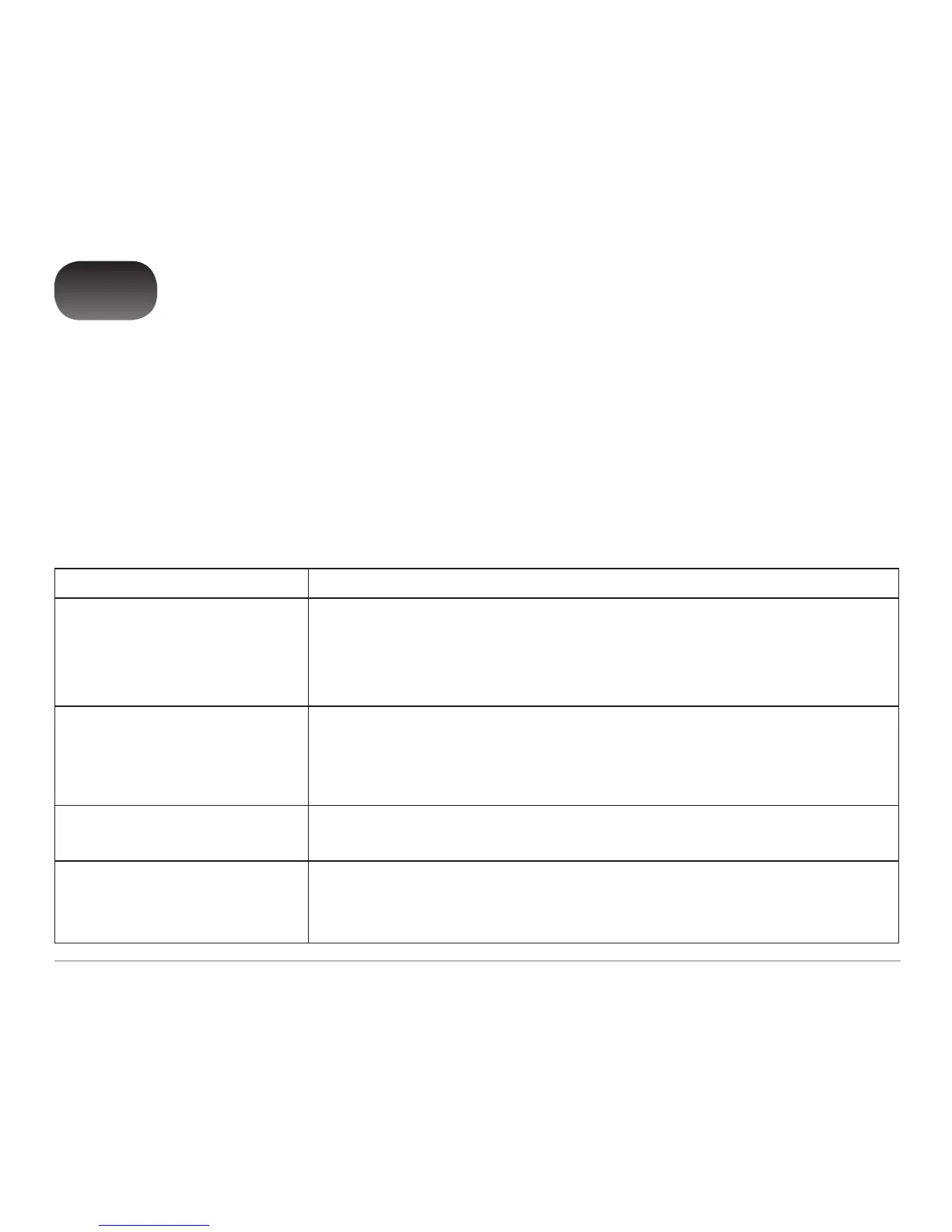
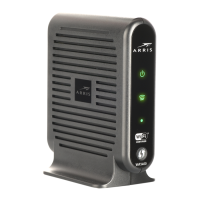
Power LED is off Check that the VAP is properly plugged into the electrical outlet.
Confirm that the rear panel power switch is “On”.
Check that the electrical outlet is working.
Press and immediately release the Reset button.
Cannot send or receive data Check that the Ethernet cable is properly connected to both the VAP and your home
gateway/device.
Ensure you have not experienced an interruption in your cable or Internet service.
Ensure your home gateway is connected and functioning.
WPS Status LED is cyan or blue Press the rear panel Reset button on the Client and the Access Point.
Perform the Installation process again for the Access Point and the Client.
WPS LED is rapidly blinking blue/
green
If the LED remains in this state for longer than 2 minutes, go to the unit’s front panel
and push the WPS button. The LED may continue flashing in a different pattern, rapidly
blinking for 1 second and then resting briefly before blinking again. If this occurs, wait 1
to 2 minutes and then press the WPS button again.
2



 To Next Page