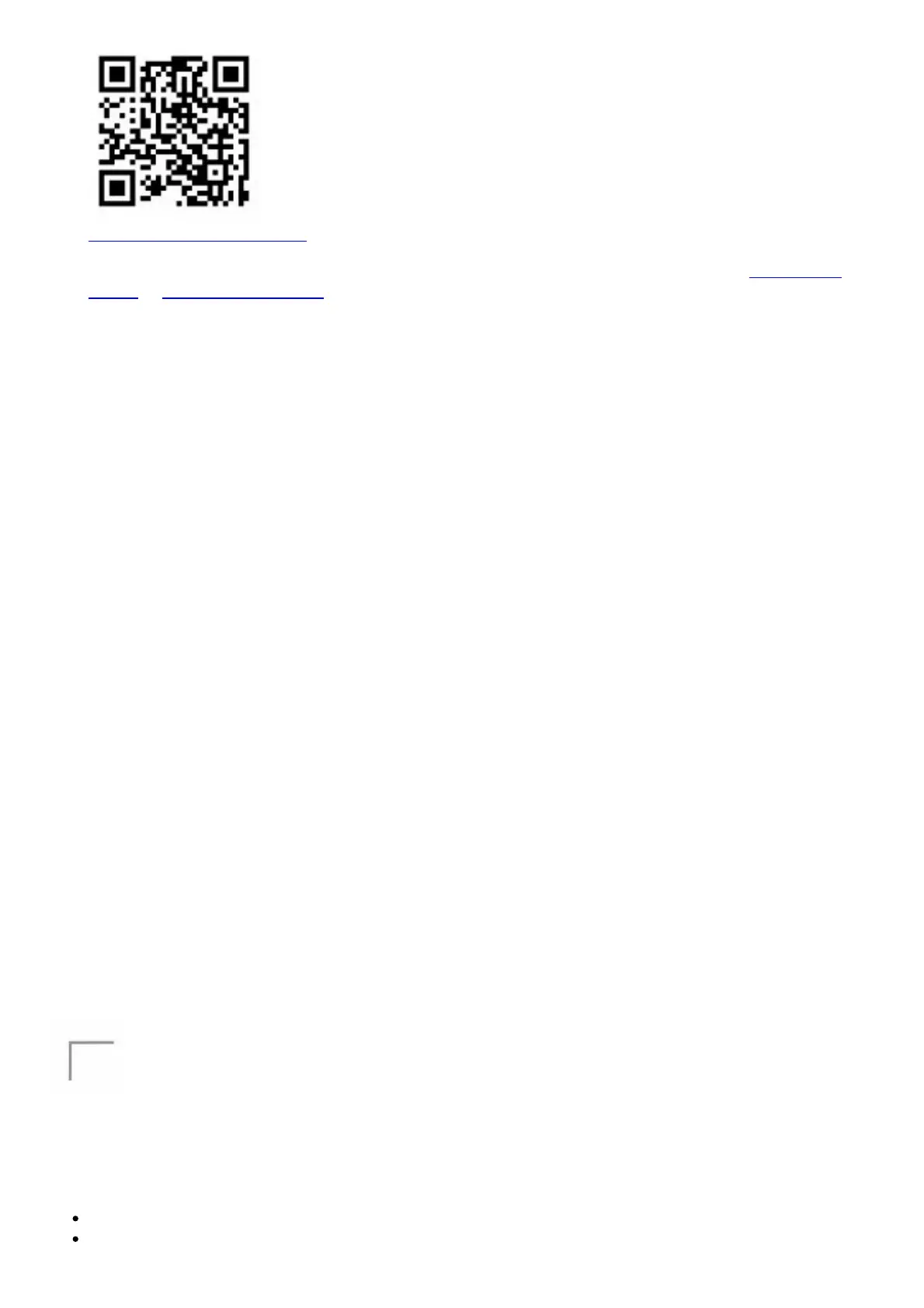
http://onelink.to/hmprr2
1. Scan the QR code to download the ARRIS SURFboard Manager mobile app from the Apple App
Store or Google Play Store.
2. Follow the mobile app prompts to configure your Wi-Fi network connection.
Connect Using Your Mobile Device
Some of the selections used in this procedure may vary slightly depending on your mobile device
operating system. Please make sure to select the most applicable selections on your mobile device.
1. Access the Settings screen on your mobile device and then select Wi-Fi, Wireless, or Connections.
2. Check that Wi-Fi or Wireless is set to ON.
For Apple devices, you may have to enter a password and then select JOIN.
3. Select the SBG10 Wi-Fi network from the list of available Wi-Fi networks.
4. Enter your Wi-Fi network password in the Password field and select Join or Connect.
This is the password that you set up during the SBG10 activation.
Test Your Wi-Fi Network Connection
1. If connected, disconnect the Ethernet cable from your computer and SBG10.
2. Open any web browser on your computer.
3. Type a valid URL (such as www.surfboard.com) in the web browser address bar and press Enter.
Start the Wi-Fi Cable Modem Web Manager
Use the SBG10 Web Manager to set up and manage your SBG10 and network security configurations.
To access the web manager:
1. Open any web browser on your computer, type 192.168.0.1 in the address bar and press Enter.
2. Type the default login user name: admin
3. Type the default login password: password
Wi-Fi Cable Modem Label
The Wi-Fi cable modem label is located on the bottom of your SBG10.
To receive high-speed Internet service, your service provider may request the Media Access Control
(MAC) address (see HFC MAC ID) and Serial number (see S/N) listed on the SBG10 label.
If the label is not attached here, please check the bottom of your SBG10 for the label
You may need the following Wi-Fi cable modem label information to activate your Wi-Fi cable modem
and set up a Wi-Fi home network connection:
Model – Wi-Fi cable modem model name
SSID – Default network name for your Wi-Fi home network.




 To Next Page