VERSION: 2014.01.31
Wi-Fi SETUP
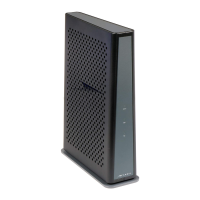
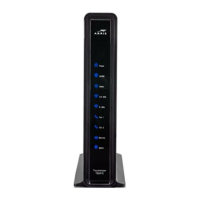
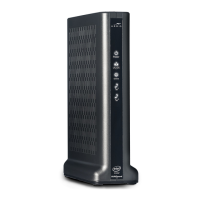
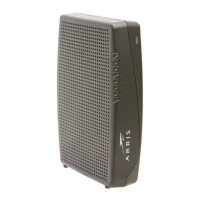
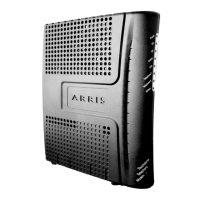
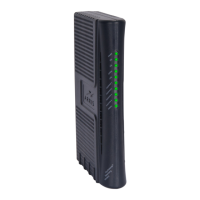
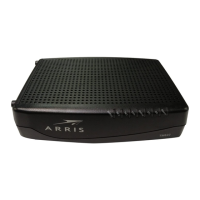
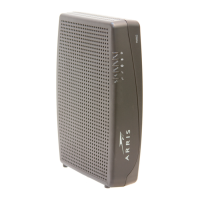
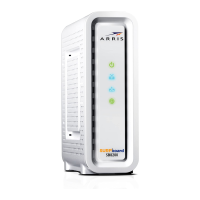
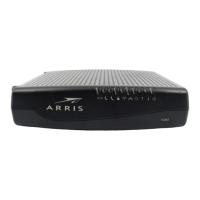
ARRIS TG862 CABLE MODEM
www.tkscable.com
GETTING STARTED CHECKLIST
Your easyConnect Internet and phone service must be activated and fully functional.
First setup a standard “wired” connection to assure that everything is working correctly.
Your computer or mobile device must be equipped with a WLAN or Wi-Fi adapter.
Make sure that the wireless adapter is switched “on” or that Wi-Fi is “enabled”.
SETUP A WIRELESS NETWORK CONNECTION | WINDOWS
1. Network name and password.
Write down your modem’s unique wireless Network Name (SSID) and Pre-Shared Key. Please see page 2 to find out how to get
this information.
2. Connect to your network.
Now connect your Wi-Fi enabled devices to the wireless network identified above, the Pre-Shared Key is your login password.
Windows PC Connection:
Go to: Start > Control Panel > Network and Sharing Center > click on Connect to a network
Select your modem’s wireless network (SSID) from the list of available networks, then click on Connect.
When prompted to type in the network security key or passphrase, carefully enter the modem’s
Pre-Shared Key, then click on Connect. TIP: Save the network settings to automatically connect.
3. Connection established.
Once your wireless connection has been successfully established, simply launch your web browser and start surfing!

 Need help?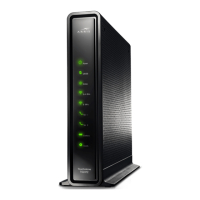

 To Next Page
 General