6. MINIFUSE CONTROL CENTER
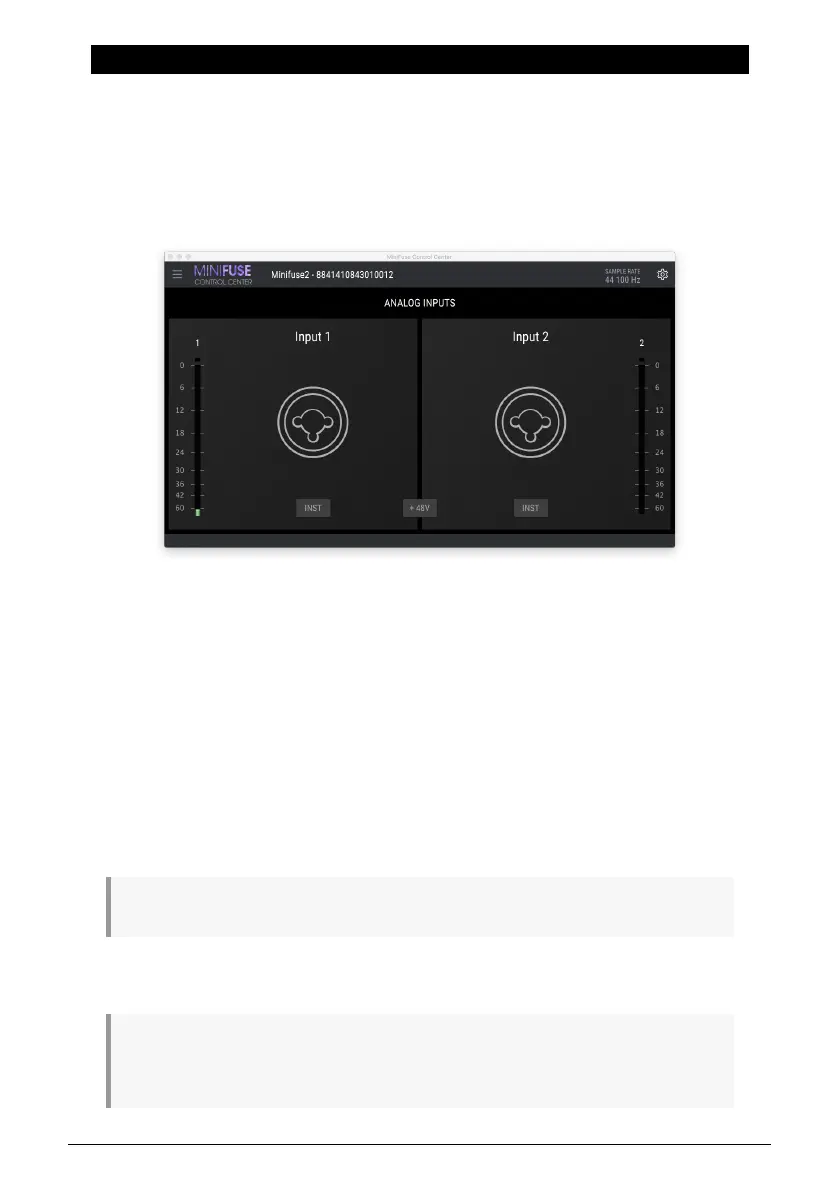
Your MiniFuse 2 includes a convenient control center application that makes it possible to
access many of its features directly from your computer.
The application can be found in:
• Mac: Applications\Arturia\MiniFuse Control Center
• Windows: C:\Program Files (x86)\Arturia\MiniFuse Control Center
6.1. Top Toolbar
Clicking on the Main Menu icon in the upper left corner provides access to:
• Resize Window adjusts the size of the application for optimal viewing.
• Manual opens this user manual.
• About displays the software version and other information.
To the right of the application logo you can access the Device Selection. If more than one
MiniFuse devices are connected to your machine you can click the device name and select
a device from the list to access its settings.
The Sample Rate displays the currently selected sample rate.
Sample rate can be changed in your host application or computer settings.
The Gear button in the upper right display the firmware update window. Here you can check
the selected device's current firmware version, and see if there are any updates available.
Firmware updates are an important way of offering you continued product support and new
features. We recommend checking for updates periodically to ensure that you are getting the most
optimal experience with your MiniFuse 2.
20 Arturia - User Manual MiniFuse 2 - MINIFUSE CONTROL CENTER


 To Next Page