7.1.1.2. Change system audio output on Windows
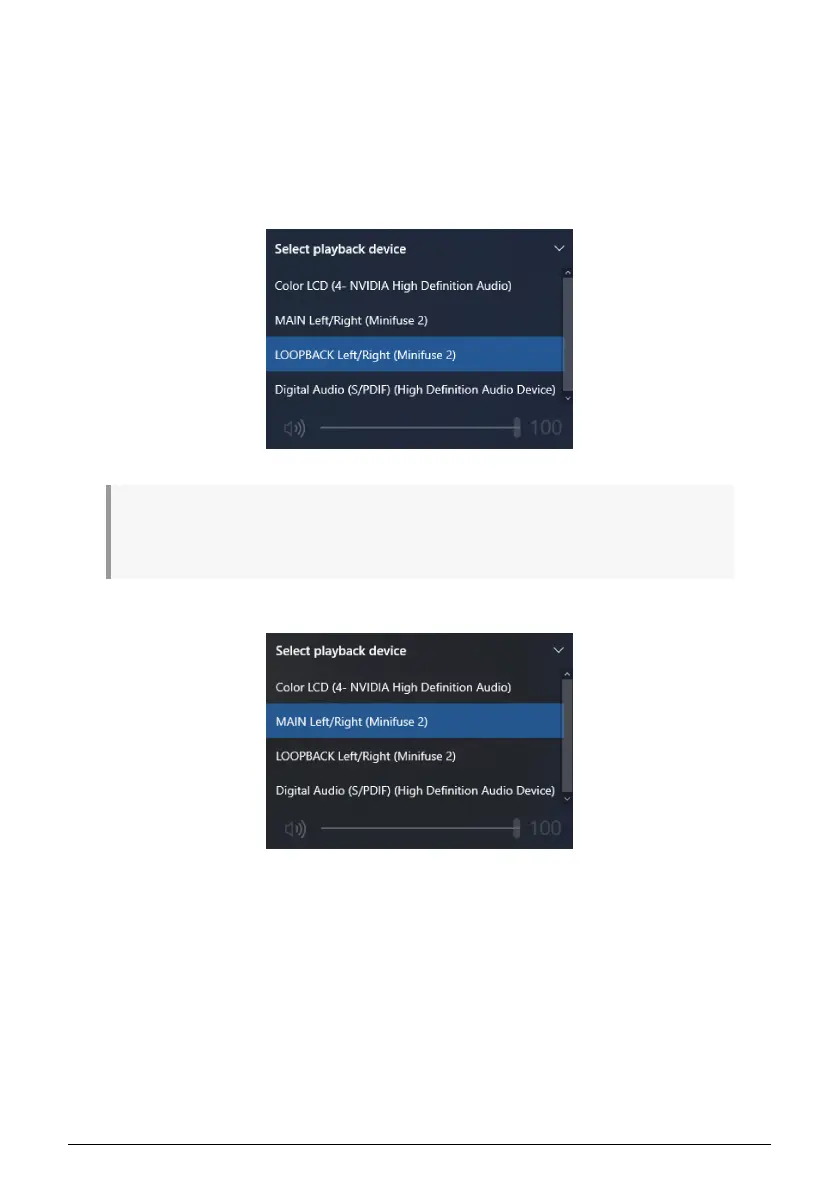
1. In the Windows taskbar, click the Speaker icon, then click the arrow to expand the view.
2. You will see a menu of available outputs. By default this will be set to "MAIN Left/
Right", which will route any computer audio through the speaker outputs on the rear of the
MiniFuse.
3. To route to Loopback instead, select the "LOOPBACK Left/Right" output.
Once you change your system output to use the Loopback output, you will not be able to hear any
computer audio until you a) record-enable a channel in your recording application, or b) switch the
output back to "MAIN Left/Right" from the Speaker icon in the taskbar.
4. To change the output back, select "MAIN Left/Right" output from the menu.
Arturia - User Manual MiniFuse 2 - LOOPBACK RECORDING FEATURE 27


 To Next Page
 Loading...