TD 92579EN
15 February 2012 / Ver. H
Installation and Operation Manual
IP-DECT Base Station & IP-DECT Gateway (software version 5.0.x)
44
Note: In order to determine the IP address it is necessary that the computer is connected
to the same LAN (broadcast domain) as the IPBS/IPBL.
Determine the IP address following the steps below:
Note: If the IPBS/IPBL has been used before, it must be restored to factory default settings
by performing a long hardware reset, see
8.23 Reset Using the Reset Button on page 138.
Then remove the power supply cable and connect it again.
1 Open a command window in windows by selecting Start > Run and enter "cmd" in
the Open: text field.
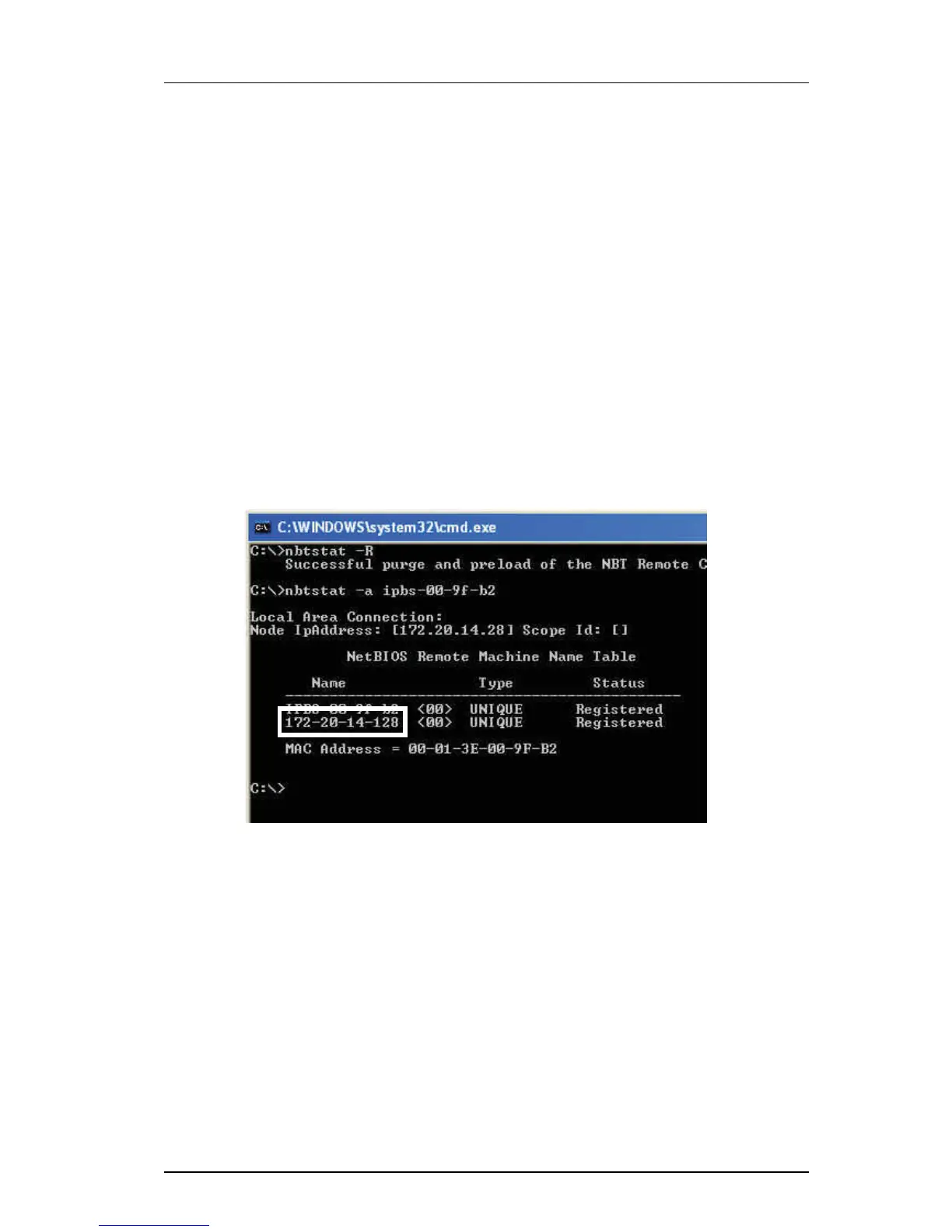
2 Enter the following commands:
C:\ nbtstat -R
C:\ nbtstat -a ipbs-xx-xx-xx (in case of IPBL, enter "ipbl-xx-xx-xx")
Where xx-xx-xx should be replaced with the last 6 hexadecimal digits of the MAC-
address.
3 The IP address is displayed in the command window, see the white frame in figure
below.
Figure 17.
4 Enter http://xxx.xxx.xxx.xxx (where xxx.xxx.xxx.xxx is the determined IP address) in
the browser to access the GUI.
5 After the first startup of the IPBS/IPBL do the following:
On the IPBS: Select LAN1 > DHCP
On the IPBL: Select LAN1 > DHCP
6In Mode drop-down list, change the DHCP mode from "automatic" to "client" or
"disabled".
7.2.2 Change the Default Password
1 Enter the IP address determined in 7.2.1 Determine the IP Address in the web
browser address field.
2 Select General > Admin.
018



 To Next Page