17 of 38
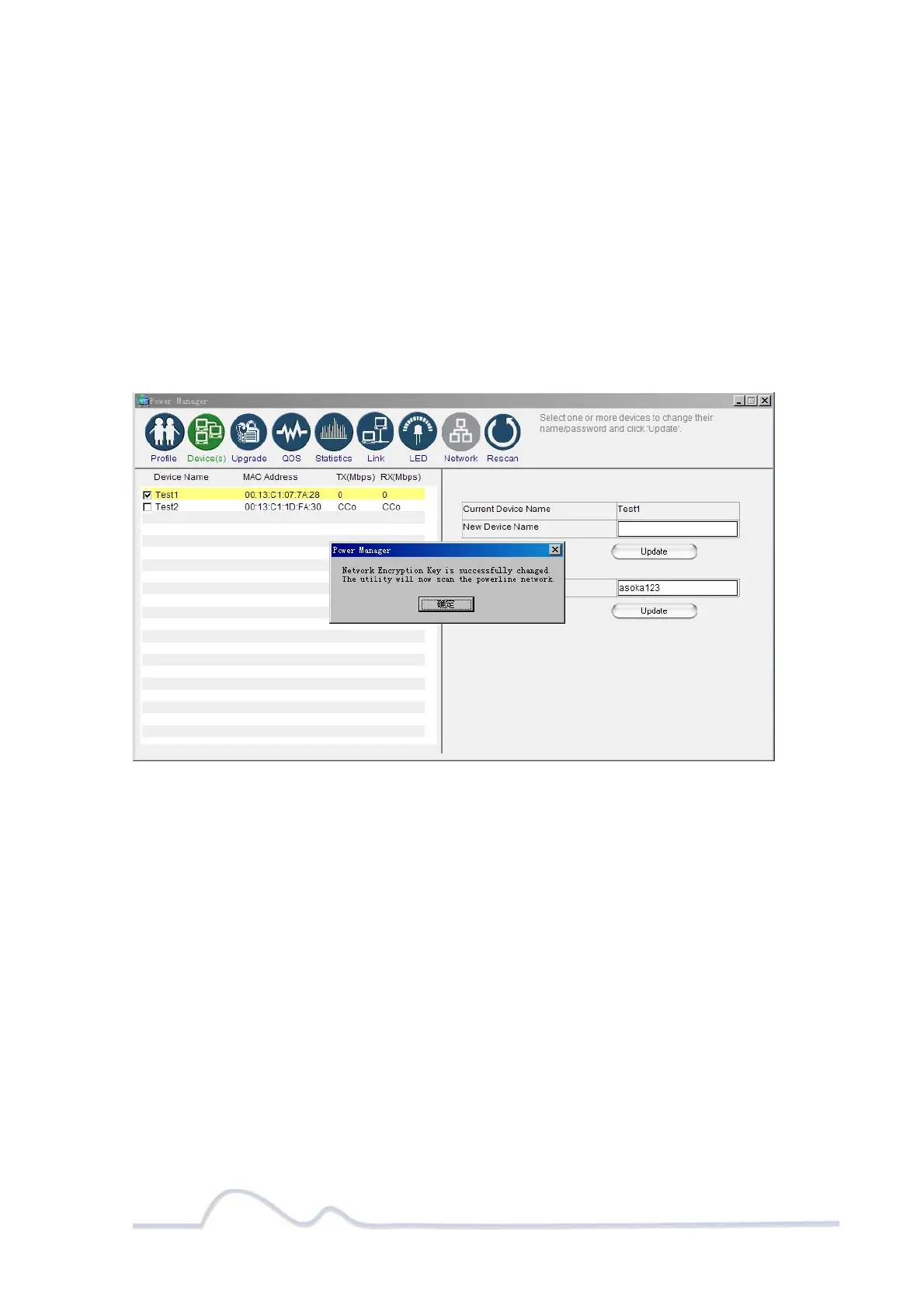
5. Select your local device, by clicking on the first device MAC Address from
the list. Make sure that the device selected is highlighted in yellow.
IMPORTANT: You must check the box to the left of the Device Name.
6. Enter the new Network Encryption Key (NEK) in the New Network Password
field. The new Network Password must be at least 8 characters long and
can not have spaces.
7. Click “Update” to update the new Network Password.
8. If the new Network Password was accepted, the message “Network
Encryption Key is successfully changed. The utility will now scan the
powerline network” will appear.
9. Congratulations, you have successfully changed your local device Network
Password.
Changing your local device Network Encryption Key (NEK)


 To Next Page