10. Expansion slot brackets. Remove the expansion slot bracket when installing an
expansion card.
11. Voltage selector. Use this switch to select the appropriate system input voltage
according to the voltage supply in your area. If the voltage supply in your area is 100-
127V, set the switch to 115V. If the voltage supply in your area is 200-240V, set the
switch to 230V.
Setting the switch to 115V in a 230V environment or 230V in a 115V environment will
seriously damage the system!
80 Plus power supplies do not provide a voltage switch.
12. Air vents. These vents allow air ventilation.
DO NOT block the air vents on the chassis. Always provide proper ventilation for your
computer.
13. Power connector. Plug the power cord to this connector.
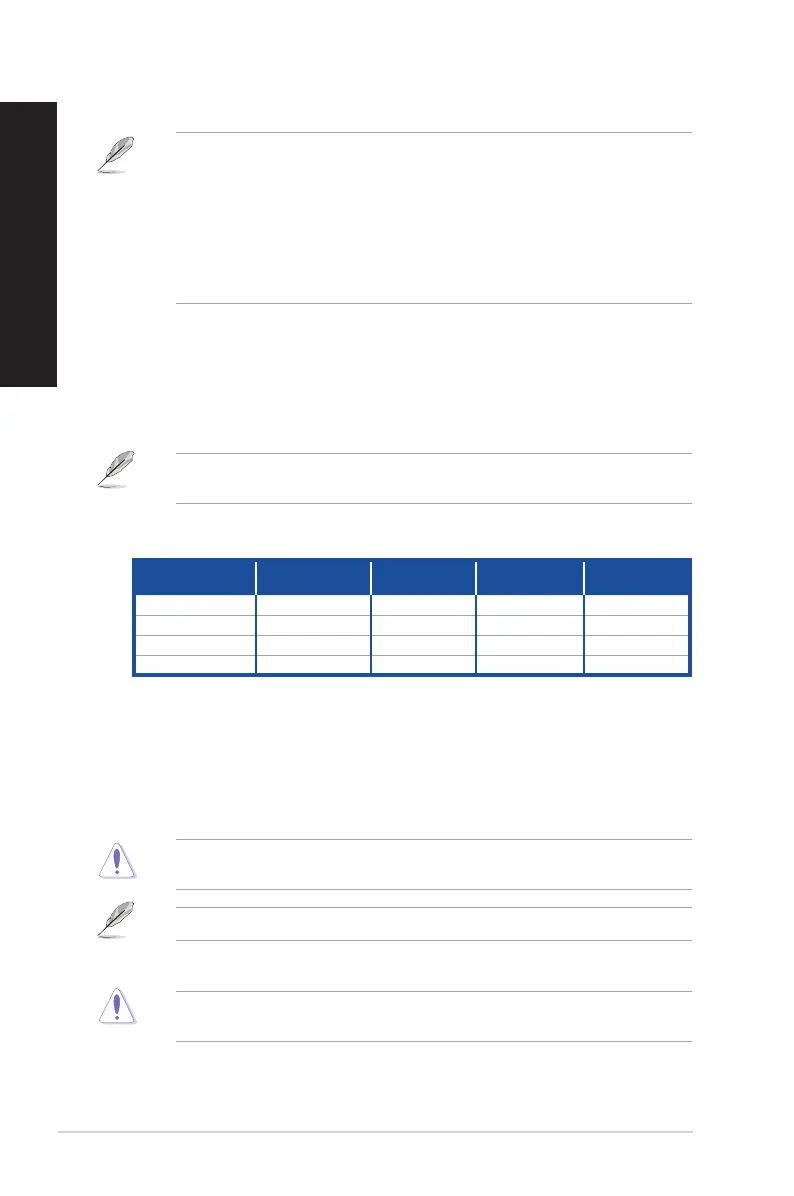
Audio 2.1, 4.1, 5.1, or 7.1-channel configuration
Port
Headset
2.1-channel
4.1-channel 5.1-channel 7.1-channel
Light Blue (Rear panel) Line In Rear Speaker Out Rear Speaker Out Rear Speaker Out
Lime (Rear panel) Line Out Front Speaker Out Front Speaker Out Front Speaker Out
Pink (Rear panel) Mic In Mic In Bass/Center Bass/Center
Lime (Front panel) - - - Side Speaker Out
6. USB 3.0 ports. These 9-pin Universal Serial Bus (USB) ports are for USB 3.0 devices.
• DO NOT connect a keyboard / mouse to any USB 3.0 port when installing Windows
®
operating system.
• Due to USB 3.0 controller limitation, USB 3.0 devices can only be used under Windows
®
OS environment and after the USB 3.0 driver installation.
• USB 3.0 devices can only be used as data storage only.
• We strongly recommend that you connect USB 3.0 devices to USB 3.0 ports for faster
and better performance for your USB 3.0 devices.
7. Microphone port (pink). This port connects to a microphone.
8. Line Out port (lime). This port connects to a headphone or speaker. In a 4.1, 5.1, or
7.1-channel conguration, the function of this port becomes Front Speaker Out.
9. Line In port (light blue). This port connects to a tape, CD, DVD player, or other audio
sources.
Refer to the audio conguration table below for the function of the audio ports in the 2.1,
4.1, 5.1, or 7.1-channel conguration.
22 Chapter 1: Getting started
ENGLISH
ENGLISH


 To Next Page