IMPORTANT! Tap the password field
to display the virtual keyboard. Use the
virtual keyboard to key in the network’s
password.
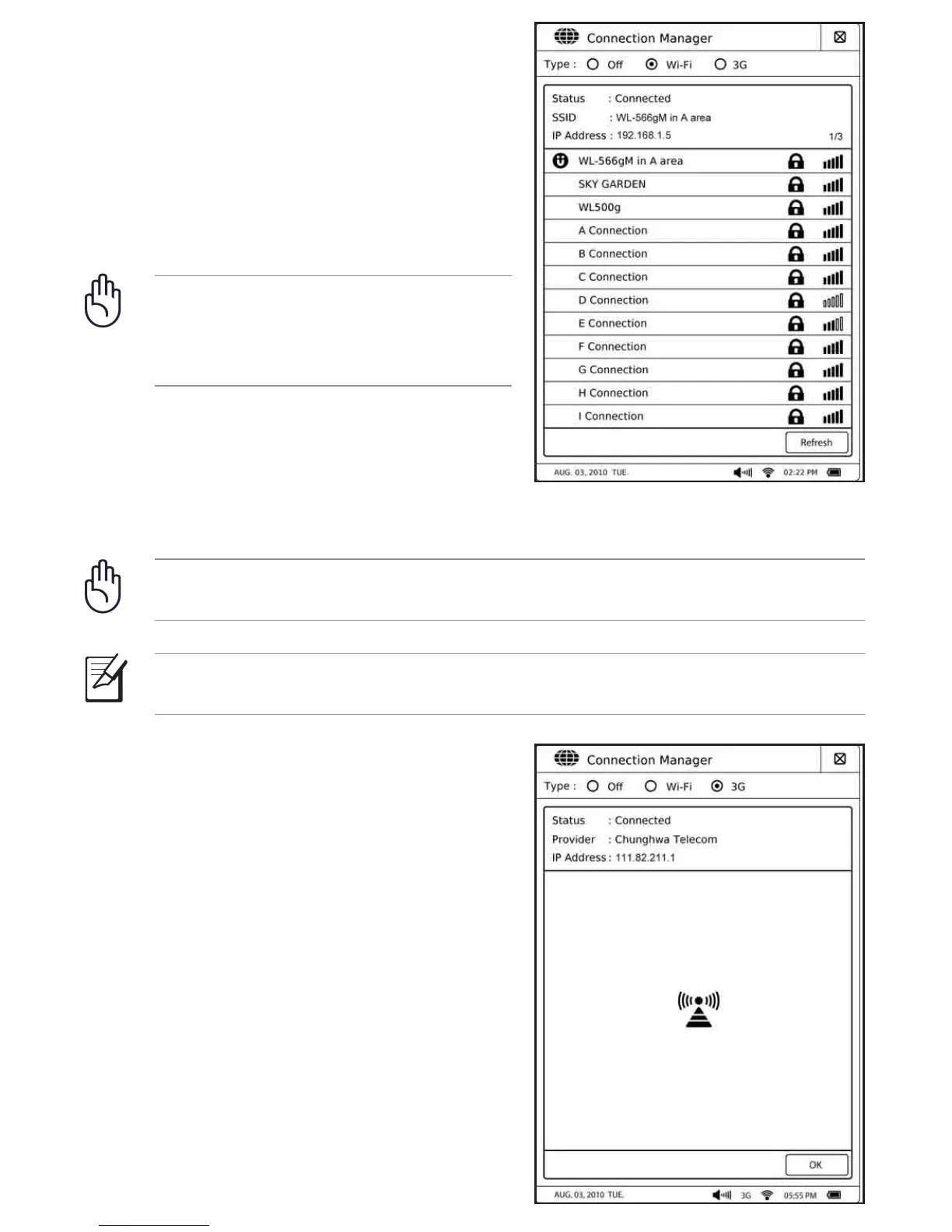
3. From the Connection Manager screen,
select Wi-Fi. The device searches for
available networks.
4. From the list of networks, tap the network
that you want to connect to. Tap Refresh
to refresh the network list.
5. If required, key in the password or passkey,
then click OK.
Using the 3G function
To use the 3G function:
1. From the home screen, tap Setup.
2. From the Setup screen, tap Network.
3. From the Connection Manager screen,
select 3G.
4. Key in the PIN code, and tap OK. Wait for
your device to connect to your 3G network
provider.
IMPORTANT! Ensure that you subscribe to a mobile 3G service. Contact your
mobile service provider for more details about subscribing to this service.
NOTE: The built-in 3G function is included only in selected ASUS Eee Reader
models.



 To Next Page